目錄
容器除錯:docker logs、exec、inspect、cp、stats
容器在背景執行,出錯時不會直接顯示在畫面上。這一節整理最常用的除錯工具,並實際重現幾個常見錯誤。本節的例子都以一個 nginx 容器為對象:
docker run -d --name web -p 8080:80 nginx:1.30查看日誌:docker logs
容器主程序輸出到標準輸出(stdout)和標準錯誤(stderr)的內容,都可以用 docker logs 查看。先對 nginx 發幾個請求(其中 /page1 到 /page3 不存在),再看日誌:
$ docker logs --tail 3 web
2026/10/12 23:52:59 [error] 28#28: *3 open() "/usr/share/nginx/html/page3" failed (2: No such file or directory), client: 172.18.0.1, server: localhost, request: "GET /page3 HTTP/1.1", host: "localhost:8080"
172.18.0.1 - - [12/Oct/2026:23:52:59 +0000] "GET /page3 HTTP/1.1" 404 153 "-" "curl/8.22.0" "-"
172.18.0.1 - - [12/Oct/2026:23:52:59 +0000] "GET / HTTP/1.1" 200 896 "-" "curl/8.22.0" "-"

$ docker logs --tail 2 -t web
2026-10-12T23:52:59.403434333Z 172.18.0.1 - - [12/Oct/2026:23:52:59 +0000] "GET /page3 HTTP/1.1" 404 153 "-" "curl/8.22.0" "-"
2026-10-12T23:52:59.503902089Z 172.18.0.1 - - [12/Oct/2026:23:52:59 +0000] "GET / HTTP/1.1" 200 896 "-" "curl/8.22.0" "-"| 參數 | 作用 |
|---|---|
--tail 3 | 只看最後 3 行 |
-t | 每行前面加上 Docker 記錄的時間戳記 |
-f | 持續追蹤新的日誌(類似 tail -f),Ctrl + C 離開 |
--since 10m | 只看最近 10 分鐘(也可以寫 2026-10-12T23:00:00) |
容器已經停止也能看日誌,這是排查「為什麼掛掉」的第一步。
stdout 與 stderr
把日誌存成檔案時,會發現一件奇怪的事:
$ docker logs --since 1m web > out.log; wc -l out.log
2026/10/12 23:52:57 [notice] 1#1: using the "epoll" event method
2026/10/12 23:52:57 [notice] 1#1: nginx/1.30.5
2026/10/12 23:52:57 [notice] 1#1: built by gcc 14.2.0 (Debian 14.2.0-19)
2026/10/12 23:52:57 [notice] 1#1: OS: Linux 5.4.0-216-generic
2026/10/12 23:52:57 [notice] 1#1: getrlimit(RLIMIT_NOFILE): 1048576:1048576
2026/10/12 23:52:57 [notice] 1#1: start worker processes
2026/10/12 23:52:57 [notice] 1#1: start worker process 28
2026/10/12 23:52:59 [error] 28#28: *1 open() "/usr/share/nginx/html/page1" failed (2: No such file or directory), client: 172.18.0.1, server: localhost, request: "GET /page1 HTTP/1.1", host: "localhost:8080"
2026/10/12 23:52:59 [error] 28#28: *2 open() "/usr/share/nginx/html/page2" failed (2: No such file or directory), client: 172.18.0.1, server: localhost, request: "GET /page2 HTTP/1.1", host: "localhost:8080"
2026/10/12 23:52:59 [error] 28#28: *3 open() "/usr/share/nginx/html/page3" failed (2: No such file or directory), client: 172.18.0.1, server: localhost, request: "GET /page3 HTTP/1.1", host: "localhost:8080"
13 out.log

$ docker logs --since 1m web > all.log 2>&1; wc -l all.log
23 all.log
已經用 > 導向檔案了,nginx 的啟動訊息和錯誤日誌還是印在螢幕上,檔案裡只有 13 行。原因是 docker logs 會分開保留 stdout 和 stderr:nginx 的存取紀錄寫到 stdout,錯誤與啟動訊息寫到 stderr。> 只導向 stdout,加上 2>&1 才會把兩者都存進檔案(23 行)。用 grep 過濾日誌時也一樣:docker logs web 2>&1 | grep error。
程式如果把日誌寫進容器裡的檔案(例如
/var/log/app.log),docker logs就看不到。官方映像檔通常會把日誌導向 stdout / stderr;自己寫的程式也建議直接輸出到 stdout。
進入容器:docker exec
在執行中的容器內執行指令:
$ docker exec web cat /etc/nginx/conf.d/default.conf | head -n 12
server {
    listen       80;
    listen  [::]:80;
    server_name  localhost;

    #access_log  /var/log/nginx/host.access.log  main;

    location / {
        root   /usr/share/nginx/html;
        index  index.html index.htm;
    }

$ docker exec -u nginx web whoami
nginx

$ docker exec -e DEBUG=1 web sh -c "echo DEBUG=\$DEBUG"
DEBUG=1| 寫法 | 作用 |
|---|---|
docker exec -it web bash | 開一個互動 shell(精簡映像檔沒有 bash 時改用 sh) |
docker exec web 指令 | 執行單一指令,輸出直接回到你的終端機 |
docker exec -u nginx web … | 以指定的使用者執行 |
docker exec -e KEY=VALUE web … | 帶入環境變數 |
exec 開的是一個額外的程序,離開(exit)不會讓容器停止。
如果容器一啟動就退出,exec 就用不了(容器不在執行中)。這時可以用 --entrypoint 開一個新容器,不執行原本的服務,直接進去看看:
$ docker run --rm --entrypoint sh nginx:1.30 -c "ls /docker-entrypoint.d"
10-listen-on-ipv6-by-default.sh
15-local-resolvers.envsh
20-envsubst-on-templates.sh
30-tune-worker-processes.sh
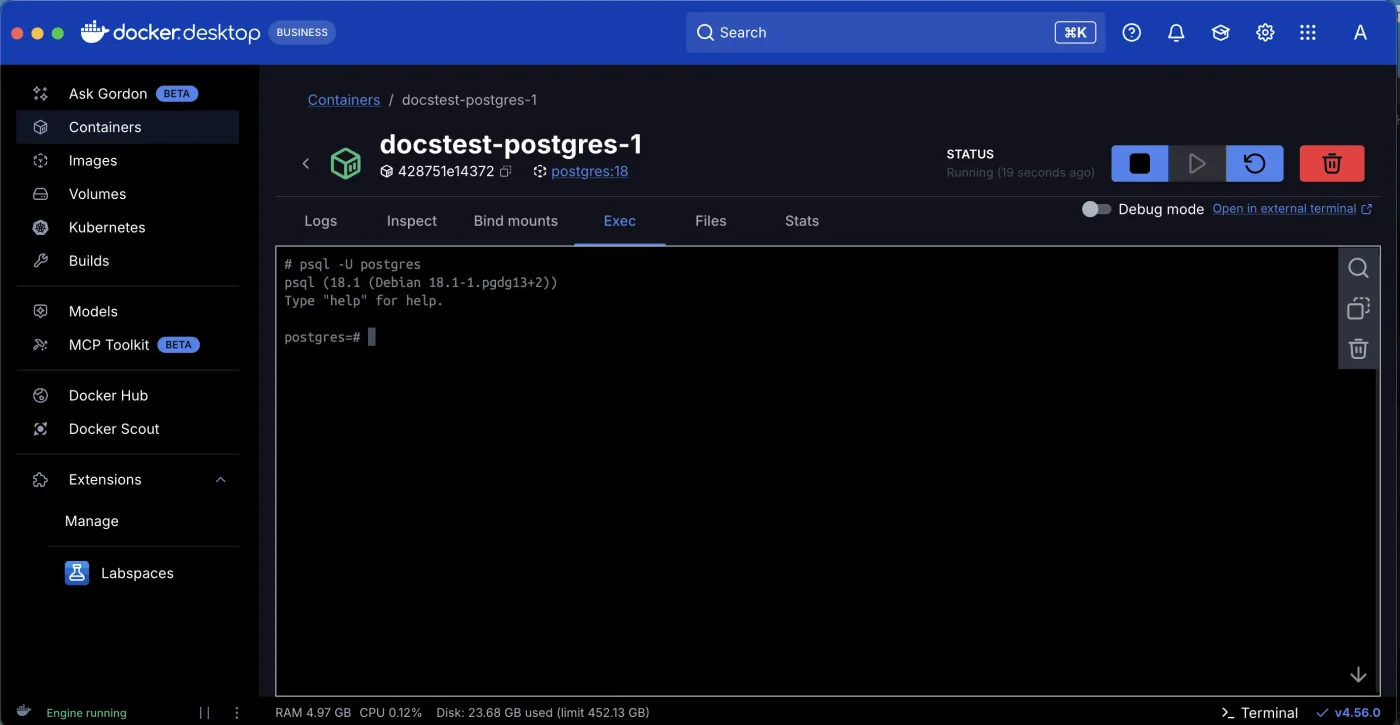
在 Docker Desktop 中,點進容器後的 Exec 分頁也能開一個 shell:
查看設定與狀態:docker inspect
docker inspect 輸出容器的完整設定和狀態(JSON),搭配 --format 取出需要的欄位:
$ docker inspect --format '{{.State.Status}} {{.State.ExitCode}}' web
running 0

$ docker inspect --format '{{range .NetworkSettings.Networks}}{{.IPAddress}}{{end}}' web
172.18.0.2

$ docker inspect --format '{{json .HostConfig.PortBindings}}' web
{"80/tcp":[{"HostIp":"","HostPort":"8080"}]}

$ docker inspect --format '{{.Path}} {{.Args}}' web
/docker-entrypoint.sh [nginx -g daemon off;]| 想知道 | 欄位 |
|---|---|
| 為什麼停止 | .State.ExitCode、.State.Error、.State.OOMKilled |
| 掛載了哪些資料夾 | .Mounts |
| 環境變數 | .Config.Env |
| 實際執行的指令 | .Path、.Args |
| IP 位址 | .NetworkSettings.Networks |
| 連接埠對應 | .HostConfig.PortBindings |
| 重啟次數 | .RestartCount |
複製檔案:docker cp
在主機和容器之間複製檔案,容器停止時也可以用:
$ docker cp web:/etc/nginx/nginx.conf ./nginx.conf

$ head -n 5 nginx.conf

user  nginx;
worker_processes  auto;

error_log  /var/log/nginx/error.log notice;

$ echo "<h1>copied in</h1>" > index.html

$ docker cp ./index.html web:/usr/share/nginx/html/

$ curl -s http://localhost:8080
<h1>copied in</h1>
適合把設定檔拿出來參考,或臨時放一個檔案進去測試。正式的做法還是寫進 Dockerfile 或用 Volume 掛載。
資源與程序:docker stats、top、diff
$ docker stats --no-stream
CONTAINER ID   NAME      CPU %     MEM USAGE / LIMIT    MEM %     NET I/O          BLOCK I/O       PIDS
4a43d09d0bcb   web       0.00%     7.59MiB / 1.919GiB   0.39%     2.79kB / 2.5kB   15MB / 8.19kB   2

$ docker top web
PID                 USER                TIME                COMMAND
1180                root                0:00                nginx: master process nginx -g daemon off;
1238                101                 0:00                nginx: worker process
docker stats:CPU、記憶體、網路、硬碟 I/O。不加--no-stream會持續更新(Ctrl + C離開)。沒有設定記憶體上限時,LIMIT 就是主機(或 Docker Desktop 虛擬機)的總記憶體。docker top:容器內的程序。nginx 映像檔裡沒有ps指令(見 第一個容器),docker top可以從外面看。
$ docker diff web
C /run
A /run/nginx.pid
C /etc
C /etc/nginx
C /etc/nginx/conf.d
C /etc/nginx/conf.d/default.conf
C /usr
C /usr/share
C /usr/share/nginx
C /usr/share/nginx/html
C /usr/share/nginx/html/index.html
C /var
C /var/cache
C /var/cache/nginx
A /var/cache/nginx/client_temp
A /var/cache/nginx/fastcgi_temp
A /var/cache/nginx/proxy_temp
A /var/cache/nginx/scgi_temp
A /var/cache/nginx/uwsgi_temp
docker diff 列出容器的可寫層和原本的映像檔相比,新增(A)、修改(C)、刪除(D)了哪些檔案。可以看到剛才 docker cp 進去的 index.html 被標為修改,default.conf 則是 nginx 啟動腳本自動修改的(啟用 IPv6)。這些變更在容器刪除時都會消失。
常見問題實例
容器一啟動就退出
$ docker run -d --name broken postgres:18
Unable to find image 'postgres:18' locally
18: Pulling from library/postgres
ecc510c1e359: Already exists
4a3cafbebf6d: Pull complete
28ced28a309b: Pull complete
ab69e2551985: Pull complete
1f04dfa92b9f: Pull complete
5a487c9461a5: Pull complete
e0d4a6e58470: Pull complete
496ce2ef5b2f: Pull complete
c8145e79cc2b: Pull complete
d23c975c4693: Pull complete
06ea90d3bcc9: Pull complete
dc25540d793f: Pull complete
7967f593457f: Pull complete
Digest: sha256:74935e72241653ca55e0414067e6d8763aceb8a810eb51b452253ec3dcfc4336
Status: Downloaded newer image for postgres:18
05a9084084fc2b744e4414e95323159bbc7455a1872784176f7333d31e875bda

$ docker ps -a --filter name=broken
CONTAINER ID   IMAGE         COMMAND                  CREATED         STATUS                     PORTS     NAMES
05a9084084fc   postgres:18   "docker-entrypoint.s…"   4 seconds ago   Exited (1) 4 seconds ago             broken

$ docker logs broken
Error: Database is uninitialized and superuser password is not specified.
       You must specify POSTGRES_PASSWORD to a non-empty value for the
       superuser. For example, "-e POSTGRES_PASSWORD=password" on "docker run".

       You may also use "POSTGRES_HOST_AUTH_METHOD=trust" to allow all
       connections without a password. This is *not* recommended.

       See PostgreSQL documentation about "trust":
       https://www.postgresql.org/docs/current/auth-trust.html
docker run -d 印出容器 ID 就以為成功了,但 docker ps -a 顯示它幾秒後就 Exited (1)。docker logs 直接告訴你原因:沒有設定 POSTGRES_PASSWORD。排查順序永遠是:docker ps -a 看狀態 → docker logs 看原因。
連接埠已被使用
$ docker run -d -p 8080:80 nginx:1.30
c7b7a64eab9314885fb41d5ac82352c519240a17ea2e2e53098a0536a3264e6c
docker: Error response from daemon: failed to set up container networking: driver failed programming external connectivity on endpoint youthful_aryabhata (aff407d4a63df5baee04263bfdc54732e45cb69016b909a8e809c9010d81e926): Bind for 0.0.0.0:8080 failed: port is already allocated

Run 'docker run --help' for more information
主機的 8080 已經被 web 容器佔用了。注意第一行仍然印出了容器 ID:容器其實已經建立,只是啟動失敗,會以 Created 狀態留在 docker ps -a 裡,記得刪掉它。解決方法:換一個主機連接埠(-p 8081:80),或找出佔用者(docker ps,非 Docker 的程式用 sudo lsof -i :8080)。
exec format error
$ docker run --rm --platform linux/arm64 alpine:3.23 uname -m
Unable to find image 'alpine:3.23' locally
3.23: Pulling from library/alpine
ace1621be7ff: Pull complete
Digest: sha256:85fe1e81d6758c208f3e1eed4338a1997e19d4be002d4dd32d3100c9a8c010a0
Status: Image is up to date for alpine:3.23
exec /bin/uname: exec format error
這台主機是 amd64(x86_64),強制執行 arm64 版本的映像檔,程式根本無法在這顆 CPU 上執行。實務上最常見的情況是:在 Apple Silicon Mac 上建置的映像檔,放到一般的 x86 雲端主機上執行。解決方法見 多平台映像檔。
記憶體不足(OOM)
容器超過 --memory 設定的上限時,Linux 核心會強制結束程序:
docker ps -a顯示Exited (137)docker inspect --format '{{.State.OOMKilled}}' 容器名稱顯示true
遇到 137 但 OOMKilled 是 false,通常是被 docker kill 或 docker stop 逾時強制結束的。調高 --memory,或檢查程式是否有記憶體洩漏。
no space left on device
Docker 用掉的硬碟空間太多了。先用 docker system df 查看:
$ docker system df
TYPE            TOTAL     ACTIVE    SIZE      RECLAIMABLE
Images          6         2         1.026GB   757.3MB (73%)
Containers      3         2         122.9kB   4.096kB (3%)
Local Volumes   1         0         0B        0B
Build Cache     0         0         0B        0B
RECLAIMABLE 是可以清掉的部分,清理方法見 清理硬碟空間。
排查流程整理
docker ps -a:容器是否在執行?結束代碼是多少?docker logs 容器(必要時加2>&1 | grep):程式自己說了什麼?- 對照結束代碼:
1看日誌、127找不到指令、137被強制結束或 OOM、139程式崩潰(segfault)。 docker inspect:確認環境變數、掛載、連接埠、執行的指令是否和預期一樣。docker run -it --rm --entrypoint sh 映像檔:進去手動執行看看缺了什麼。
重點回顧
- 先看
docker ps -a的狀態與結束代碼,再看docker logs。 docker exec進入執行中的容器,docker cp取出檔案。docker inspect -f查設定與狀態,docker stats看資源用量。- 容器一啟動就退出時,用
--entrypoint sh啟動新容器手動排查。
動手練習
練習 1:執行 docker run --name broken alpine:3.23 ls /not-exist,用本章的方法找出它為什麼失敗、結束代碼是多少。
答案
docker ps -a --filter name=broken
docker logs broken
docker inspect -f "{{.State.ExitCode}}" broken
日誌顯示 ls: /not-exist: No such file or directory,結束代碼是 1。
練習 2:啟動 docker run -d --name w nginx:1.30-alpine,在容器內建立一個檔案後,用什麼指令可以列出容器和映像檔相比改變了哪些檔案?
答案
docker diff w。A 是新增、C 是變更、D 是刪除,原理見 底層原理。
常見問題
容器一啟動就退出,exec 進不去怎麼辦?
先看 docker logs 容器;再用 docker run --rm -it --entrypoint sh 映像檔 啟動一個新容器,手動執行原本的指令看錯誤。
docker logs 太多看不完?
用 --tail 50 只看最後 50 行,或 --since 10m 只看最近 10 分鐘,再搭配 2>&1 | grep 關鍵字。完整參數見 [docker logs](/zh-tw/docker/docker-logs/)。
哪裡可以查到錯誤訊息的意思?
見 [常見錯誤訊息大全](/zh-tw/docker/errors/),整理了 25 種錯誤的實際輸出與解法。
更新於 2026年10月14日