Contents
Docker Debugging Tutorial: Use logs, exec, inspect, cp, and stats
Containers run in the background, so errors don't appear directly on screen. This section covers the most useful debugging tools and reproduces several common errors. All examples use an nginx container:
docker run -d --name web -p 8080:80 nginx:1.30View logs: docker logs
You can use docker logs to view anything the container's main process writes to standard output (stdout) and standard error (stderr). First, send a few requests to nginx (the paths /page1 through /page3 don't exist), then check the logs:
$ docker logs --tail 3 web
2026/10/12 23:52:59 [error] 28#28: *3 open() "/usr/share/nginx/html/page3" failed (2: No such file or directory), client: 172.18.0.1, server: localhost, request: "GET /page3 HTTP/1.1", host: "localhost:8080"
172.18.0.1 - - [12/Oct/2026:23:52:59 +0000] "GET /page3 HTTP/1.1" 404 153 "-" "curl/8.22.0" "-"
172.18.0.1 - - [12/Oct/2026:23:52:59 +0000] "GET / HTTP/1.1" 200 896 "-" "curl/8.22.0" "-"

$ docker logs --tail 2 -t web
2026-10-12T23:52:59.403434333Z 172.18.0.1 - - [12/Oct/2026:23:52:59 +0000] "GET /page3 HTTP/1.1" 404 153 "-" "curl/8.22.0" "-"
2026-10-12T23:52:59.503902089Z 172.18.0.1 - - [12/Oct/2026:23:52:59 +0000] "GET / HTTP/1.1" 200 896 "-" "curl/8.22.0" "-"| Option | Purpose |
|---|---|
--tail 3 | Show only the last 3 lines |
-t | Add Docker's timestamp to the start of each line |
-f | Follow new log entries (like tail -f); press Ctrl + C to stop |
--since 10m | Show only the last 10 minutes (you can also specify 2026-10-12T23:00:00) |
You can view logs even after a container has stopped. This is the first step in figuring out why it stopped.
stdout and stderr
You'll notice something odd when you save the logs to a file:
$ docker logs --since 1m web > out.log; wc -l out.log
2026/10/12 23:52:57 [notice] 1#1: using the "epoll" event method
2026/10/12 23:52:57 [notice] 1#1: nginx/1.30.5
2026/10/12 23:52:57 [notice] 1#1: built by gcc 14.2.0 (Debian 14.2.0-19)
2026/10/12 23:52:57 [notice] 1#1: OS: Linux 5.4.0-216-generic
2026/10/12 23:52:57 [notice] 1#1: getrlimit(RLIMIT_NOFILE): 1048576:1048576
2026/10/12 23:52:57 [notice] 1#1: start worker processes
2026/10/12 23:52:57 [notice] 1#1: start worker process 28
2026/10/12 23:52:59 [error] 28#28: *1 open() "/usr/share/nginx/html/page1" failed (2: No such file or directory), client: 172.18.0.1, server: localhost, request: "GET /page1 HTTP/1.1", host: "localhost:8080"
2026/10/12 23:52:59 [error] 28#28: *2 open() "/usr/share/nginx/html/page2" failed (2: No such file or directory), client: 172.18.0.1, server: localhost, request: "GET /page2 HTTP/1.1", host: "localhost:8080"
2026/10/12 23:52:59 [error] 28#28: *3 open() "/usr/share/nginx/html/page3" failed (2: No such file or directory), client: 172.18.0.1, server: localhost, request: "GET /page3 HTTP/1.1", host: "localhost:8080"
13 out.log

$ docker logs --since 1m web > all.log 2>&1; wc -l all.log
23 all.log
Even though > redirects output to a file, nginx's startup messages and error logs still appear on screen, and the file contains only 13 lines. That's because docker logs keeps stdout and stderr separate: nginx writes access logs to stdout and errors and startup messages to stderr. > redirects only stdout. Add 2>&1 to save both streams to the file (23 lines). The same applies when you filter logs with grep: docker logs web 2>&1 | grep error.
If a program writes logs to a file inside the container (for example,
/var/log/app.log),docker logscan't see them. Official images usually direct logs to stdout / stderr. You should also have your own programs write directly to stdout.
Enter a container: docker exec
Run a command inside a running container:
$ docker exec web cat /etc/nginx/conf.d/default.conf | head -n 12
server {
    listen       80;
    listen  [::]:80;
    server_name  localhost;

    #access_log  /var/log/nginx/host.access.log  main;

    location / {
        root   /usr/share/nginx/html;
        index  index.html index.htm;
    }

$ docker exec -u nginx web whoami
nginx

$ docker exec -e DEBUG=1 web sh -c "echo DEBUG=\$DEBUG"
DEBUG=1| Syntax | Purpose |
|---|---|
docker exec -it web bash | Open an interactive shell (use sh if the minimal image doesn't include bash) |
docker exec web command | Run a single command and send its output directly to your terminal |
docker exec -u nginx web … | Run as a specific user |
docker exec -e KEY=VALUE web … | Pass in an environment variable |
exec starts an additional process. Exiting it with exit doesn't stop the container.
If a container exits as soon as it starts, you can't use exec because the container isn't running. In that case, use --entrypoint to start a new container without running the original service, then go inside and take a look:
$ docker run --rm --entrypoint sh nginx:1.30 -c "ls /docker-entrypoint.d"
10-listen-on-ipv6-by-default.sh
15-local-resolvers.envsh
20-envsubst-on-templates.sh
30-tune-worker-processes.sh
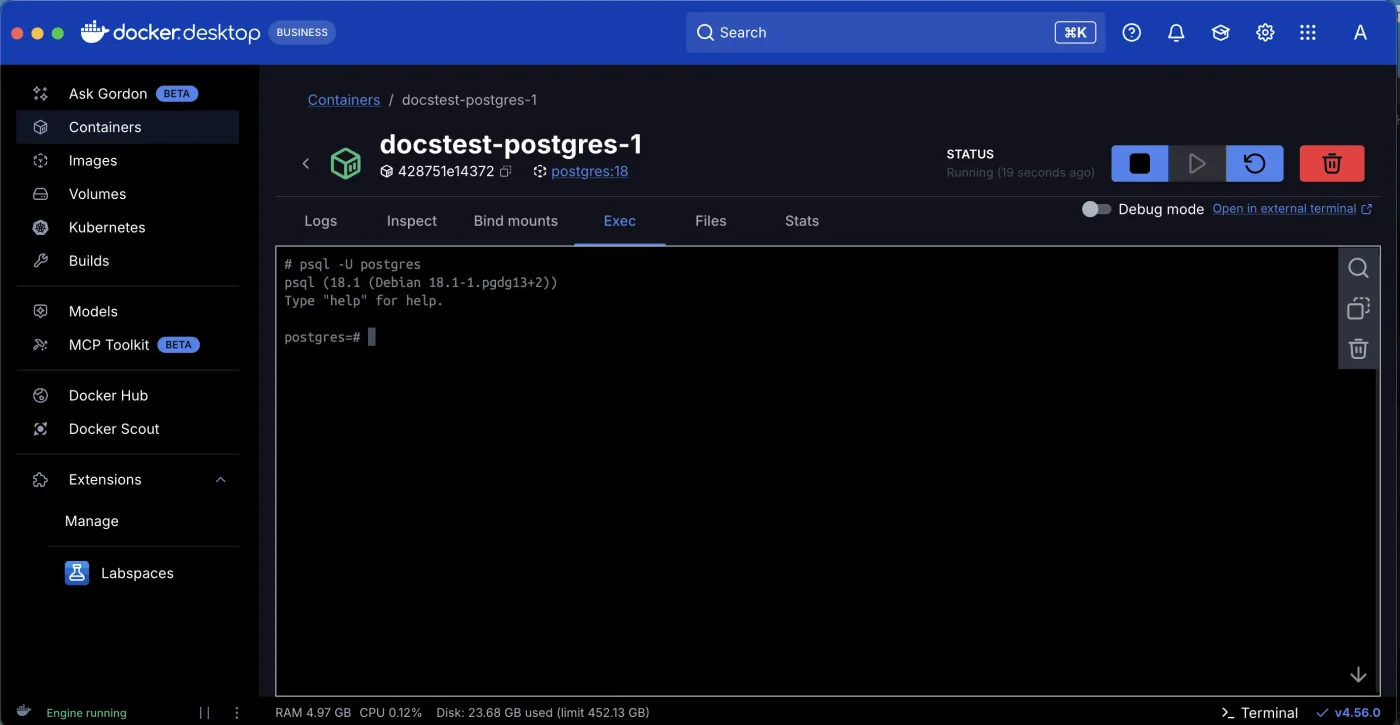
In Docker Desktop, you can also open a shell from the Exec tab after selecting a container:
View configuration and status: docker inspect
docker inspect outputs a container's full configuration and status as JSON. Use --format to extract the fields you need:
$ docker inspect --format '{{.State.Status}} {{.State.ExitCode}}' web
running 0

$ docker inspect --format '{{range .NetworkSettings.Networks}}{{.IPAddress}}{{end}}' web
172.18.0.2

$ docker inspect --format '{{json .HostConfig.PortBindings}}' web
{"80/tcp":[{"HostIp":"","HostPort":"8080"}]}

$ docker inspect --format '{{.Path}} {{.Args}}' web
/docker-entrypoint.sh [nginx -g daemon off;]| To find out | Field |
|---|---|
| Why it stopped | .State.ExitCode, .State.Error, .State.OOMKilled |
| Which folders are mounted | .Mounts |
| Environment variables | .Config.Env |
| The command actually run | .Path, .Args |
| IP address | .NetworkSettings.Networks |
| Port mapping | .HostConfig.PortBindings |
| Restart count | .RestartCount |
Copy files: docker cp
Copy files between the host and a container, even when the container is stopped:
$ docker cp web:/etc/nginx/nginx.conf ./nginx.conf

$ head -n 5 nginx.conf

user  nginx;
worker_processes  auto;

error_log  /var/log/nginx/error.log notice;

$ echo "<h1>copied in</h1>" > index.html

$ docker cp ./index.html web:/usr/share/nginx/html/

$ curl -s http://localhost:8080
<h1>copied in</h1>
This is useful for retrieving a configuration file as a reference or temporarily putting a file inside to test. For production, write it into a Dockerfile or mount it with a Volume.
Resources and processes: docker stats, top, diff
$ docker stats --no-stream
CONTAINER ID   NAME      CPU %     MEM USAGE / LIMIT    MEM %     NET I/O          BLOCK I/O       PIDS
4a43d09d0bcb   web       0.00%     7.59MiB / 1.919GiB   0.39%     2.79kB / 2.5kB   15MB / 8.19kB   2

$ docker top web
PID                 USER                TIME                COMMAND
1180                root                0:00                nginx: master process nginx -g daemon off;
1238                101                 0:00                nginx: worker process
docker stats: CPU, memory, network, and disk I/O. Without--no-stream, it keeps updating; pressCtrl + Cto stop. If no memory limit is set, LIMIT is the total memory on the host (or the Docker Desktop virtual machine).docker top: processes inside the container. The nginx image doesn't include thepscommand (see Your first container);docker toplets you view them from outside.
$ docker diff web
C /run
A /run/nginx.pid
C /etc
C /etc/nginx
C /etc/nginx/conf.d
C /etc/nginx/conf.d/default.conf
C /usr
C /usr/share
C /usr/share/nginx
C /usr/share/nginx/html
C /usr/share/nginx/html/index.html
C /var
C /var/cache
C /var/cache/nginx
A /var/cache/nginx/client_temp
A /var/cache/nginx/fastcgi_temp
A /var/cache/nginx/proxy_temp
A /var/cache/nginx/scgi_temp
A /var/cache/nginx/uwsgi_temp
docker diff lists files added (A), changed (C), or deleted (D) in the container's writable layer compared with the original image. You can see that index.html, which you copied in with docker cp, is marked as changed, while default.conf was automatically modified by the nginx startup script (to enable IPv6). These changes disappear when you delete the container.
Common issues
Container exits on startup
$ docker run -d --name broken postgres:18
Unable to find image 'postgres:18' locally
18: Pulling from library/postgres
ecc510c1e359: Already exists
4a3cafbebf6d: Pull complete
28ced28a309b: Pull complete
ab69e2551985: Pull complete
1f04dfa92b9f: Pull complete
5a487c9461a5: Pull complete
e0d4a6e58470: Pull complete
496ce2ef5b2f: Pull complete
c8145e79cc2b: Pull complete
d23c975c4693: Pull complete
06ea90d3bcc9: Pull complete
dc25540d793f: Pull complete
7967f593457f: Pull complete
Digest: sha256:74935e72241653ca55e0414067e6d8763aceb8a810eb51b452253ec3dcfc4336
Status: Downloaded newer image for postgres:18
05a9084084fc2b744e4414e95323159bbc7455a1872784176f7333d31e875bda

$ docker ps -a --filter name=broken
CONTAINER ID   IMAGE         COMMAND                  CREATED         STATUS                     PORTS     NAMES
05a9084084fc   postgres:18   "docker-entrypoint.s…"   4 seconds ago   Exited (1) 4 seconds ago             broken

$ docker logs broken
Error: Database is uninitialized and superuser password is not specified.
       You must specify POSTGRES_PASSWORD to a non-empty value for the
       superuser. For example, "-e POSTGRES_PASSWORD=password" on "docker run".

       You may also use "POSTGRES_HOST_AUTH_METHOD=trust" to allow all
       connections without a password. This is *not* recommended.

       See PostgreSQL documentation about "trust":
       https://www.postgresql.org/docs/current/auth-trust.html
You might think docker run -d succeeded because it printed a container ID, but docker ps -a shows that it Exited (1) a few seconds later. docker logs tells you why: POSTGRES_PASSWORD wasn't set. The troubleshooting order is always: check the status with docker ps -a → check the reason with docker logs.
Port already in use
$ docker run -d -p 8080:80 nginx:1.30
c7b7a64eab9314885fb41d5ac82352c519240a17ea2e2e53098a0536a3264e6c
docker: Error response from daemon: failed to set up container networking: driver failed programming external connectivity on endpoint youthful_aryabhata (aff407d4a63df5baee04263bfdc54732e45cb69016b909a8e809c9010d81e926): Bind for 0.0.0.0:8080 failed: port is already allocated

Run 'docker run --help' for more information
The web container is already using port 8080 on the host. Notice that the first line still prints a container ID: the container was created, but startup failed, so it remains in the Created state in docker ps -a. Remember to remove it. To fix this, use a different host port (-p 8081:80) or find the process using the port (docker ps; for a non-Docker program, use sudo lsof -i :8080).
exec format error
$ docker run --rm --platform linux/arm64 alpine:3.23 uname -m
Unable to find image 'alpine:3.23' locally
3.23: Pulling from library/alpine
ace1621be7ff: Pull complete
Digest: sha256:85fe1e81d6758c208f3e1eed4338a1997e19d4be002d4dd32d3100c9a8c010a0
Status: Image is up to date for alpine:3.23
exec /bin/uname: exec format error
This host is amd64 (x86_64), and you're forcing it to run an arm64 image. The program can't run on this CPU. A common real-world case is running an image built on an Apple Silicon Mac on a standard x86 cloud host. See Multi-platform images for a solution.
Out of memory (OOM)
When a container exceeds its --memory limit, the Linux kernel forcibly terminates the process:
docker ps -ashowsExited (137)docker inspect --format '{{.State.OOMKilled}}' container-nameshowstrue
If you see 137 but OOMKilled is false, the process was usually forcibly terminated by docker kill or by a timed-out docker stop. Increase --memory or check whether the program has a memory leak.
no space left on device
Docker is using too much disk space. First, check with docker system df:
$ docker system df
TYPE            TOTAL     ACTIVE    SIZE      RECLAIMABLE
Images          6         2         1.026GB   757.3MB (73%)
Containers      3         2         122.9kB   4.096kB (3%)
Local Volumes   1         0         0B        0B
Build Cache     0         0         0B        0B
RECLAIMABLE is the space you can free up. See Free up disk space for cleanup steps.
Troubleshooting workflow
docker ps -a: Is the container running? What's the exit code?docker logs container(add2>&1 | grepif needed): What does the program say?- Check the exit code:
1—check the logs;127—command not found;137—forcibly terminated or OOM;139—program crashed (segfault). docker inspect: Check whether the environment variables, mounts, ports, and command match your expectations.docker run -it --rm --entrypoint sh image: Go inside and run commands manually to see what's missing.
Recap
- First check the status and exit code with
docker ps -a, then checkdocker logs. - Use
docker execto enter a running container anddocker cpto retrieve files. - Use
docker inspect -fto check configuration and status, anddocker statsto check resource usage. - If a container exits on startup, use
--entrypoint shto start a new container and investigate manually.
Exercises
Exercise 1: Run docker run --name broken alpine:3.23 ls /not-exist, then use the methods in this chapter to find out why it failed and what its exit code was.
Answer
docker ps -a --filter name=broken
docker logs broken
docker inspect -f "{{.State.ExitCode}}" broken
The logs show ls: /not-exist: No such file or directory, and the exit code is 1.
Exercise 2: Start docker run -d --name w nginx:1.30-alpine, create a file inside the container, then find a command that lists the files changed in the container compared with the image.
Answer
docker diff w. A means added, C means changed, and D means deleted. See How it works under the hood for the details.
FAQ
What should I do if a container exits on startup and I can't use exec?
First check docker logs container. Then start a new container with docker run --rm -it --entrypoint sh image and run the original command manually to see the error.
What if there is too much output from docker logs?
Use --tail 50 to show only the last 50 lines, or --since 10m to show only the last 10 minutes, then add 2>&1 | grep keyword. See [docker logs](/docker/docker-logs/) for all options.
Where can I find out what an error message means?
See [Common Docker errors](/docker/errors/), which collects actual output and solutions for 25 errors.
Updated October 14, 2026