Contents
ComfyUI ControlNet Tutorial: Control Composition with Line Art, Poses, and Depth
It's difficult to precisely control "a person's pose," "a building's perspective," or "the composition of an image" with prompts alone. ControlNet lets you provide a reference image and extract structural information from it (lines, poses, depth) so the generated image follows that structure.
Common control types
| Type | Extracted from reference image | Best for |
|---|---|---|
| Canny | Edge lines | Preserving outlines and details, such as products or buildings |
| Lineart | Line art | Coloring line art and turning it into a complete illustration |
| OpenPose | Human skeleton (pose, hands, face) | Specifying a person's pose |
| Depth | Depth (distance) | Preserving spatial structure and perspective |
| Scribble | Simple doodles | Controlling composition with a quick sketch |
| Tile | Details from the image itself | Maintaining consistency and adding detail when upscaling |
What you need
- ControlNet model: Place it in
models/controlnet/. It must match the base model version (SD 1.5, SDXL, and Flux each have different ControlNet models). There are also "Union" models that support multiple control types in a single file. - Preprocessor: Converts a reference photo into the image ControlNet needs (for example, turning a photo into lines or a skeleton). Canny has a built-in node; other types usually require the comfyui_controlnet_aux custom node (see Custom nodes and Manager).
Build a workflow (using Canny)
[Load Image] ─▶ [Canny] ─IMAGE────────────────┐
                                              ▼
[CLIP Text Encode Positive] ─CONDITIONING─▶ [Apply ControlNet] ─positive─▶ [KSampler]
[CLIP Text Encode Negative] ─CONDITIONING─▶                    ─negative─▶
[Load ControlNet Model] ─CONTROL_NET──▶
                         vae ─────────▶
Steps:
- Start with the text-to-image workflow.
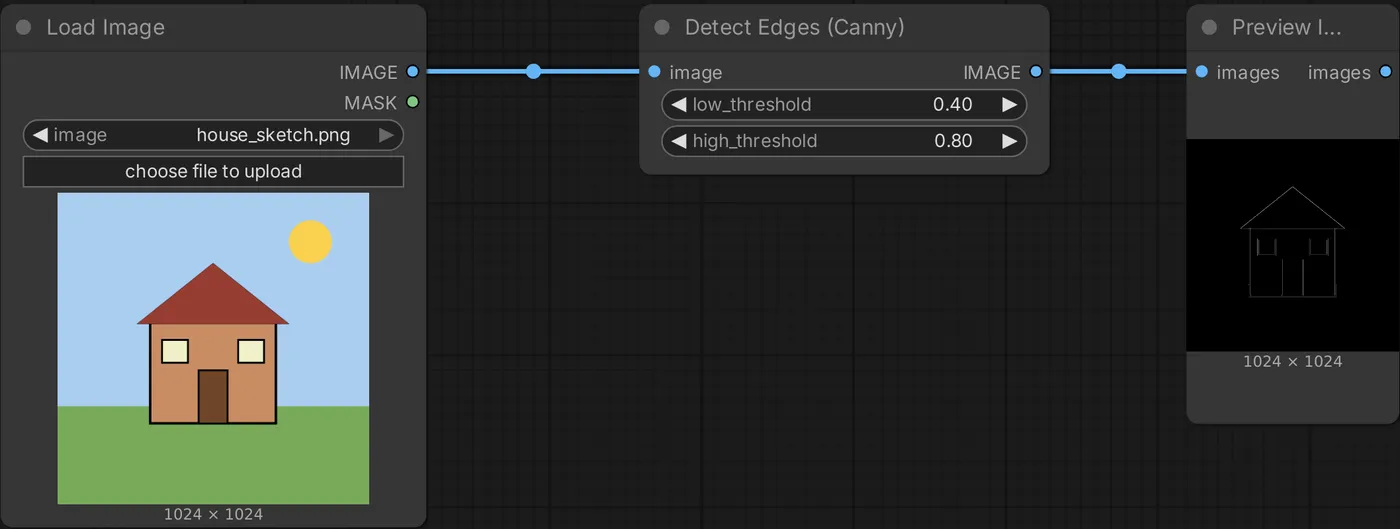
- Add Load Image and load a reference image.
- Add a Canny node and connect the reference image. Run it once and use Preview Image to check the extracted lines.
- Add Load ControlNet Model and select a Canny model.
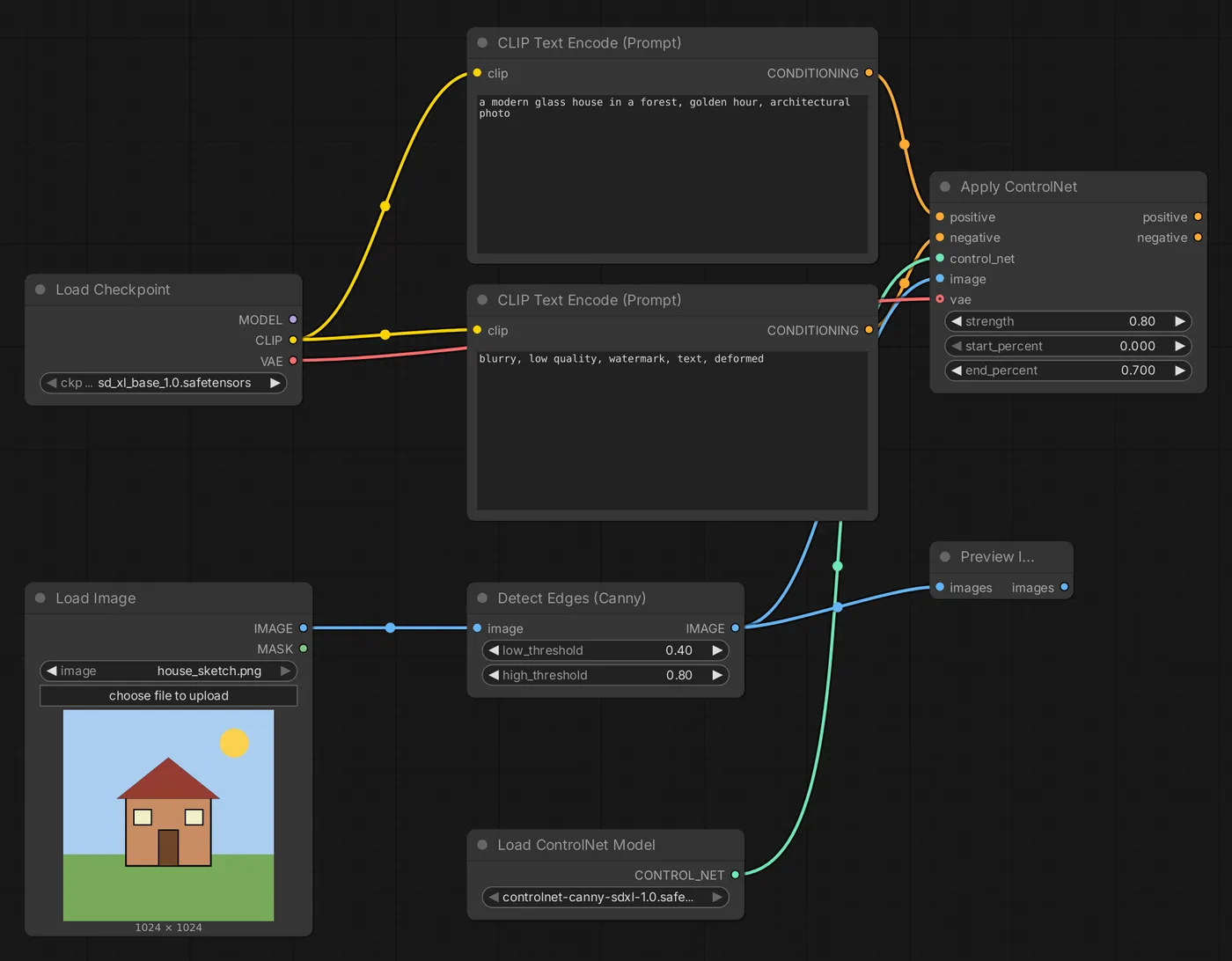
- Add Apply ControlNet:
- Connect
positiveandnegativeto the outputs of the two CLIP Text Encode nodes - Connect
control_netto Load ControlNet Model - Connect
imageto the Canny output - Connect
vaeto the model's VAE (required by some ControlNet models)
- Connect
- Connect the positive and negative outputs of Apply ControlNet to KSampler.
- Set the dimensions of Empty Latent Image to the same aspect ratio as the reference image.
Parameters
| Parameter | Description | Recommendation |
|---|---|---|
strength | Control strength | 0.5–1.0. Too high a value can make the image look stiff and the details unnatural |
start_percent | At what stage of generation control begins | 0 |
end_percent | At what stage control stops | 0.6–1.0 |
Tip: Set end_percent to 0.5–0.7. ControlNet determines the composition during the first half, then the model has room to create details during the second half. The result is usually more natural.
OpenPose: Control a person's pose
- Use the DWPose Estimator or OpenPose Pose preprocessor (from controlnet_aux) to extract a skeleton from a photo of a person.
- Use Preview Image to check that the skeleton is correct.
- Connect an OpenPose ControlNet model.
The generated person will have the same pose as in the photo, while the prompt determines their appearance, clothing, and setting.
Depth: Preserve spatial structure
Use a preprocessor such as Depth Anything to generate a depth map. This works well for:
- Redesigning an interior photo in a different decor style
- Preserving the perspective of a building or scene while changing the season, time of day, or art style
Combine multiple ControlNets
Chain multiple Apply ControlNet nodes: connect the positive and negative outputs of the first to the inputs of the second. For example, use OpenPose to control the pose and Depth to control the scene. Lower each strength moderately to prevent them from conflicting.
Common problems
| Issue | Cause |
|---|---|
| Error or no effect at all | The ControlNet model version does not match the base model (for example, using an SD 1.5 ControlNet with SDXL) |
| The image looks stiff or has visible line artifacts | strength is too high, or end_percent is too late |
| The person is distorted | The reference and output images have different aspect ratios, or skeleton extraction failed |
| Can't find the preprocessor node | comfyui_controlnet_aux has not been installed |
Updated October 12, 2026