Contents
ComfyUI Image Upscaling Tutorial: Upscale Models and High-Resolution Fix (Hires fix)
Models work best near their training resolution (about 1024×1024 for SDXL). Generating directly at 2048×2048 often produces duplicate people and strange compositions. The right approach is to generate at the recommended resolution first, then upscale.
Method 1: Upscale directly with an upscaling model
The fastest and simplest method:
[VAE Decode] ─IMAGE─▶ [Upscale Image (using Model)] ─▶ [Save Image]
                              ▲
[Load Upscale Model]- Download an upscaling model (such as 4x-UltraSharp or RealESRGAN) and place it in
models/upscale_models/. - Add Load Upscale Model and select a model.
- Add Upscale Image (using Model), then connect the model and image.
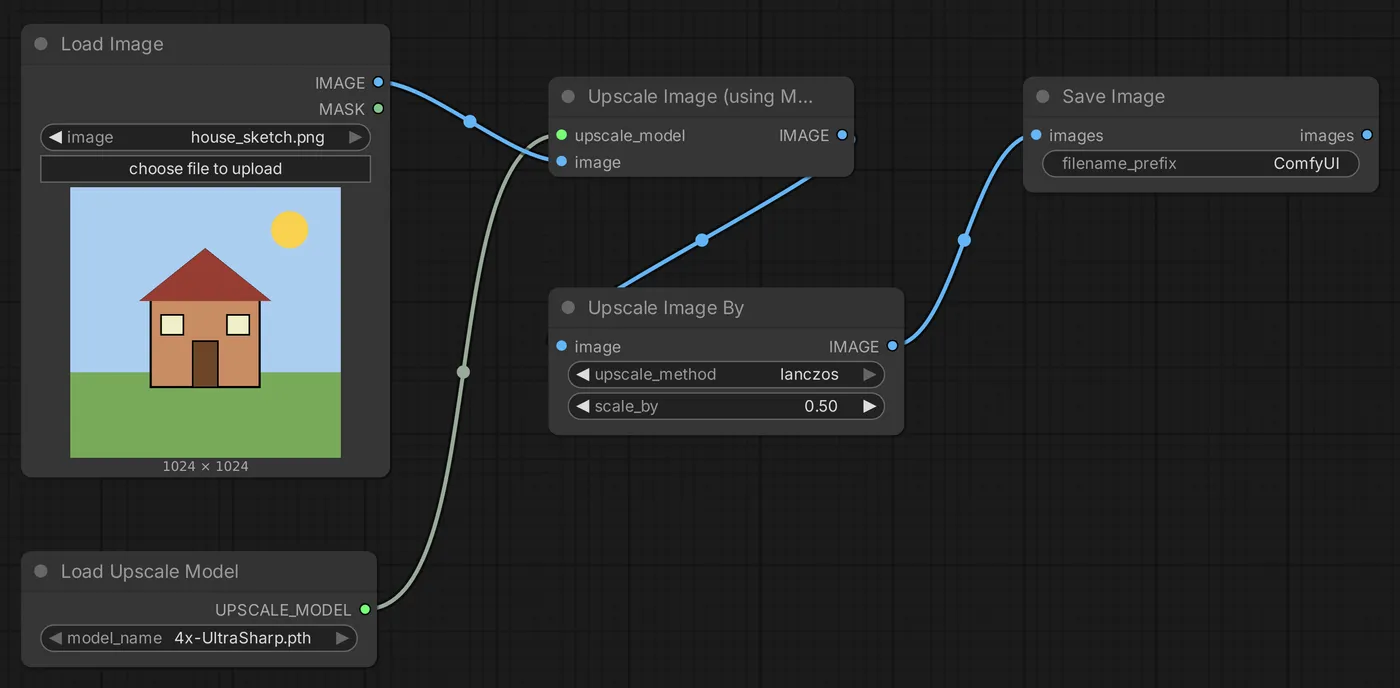
Most models use a fixed scale factor (for example, 4×). To get 2×, add Upscale Image By afterward and set it to 0.5× to reduce the size.
| Model style | Best for |
|---|---|
| General-purpose (UltraSharp, etc.) | Most images |
| Anime | Illustrations and anime styles, with cleaner lines |
| Photo | Realistic photos |
This method is fast, but it only makes the image look clearer; it does not add new details.
Method 2: High-resolution fix (upscale + redraw)
Upscale first, then use image-to-image with low denoise to add details. This is commonly called Hires fix:
[First generation] ─▶ [VAE Decode] ─▶ [Upscale (using Model)] ─▶ [Upscale Image By 0.5]
─▶ [VAE Encode] ─▶ [KSampler denoise 0.3~0.45] ─▶ [VAE Decode] ─▶ [Save Image]- Generate the first image at 1024×1024.
- Upscale it 4× with an upscaling model, then reduce it to 0.5× (resulting in 2048×2048).
- After VAE Encode, send it to a second KSampler:
- Use the same model and prompt.
- denoise 0.3~0.45: Too low adds no new details; too high changes the composition and can produce duplicate content.
- steps 15~20
- Save the image after VAE Decode.
This produces a high-resolution image rich in detail.
Latent upscaling
You can also upscale directly in the latent stage (Upscale Latent By), skipping one VAE decode and encode. It is faster, but requires a higher denoise (about 0.5 or more); otherwise, the result may be blurry.
Method 3: Tiled upscaling (large images)
When upscaling beyond 4K, running a second KSampler on the whole image can use up your GPU memory. Tiled upscaling divides the image into small tiles, redraws them one at a time, then stitches them back together.
The community Ultimate SD Upscale custom node is the most common option. Set a tile size (for example, 1024) and denoise (0.2~0.35); pairing it with Tile ControlNet can make the tiles more consistent. See Custom nodes and Manager for installation instructions.
Save GPU memory
- VAE Decode (Tiled) / VAE Encode (Tiled): Process large images in tiles during decoding to avoid running out of memory in the final step.
- Avoid using a large upscale factor at once; you can upscale 2× twice instead.
Which method should you choose?
| Need | Method |
|---|---|
| Upscale quickly and just make the image look clear | Upscaling model |
| Want more details and the best quality | High-resolution fix |
| 4K or larger with limited memory | Tiled upscaling |
Updated October 12, 2026