Contents
ComfyUI Interface Tour: Nodes, Connections, Queue, and Shortcuts
First launch
When ComfyUI opens, it displays a default workflow (or a template selection screen). Most of the screen is a canvas that you can freely pan and zoom, with nodes placed on it.
The surrounding interface (which may vary slightly by version):
- Sidebar: node library, model library, workflow list, queue, and history
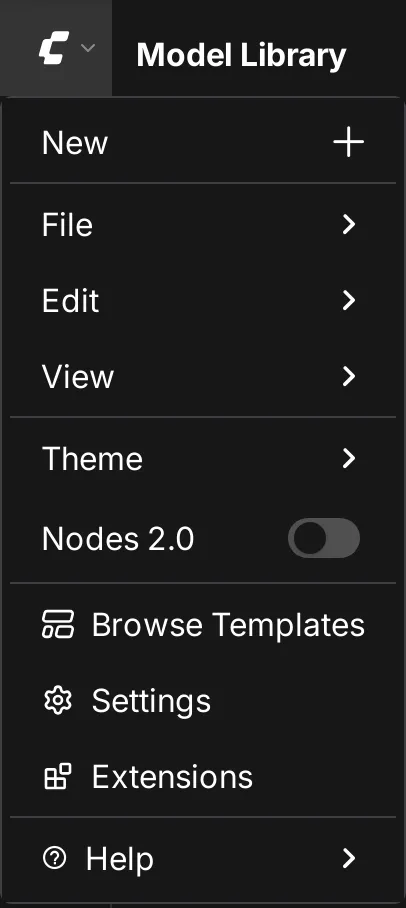
- Top menu: workflows (open, save, export, browse templates), edit, and settings
- Run button (Run / Queue): sends the current workflow to run
Working with the canvas
| Action | How |
|---|---|
| Pan the canvas | Drag an empty area, or hold the spacebar and drag |
| Zoom | Mouse wheel |
| Select multiple nodes | Ctrl + drag |
| Move a node | Drag the node title bar |
| Fit all nodes on screen | Press . |
Adding nodes
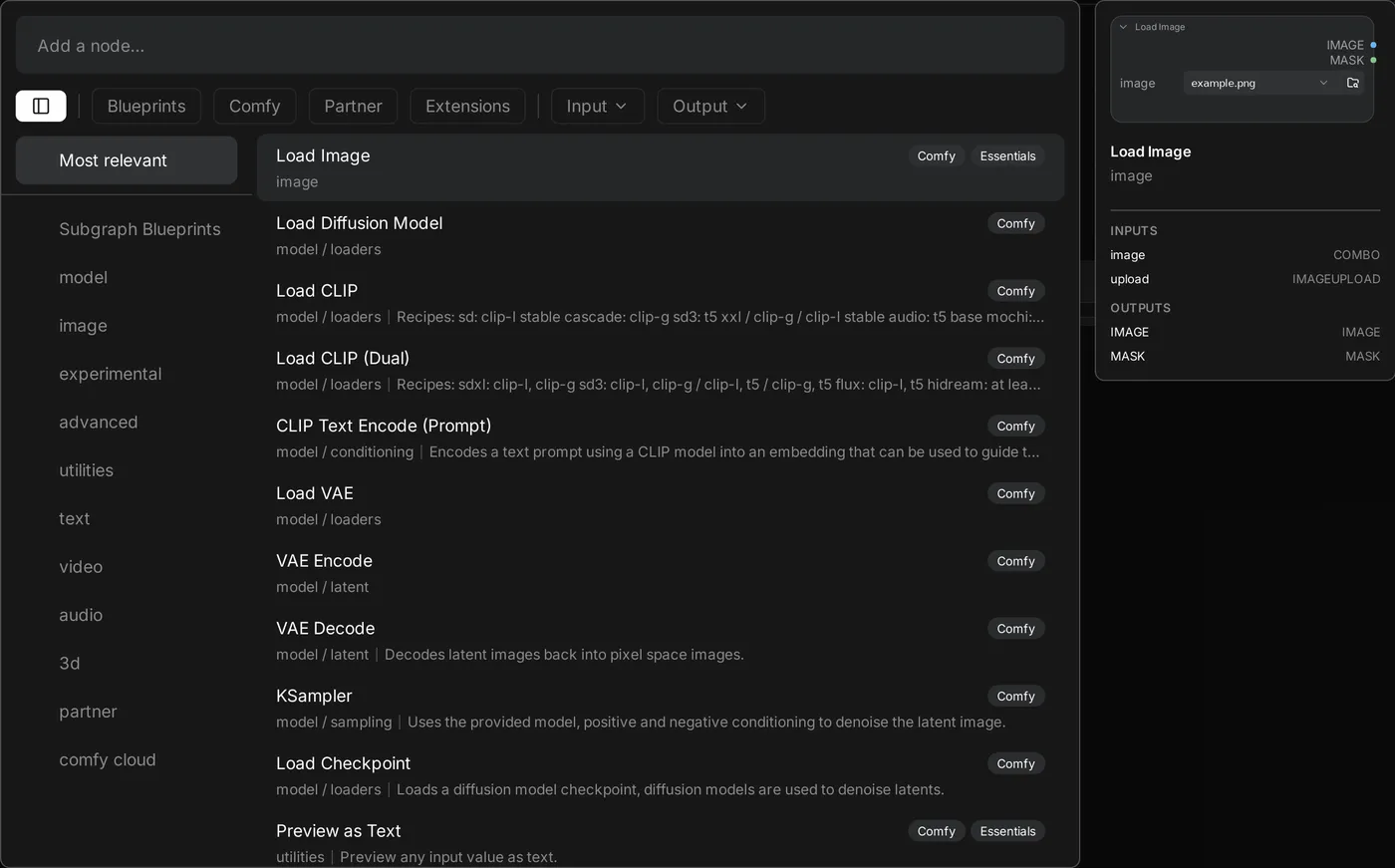
- Double-click an empty area: opens node search. Type a name (for example,
ksamplerorload image) to add a node. - Drag a wire from an output and release it on an empty area: lists nodes that can connect there. This is very convenient.
- Browse by category in the node library in the sidebar.
Nodes and connections
Each node has inputs on the left, outputs on the right, and parameters (widgets) in the middle.
┌─────────────────────────┐
│ Load Checkpoint         │
│  ckpt_name: [model ▼]    │
│                  MODEL ●──▶
│                   CLIP ●──▶
│                    VAE ●──▶
└─────────────────────────┘
Connection colors indicate the data type; only sockets of the same type can connect:
| Type | Contents |
|---|---|
| MODEL | Diffusion model |
| CLIP | Text encoder |
| VAE | Image encoder / decoder |
| CONDITIONING | Encoded prompt |
| LATENT | Image in latent space |
| IMAGE | Regular image |
| MASK | Mask |
- Drag from an output to an input to connect them.
- One output can connect to multiple inputs; one input can have only one connection.
- Drag from an input and release to disconnect it.
Turning parameters into inputs
Parameters (such as seed) can also receive outputs from other nodes, so multiple nodes can share the same value. In newer interfaces, the parameter itself usually has a connectable input socket.
Running a workflow
Click Run (or press Ctrl + Enter) to add the workflow to the queue:
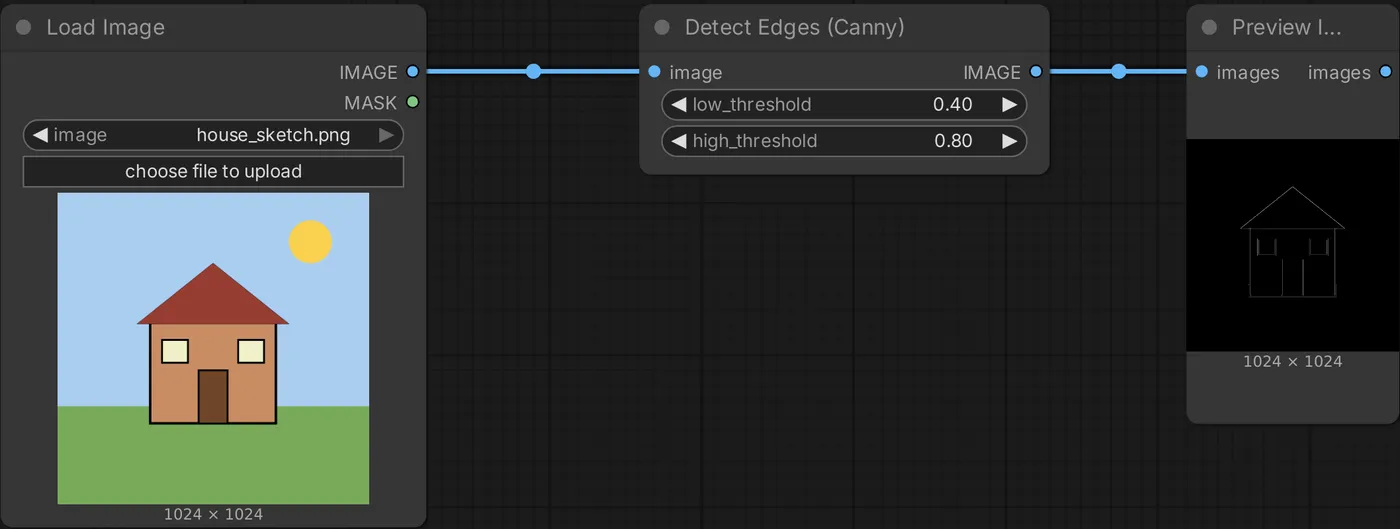
- Nodes that are running are outlined, and KSampler displays a progress bar.
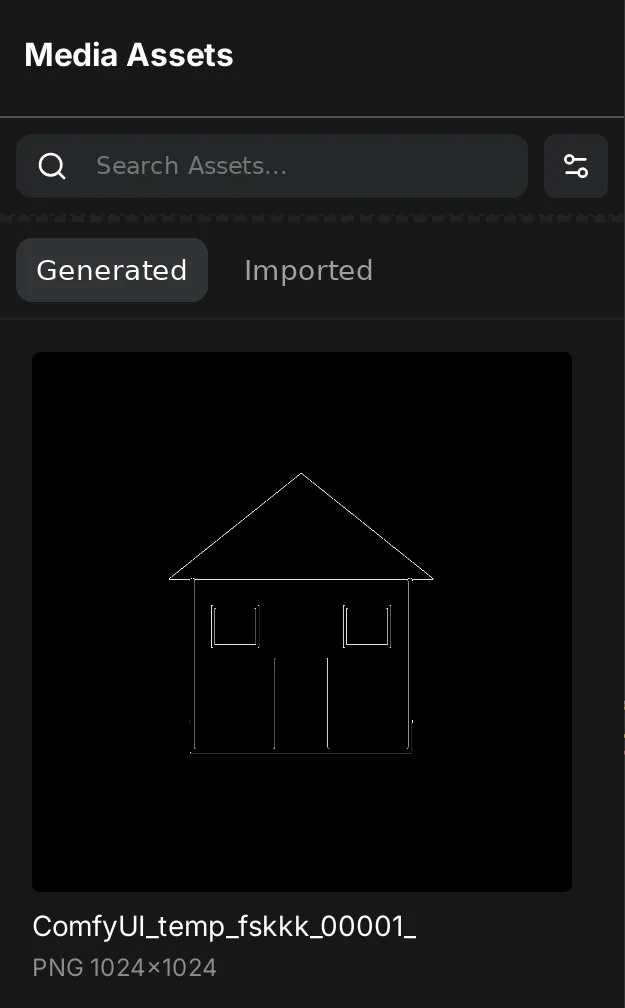
- Completed images appear on Save Image / Preview Image nodes. You can also view them in the queue / history in the sidebar.
- ComfyUI reruns only nodes that have changed. If you change only the prompt, it won't reload the model, so it runs faster.
- If you click Run multiple times, the jobs are added to the queue in order.
If a node has a red outline, it indicates an error (for example, a missing model or an incomplete connection). The message tells you which input on which node has a problem.
Saving and opening workflows
Ctrl + S: save the workflowCtrl + O: open a workflow file (.json)- Drag a PNG generated by ComfyUI onto the canvas: automatically loads the complete workflow that generated the image. This is ComfyUI's most convenient way to share workflows.
When you upload an image to a social media site, the site usually removes this information. To share a workflow, share the JSON file or the original PNG directly.
Built-in templates
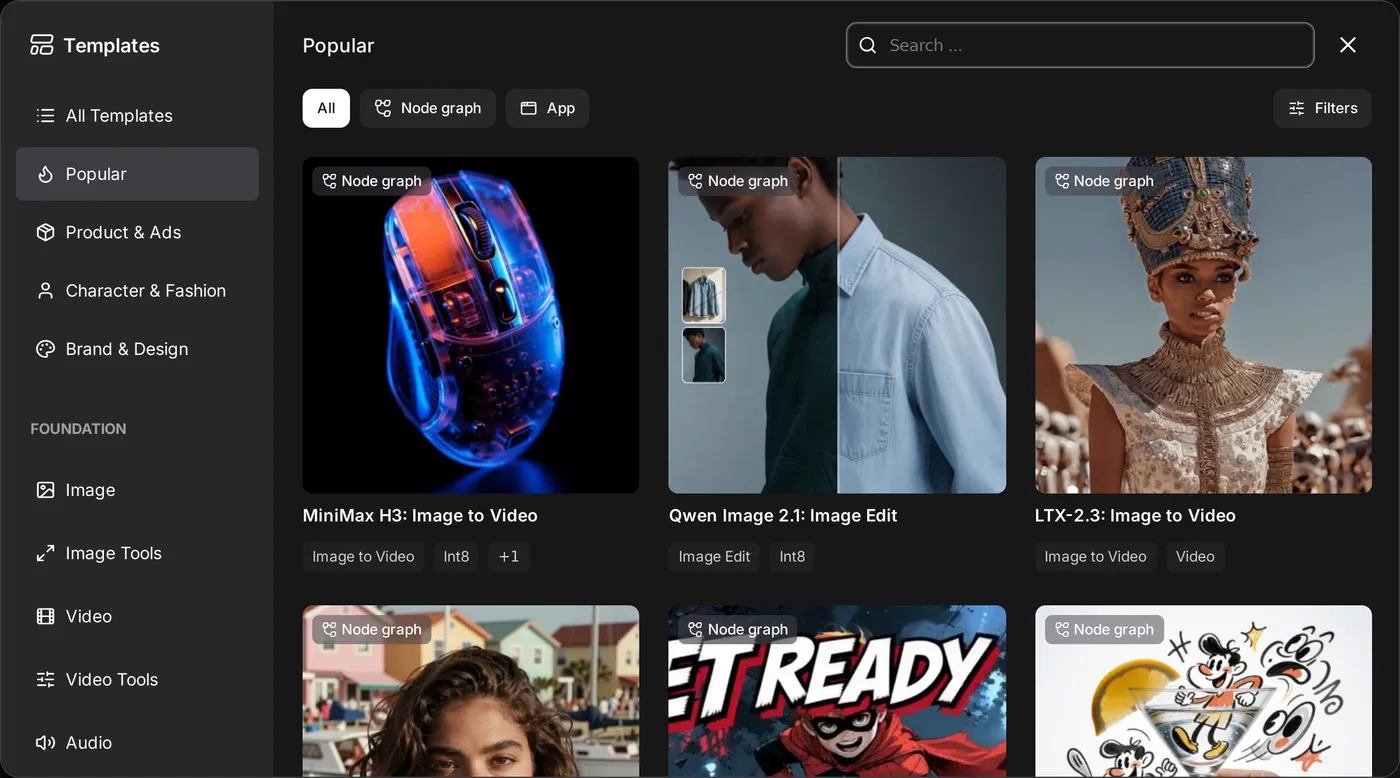
Browse Templates in the upper-left menu provides workflows maintained by the official team, including text-to-image, image-to-image, Flux, and video generation. This is the best place to start when learning a new model, and templates usually list the models you need to download.
Bypassing and muting nodes
| Action | Shortcut | Effect |
|---|---|---|
| Bypass | Ctrl + B | The node turns purple, and data passes through without processing |
| Mute | Ctrl + M | The node doesn't run, and downstream nodes that depend on it won't run either |
| Collapse | Alt + C | Shrinks the node |
| Group | Ctrl + G | Wraps the selected nodes in a group |
For example, to temporarily turn off an upscaling step, select the related upscaling nodes and press Ctrl + B.
Common shortcuts
| Shortcut | Function |
|---|---|
Ctrl + Enter | Run (add to queue) |
Ctrl + Shift + Enter | Add to the front of the queue |
Ctrl + Alt + Enter | Cancel the current run |
Ctrl + Z / Ctrl + Y | Undo / redo |
Ctrl + C / Ctrl + V | Copy / paste nodes |
Ctrl + Shift + V | Paste and keep connections |
Ctrl + A | Select all |
Delete | Delete selected nodes |
Double-click an empty area | Search for nodes |
. | Show all nodes |
On macOS, replace Ctrl with Cmd.
In the next section, we'll download our first model.
Updated October 12, 2026