Contents
ComfyUI Image-to-Image Tutorial: Generate New Images from References
Image to image (img2img) starts with an existing image instead of pure noise. You can use it to:
- Turn a hand-drawn sketch into a finished illustration
- Transform a photo into a watercolor, anime, or other style
- Keep the composition while changing only the details or colors
How it differs from text to image
Text to image starts with Empty Latent Image (an empty latent); image to image converts an image to a latent with VAE Encode, then passes it to KSampler:
Text to image: [Empty Latent Image] ──────────────────────▶ [KSampler denoise=1.0]
Image to image: [Load Image] ─▶ [VAE Encode] ─LATENT────────▶ [KSampler denoise=0.5]
Build the workflow
Modify the text-to-image workflow:
- Delete Empty Latent Image.
- Add Load Image, then click to upload an image (or drag an image directly onto the node).
- Add VAE Encode:
- Connect
pixelsto the IMAGE output of Load Image. - Connect
vaeto the VAE output of Load Checkpoint.
- Connect
- Connect the LATENT output of VAE Encode to
latent_imageon KSampler. - Set denoise on KSampler to about 0.5.
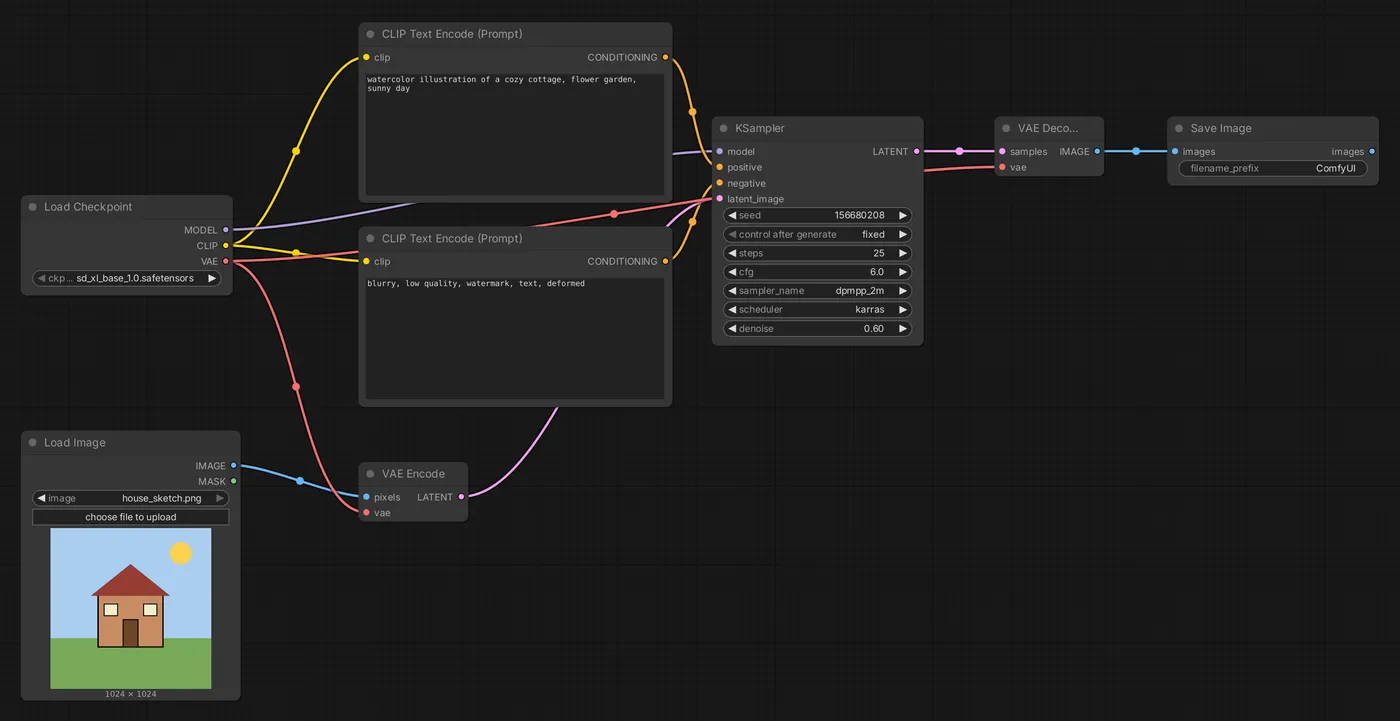
Templates often include ready-to-use image-to-image workflows.
denoise is key
| denoise | Effect |
|---|---|
| 0.2–0.35 | Almost no change; only details and texture are refined |
| 0.4–0.6 | Composition and colors are preserved, while the content and style change noticeably |
| 0.7–0.85 | Only the general composition and color blocks are preserved |
| 1.0 | Completely ignores the original image, equivalent to text to image |
Start at 0.5, then adjust up or down based on the result.
Image dimensions
VAE Encode uses the original image dimensions. An image that is too large can be very slow or even run out of memory; one that is too small lacks detail. For best results, use dimensions close to the model's recommended resolution (for example, about 1024 pixels for SDXL).
Add a scaling node between Load Image and VAE Encode:
- Upscale Image By: Scale by a factor, such as 0.5
- Upscale Image: Set the width and height, with an option to choose how to crop
- ImageScaleToTotalPixels: Scale to a specified total pixel count (for example, 1 megapixel) while preserving the aspect ratio
Ideally, the width and height should be multiples of 8 (most models recommend multiples of 64).
Examples
Sketch to finished artwork
- Input: A sketch made with simple color blocks
- Prompt: A complete description of the scene and style you want
- denoise: 0.6–0.75 (to change the texture significantly while preserving the composition)
Photo to illustration style
- Prompt:
watercolor illustration of ...(describe the photo's subject and the target style) - denoise: 0.45–0.6
- A style LoRA can improve the result. See LoRA.
Refine an AI-generated image
Generate an image, then run it again with a low denoise value (0.3) and the same prompt to add detail and fix minor flaws. This is also a common technique in the upscaling workflow.
Limitations of image to image
Image to image changes the entire image. To edit only one area (for example, change someone's clothes or remove a passerby), use Inpainting. To preserve the composition or pose while changing the content significantly, use ControlNet.
Updated October 12, 2026