Contents
ComfyUI Text-to-Image Tutorial: Generate Your First AI Image
This lesson uses ComfyUI's most basic text-to-image workflow. First, follow the previous lesson to download a model (such as an SDXL model) and place it in models/checkpoints.
Load the default workflow
The default workflow in newer ComfyUI versions changes to use newer models (for example, ComfyUI 0.39 defaults to Z-Image Turbo, with the model split across two nodes: Load Diffusion Model and Load CLIP). This lesson uses the classic, easy-to-understand SDXL text-to-image workflow. You can:
- Search for SDXL in Templates and choose the basic text-to-image template, or
- Add the nodes and connect them yourself as shown below
The workflow looks like this:
[Load Checkpoint] ─MODEL──────────────────────────────▶ [KSampler] ─LATENT─▶ [VAE Decode] ─IMAGE─▶ [Save Image]
       │ CLIP ─▶ [CLIP Text Encode (positive prompt)] ─────▶     ▲  ▲                 ▲
       │ CLIP ─▶ [CLIP Text Encode (negative prompt)] ─────▶ ────┘  │                 │
       │                       [Empty Latent Image] ──────────┘                 │
       └ VAE ──────────────────────────────────────────────────────────────────┘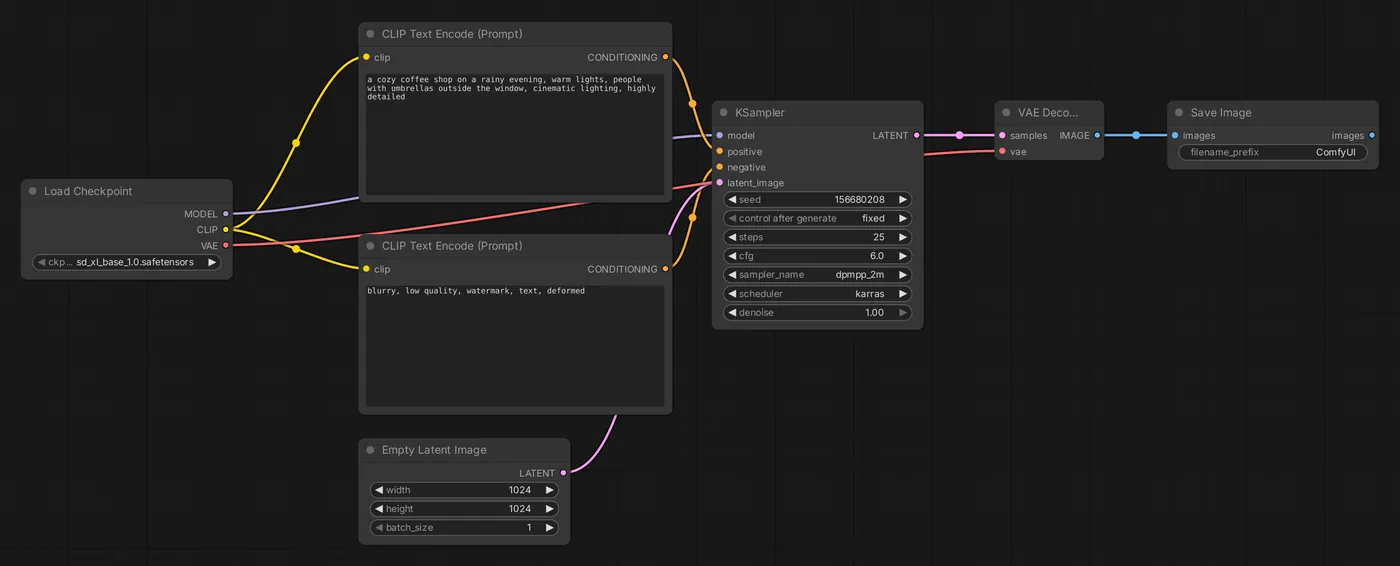
Configure each node
1. Load Checkpoint: load the model
Click ckpt_name and select the model you downloaded. This node outputs three things:
- MODEL: The diffusion model; connect it to KSampler
- CLIP: The text encoder; connect it to both CLIP Text Encode nodes
- VAE: Connect it to VAE Decode
2. CLIP Text Encode: prompts
There are two:
- Positive prompt (connected to KSampler's
positive): what you want to see - Negative prompt (connected to
negative): what you don't want to see
Most image models understand English prompts best:
Positive: a cozy coffee shop on a rainy evening in Taipei, warm lights, people with umbrellas outside the window, cinematic lighting, highly detailed
Negative: blurry, low quality, watermark, text, deformed
See Prompting tips for how to write prompts.
3. Empty Latent Image: canvas size
Set the image width and height, and the number of images to generate at once (batch_size).
| Model | Recommended resolution |
|---|---|
| SD 1.5 | 512×512, 512×768 |
| SDXL | 1024×1024, 832×1216, 1216×832 |
| Newer models such as Flux | Around 1024×1024; check the model documentation |
Using dimensions far below or above the model's training resolution can cause duplicated people or distorted compositions. For a larger image, generate it at the recommended size first, then upscale it.
4. KSampler: generate
This is the node that actually generates the image. The main parameters are:
| Parameter | Description | Recommended starting point (SDXL) |
|---|---|---|
| seed | Random seed | Any value |
| control_after_generate | How the seed changes after each run | randomize (different each time) |
| steps | Number of denoising steps | 20–30 |
| cfg | Prompt influence strength | 5–7 |
| sampler_name | Sampling algorithm | euler, dpmpp_2m |
| scheduler | How steps are distributed | normal, karras |
| denoise | Denoising strength; fixed at 1.0 for text-to-image | 1.0 |
See KSampler parameters explained for details on each parameter.
5. VAE Decode: decode
Converts the latent output from KSampler into an actual image. Connect the vae input to the VAE output from Load Checkpoint.
6. Save Image: save
Displays the image and saves it to the ComfyUI/output folder. You can set the filename prefix with filename_prefix. It can also include a subfolder, such as coffee/rainy.
To preview without saving, use the Preview Image node instead.
Run
Click Run (Ctrl + Enter). The first run takes longer because the model needs to load. Later runs are much faster when you only change the prompt.
After the image appears:
- If you don't like the composition, run it again (the seed will change randomly).
- If you like an image and want to refine it, set
control_after_generateto fixed to keep the seed, then change the prompt or parameters to compare the differences.
Generate in batches
- Set
batch_sizeto 4 to generate four images at once (this requires more GPU memory). - Or click Run multiple times in a row to queue one image per run.
Generated images include the workflow
PNG images in the output folder record the complete workflow and parameters. Drag one back onto the ComfyUI canvas to restore its settings.
Common issues
| Issue | Possible cause |
|---|---|
| No model in the dropdown | The model is in the wrong folder, or you haven't pressed R to refresh |
| The image is all black or full of noise | Incompatible VAE or a precision issue; try a different VAE or model |
| Two heads or extra fingers | The resolution doesn't suit the model, there are too few steps, or the model has limitations |
| Out of GPU memory (OOM) | Lower the resolution or batch_size; see FAQ |
Next, take a closer look at each KSampler parameter.
Updated October 12, 2026