Contents
ComfyUI LoRA Tutorial: Load LoRAs, Adjust Strength, and Stack Multiple LoRAs
What is LoRA?
LoRA (Low-Rank Adaptation) is a small add-on model, usually only tens to hundreds of MB. It cannot be used on its own. Instead, it is attached to a base model to teach it:
- A specific art style (watercolor, pixel art, or a particular illustration style)
- A specific character or person
- Specific objects, clothing, or concepts
- Certain capabilities (faster generation, more detail)
Compared with retraining an entire model, LoRAs are small, easy to share, and you can use several at once.
Download and install
- Find the LoRA you want on Civitai or Hugging Face.
- Check which base model it is for (SD 1.5, SDXL, Flux, etc.). An SDXL LoRA cannot be used with an SD 1.5 model, and vice versa.
- Download the
.safetensorsfile and place it inComfyUI/models/loras/. - Note the trigger words and recommended strength listed on the model page.
Connect the Load LoRA node
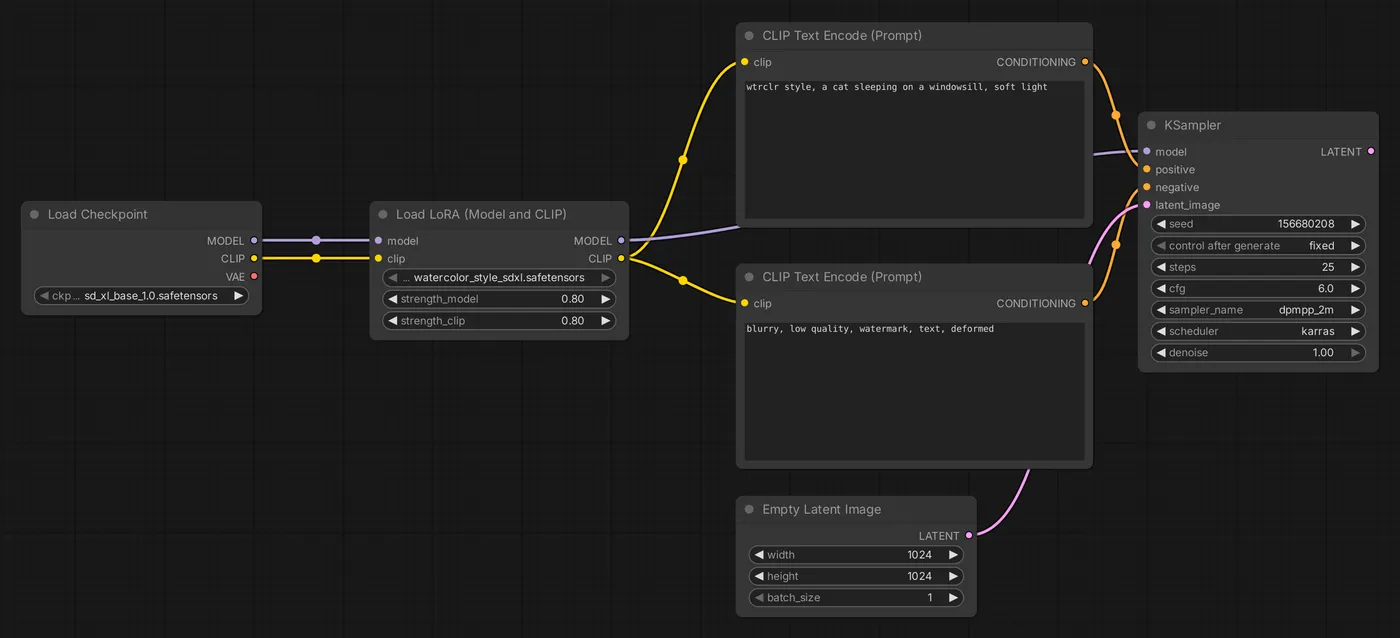
Insert the LoRA node between the model and the downstream nodes:
                       ┌─────────────┐
[Load Checkpoint] ─MODEL─▶│  Load LoRA  │─MODEL─▶ [KSampler]
                  ─CLIP──▶│             │─CLIP──▶ [CLIP Text Encode] ×2
                          └─────────────┘
Steps:
- Add a Load LoRA node and choose
lora_name. - Connect the MODEL and CLIP outputs from Load Checkpoint to the Load LoRA inputs.
- Connect the MODEL output from Load LoRA to KSampler, and CLIP to both CLIP Text Encode nodes.
A common mistake is connecting only MODEL while connecting CLIP directly from Load Checkpoint to the prompt nodes. In that case, the LoRA's effect on the prompts will not apply.
For LoRAs that affect only the model and do not need CLIP (such as some LoRAs for newer models), you can use the LoraLoaderModelOnly node.
Strength
| Parameter | Description |
|---|---|
strength_model | How strongly the LoRA affects the diffusion model |
strength_clip | How strongly the LoRA affects the text encoder |
- The default is 1.0. Most LoRAs work best at 0.6–1.0.
- If the effect is too strong (the image breaks down or the style is overdone), lower it. If you can barely see the effect, raise it (usually no higher than 1.2).
- A negative value can produce the opposite effect (only with some LoRAs, such as detail-enhancement LoRAs).
Trigger words
Many LoRAs require you to add specific words to the prompt to activate their effect. For example, a watercolor-style LoRA might use wtrclr style as its trigger word:
wtrclr style, a cat sleeping on a windowsill, soft lightTrigger words are listed on the model page. Some LoRAs do not need trigger words and take effect as soon as they are loaded.
Stack multiple LoRAs
Chain multiple Load LoRA nodes together:
[Load Checkpoint] ─▶ [Load LoRA: Style] ─▶ [Load LoRA: Character] ─▶ [KSampler / Prompt]When stacking:
- Lower the strength of each LoRA a little (for example, 0.6–0.8 each), or they may interfere with each other and distort the image.
- LoRAs with conflicting effects (such as two different art styles) usually cannot work well together.
If you often switch between many LoRAs, you can use community custom nodes such as “LoRA Stack” to manage several LoRAs in one node.
Useful LoRA types
| Type | Use |
|---|---|
| Style LoRA | Change the overall art style |
| Detail LoRA | Add or reduce detail |
| Acceleration LoRA (Lightning, Hyper, LCM, etc.) | Generate in just 4–8 steps; remember to adjust steps, CFG, and sampler as instructed |
| Character / person LoRA | Generate a specific character |
When using a LoRA of a real person, respect their right to their likeness. Do not generate content that could mislead or violate someone else's rights.
Train your own LoRA
To teach a model your own character or product, you can train a LoRA with your own images. Common tools include kohya_ss and AI Toolkit, and custom nodes for training in ComfyUI are also available. You usually need 15–50 high-quality images from varied angles, as well as enough GPU memory. This is an advanced topic, so get comfortable using LoRAs first.
Updated October 12, 2026