Contents
ComfyUI Inpainting and Outpainting Tutorial: Edit and Extend Images
Inpainting regenerates only the areas of an image marked by a mask, leaving everything else unchanged. Common uses include:
- Removing passersby and clutter
- Fixing flaws in hands and faces
- Changing clothes, backgrounds, and objects
Outpainting extends an image beyond its borders to fill in content outside the original frame.
Paint a mask
- Add Load Image and load an image.
- Right-click the node and select Open in MaskEditor.
- Paint over the area you want to redraw. You can adjust the brush size.
- Click Save.
The Load Image node outputs both IMAGE and MASK.
Method 1: VAE Encode (for Inpainting)
[Load Image] ─IMAGE─▶ [VAE Encode (for Inpainting)] ─LATENT─▶ [KSampler denoise=1.0]
             ─MASK──▶          ▲ vae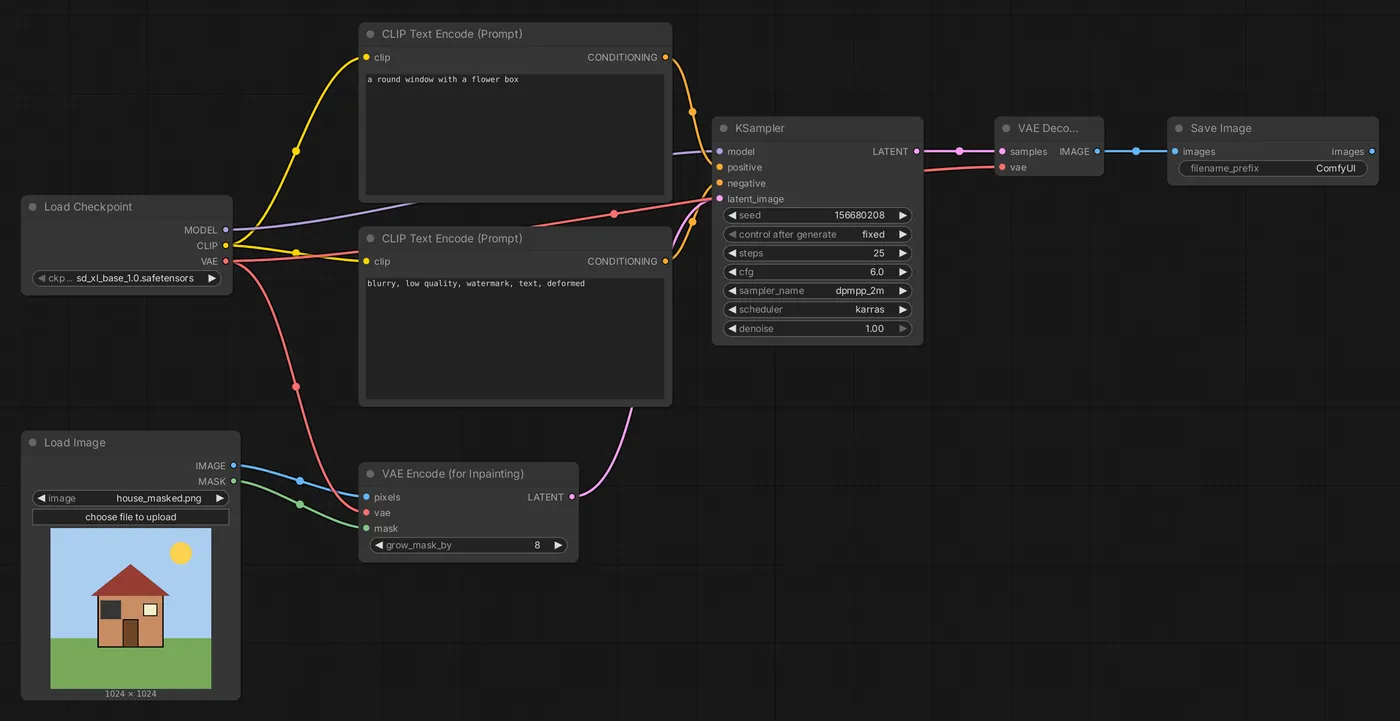
grow_mask_by: The number of pixels to expand the mask outward (for example, 6–16) for more natural seams.- The masked area is cleared completely before being redrawn, so set KSampler's denoise to 1.0.
- Works best with a dedicated inpainting model (the model name usually includes inpainting).
Write a prompt describing what should appear in the masked area. For example, after masking a passerby, use the prompt empty street, wet pavement.
Method 2: Set Latent Noise Mask
[Load Image] ─▶ [VAE Encode] ─LATENT─▶ [Set Latent Noise Mask] ─▶ [KSampler denoise=0.5]
─MASK─────────────────────────────▲- Keeps the original content in the masked area as a reference and only “modifies” it.
- You can use a general-purpose model.
- Set denoise to 0.4–0.7: lower values stay closer to the original image.
| VAE Encode (for Inpainting) | Set Latent Noise Mask | |
|---|---|---|
| Original content in masked area | Cleared | Kept as a reference |
| denoise | 1.0 | Less than 1.0 |
| Best for | Removing objects, completely replacing content | Fixing flaws, adjusting details, changing colors |
| Model | Works best with a dedicated inpainting model | A general-purpose model is fine |
Improve seams
If the redrawn area does not blend with its surroundings:
- Expand the mask (
grow_mask_by) or use the Grow Mask node. - Blur the mask (for example, use a soft-edged brush in the mask editor) for a more natural transition at the edges.
- Use Image Composite Masked to paste the result back onto the original image, ensuring pixels outside the mask remain exactly unchanged (VAE encoding and decoding can slightly alter the whole image).
Details in small areas: crop and inpaint
When fixing a small face or hand in a large image, direct inpainting usually produces poor results because the area has too few pixels. An advanced approach is to crop and enlarge the area around the mask, inpaint it, then shrink it and paste it back onto the original image. Community custom nodes (such as Inpaint Crop and Stitch) can automate these steps. See Custom nodes and Manager for installation instructions.
Outpainting
[Load Image] ─▶ [Pad Image for Outpainting] ─IMAGE─▶ [VAE Encode (for Inpainting)] ─▶ [KSampler]
(left/top/right/bottom、feathering) ─MASK──▲- Pad Image for Outpainting adds blank areas around the image and automatically generates a mask. Set the direction and number of pixels to extend, as well as
feathering(edge softness). - Connect it to VAE Encode (for Inpainting), and set KSampler denoise to 1.0.
- Write a prompt describing the whole image, including the extended areas.
Avoid extending too much at once (for example, 256–512 pixels per pass). For a larger area, extend the image in multiple passes.
Editing with next-generation models
“Image editing models” such as Flux Kontext and Qwen-Image-Edit can modify images directly from text instructions (for example, “Change the sky to a sunset”), so you may not need to paint a mask by hand. Official templates include workflows for these models. See Next-generation models such as Flux.
Updated October 12, 2026