Contents
n8n Error Handling Tutorial: Retries, Continue on Fail, and Error Notifications
The biggest risk in automation is failing silently: an API is temporarily unavailable, data is in the wrong format, credentials expire… If no one notices, notifications may go out unsent for days. This section introduces n8n's error-handling features.
1. Retry automatically (Retry On Fail)
Many errors are temporary (an unstable network, an occasional API timeout). In the node's Settings tab:
- Retry On Fail: Turn it on
- Max Tries: The maximum number of attempts, such as 3
- Wait Between Tries (ms): The interval between attempts, such as 5000 (5 seconds)
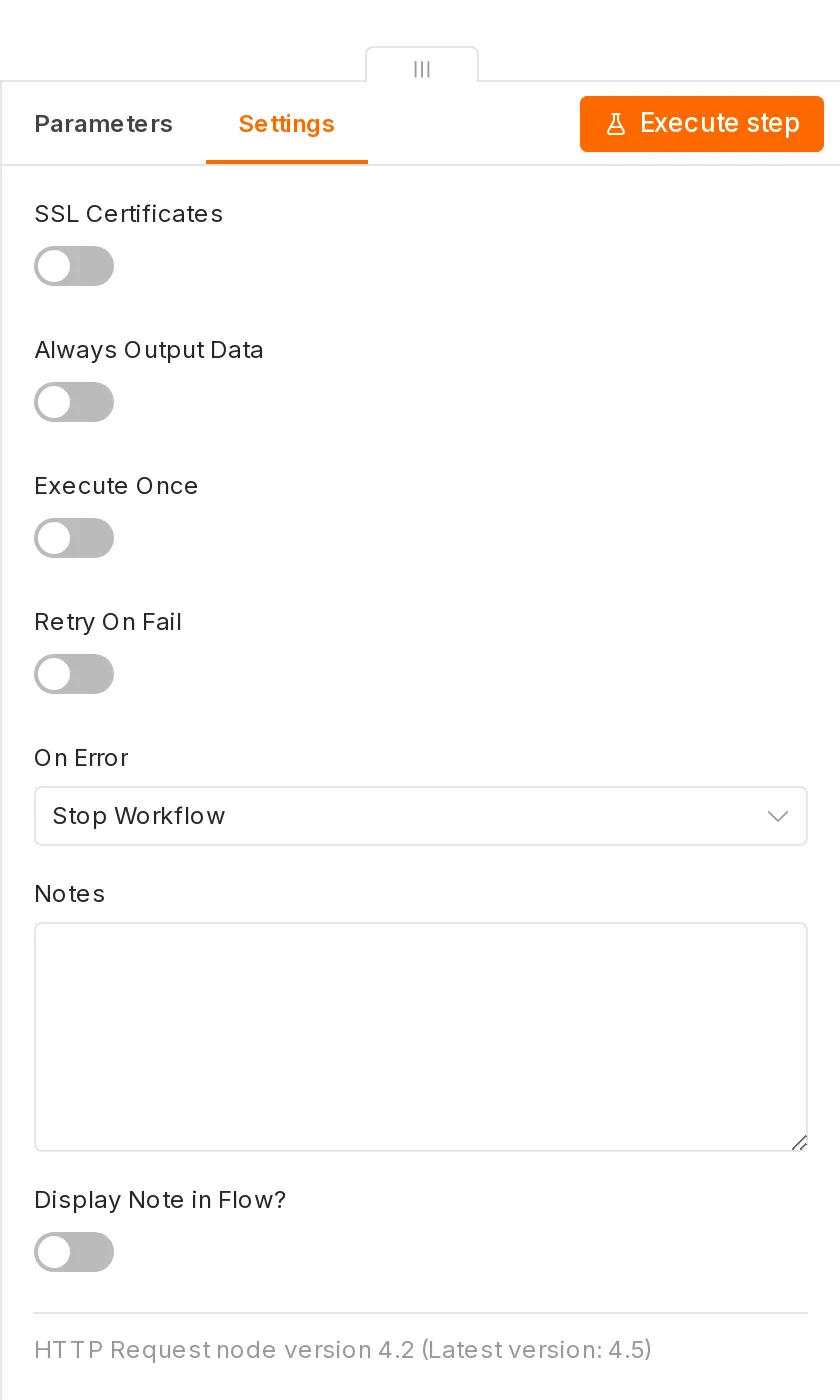
This is useful for nodes that call external APIs (HTTP Request and nodes for various services).
2. What to do when a node fails (On Error)
Also in the node's Settings tab, On Error has three options:
| Option | Behavior |
|---|---|
| Stop Workflow | The default. The entire workflow stops and is marked as failed |
| Continue | Ignore the error, pass the error message as output, and continue to the next nodes |
| Continue (using error output) | Adds an error output to the node so failed items take a separate path |
Use an error output branch
When processing multiple items, one failure shouldn't stop the others:
                    ┌─ success ─▶ [Mark as processed]
[Call API for each item] ─────┤
                    └─ error ───▶ [Log to the "Failed items" spreadsheet]
The failed item includes an error message, which you can read with {{ $json.error.message }}.
3. Stop proactively: Stop and Error
When data doesn't meet expectations, stop proactively instead of letting later nodes produce incorrect results:
[Get order] ─▶ [If amount is empty?] ─true─▶ [Stop and Error: "Order {{ $json.id }} is missing an amount"]
                                      └false─▶ [Continue processing]
The Stop and Error node causes the execution to fail and triggers the error workflow described below.
4. Global error notifications: Error Trigger
The most important step: create a dedicated workflow to handle errors and automatically notify you whenever any workflow fails.
Create an error workflow
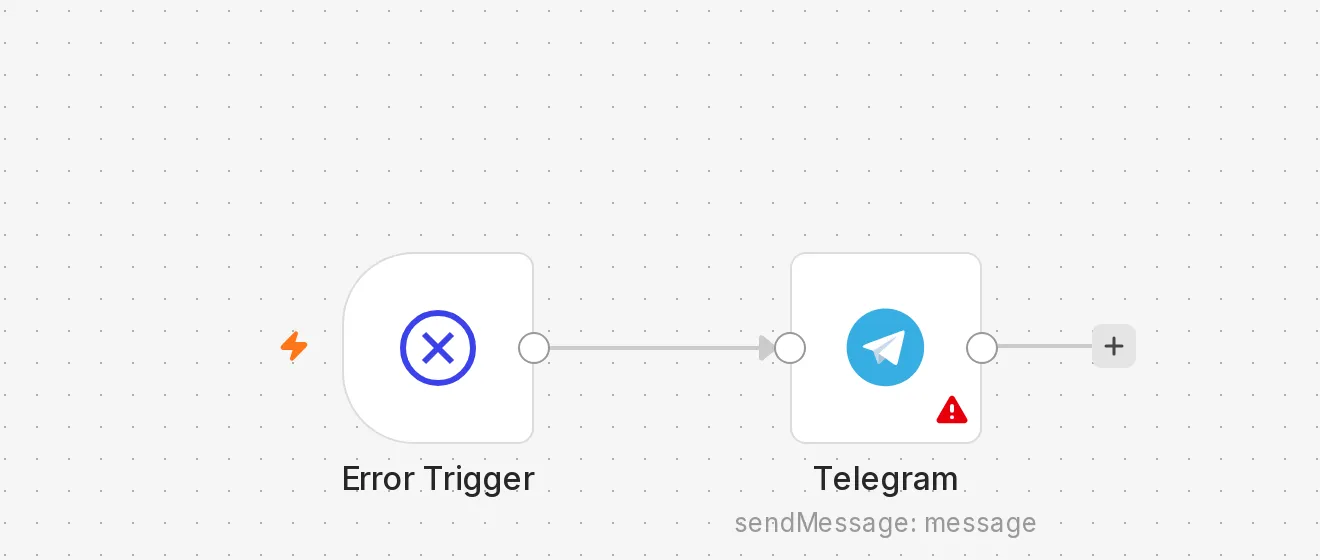
- Add a workflow and name it "Error notifications".
- Select Error Trigger as the first node.
- Connect a notification node (Telegram, Email, Slack, etc.) and use this message:
⚠️ n8n workflow execution failed
Workflow: {{ $json.workflow.name }}
Node: {{ $json.execution.lastNodeExecuted }}
Error: {{ $json.execution.error.message }}
Time: {{ $now.toFormat('yyyy-MM-dd HH:mm') }}
View: {{ $json.execution.url }}- Save it. A workflow that starts with Error Trigger works without being published.
Assign it to other workflows
For each workflow you want to monitor, go to Menu → Settings → Error workflow and select "Error notifications."
After that, a notification is sent automatically whenever this workflow ends with a "Failed" status.
The error workflow is triggered only when an automated execution (such as a schedule or webhook) fails. A failed manual test does not trigger it.
5. View and rerun executions
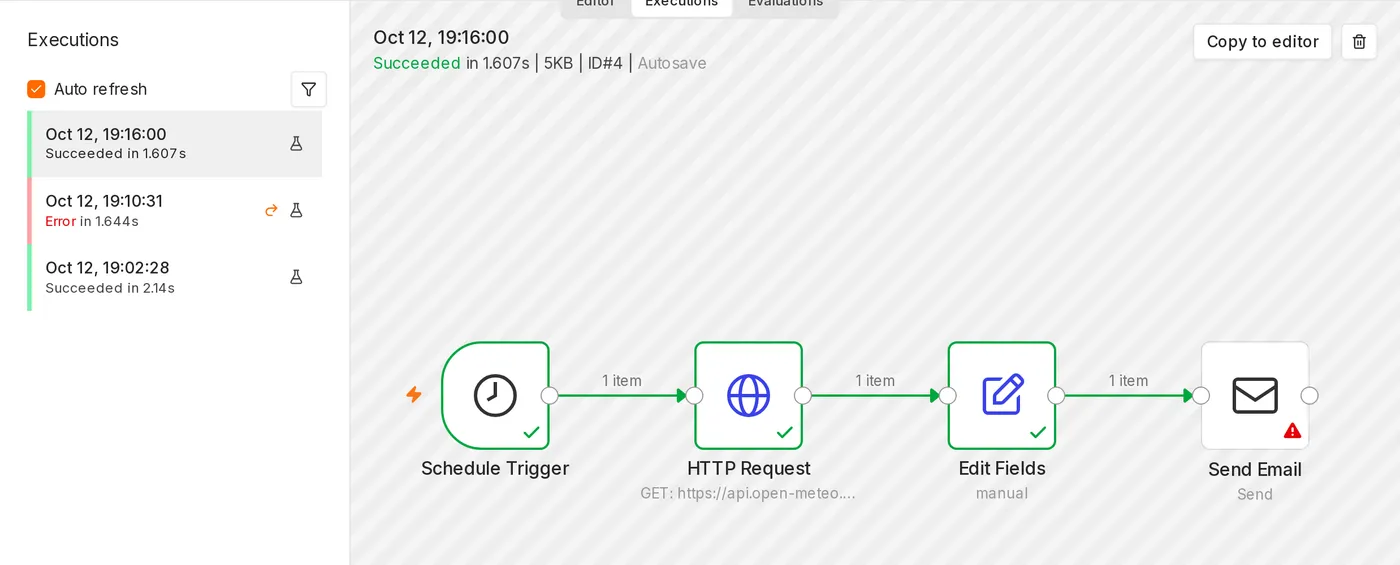
- Filter by Error status in Executions to see all failed executions.
- Open a failed execution and click Debug in editor to test again with the data from that run.
- After fixing the problem, you can rerun the failed execution.
6. Make data traceable
- In Settings, configure how execution records are saved. You can save only failed executions to reduce database usage.
- For important workflows, write a record to a spreadsheet or database at the end so you can later look up which item was processed and when.
Recommended practices
| Situation | Recommendation |
|---|---|
| Calling an external API | Turn on Retry On Fail |
| Batch processing multiple items | Use Continue (using error output) and log failed items |
| Data must not continue if it has a problem | Use Stop and Error |
| All workflows running in production | Set an Error workflow |
Make it a habit to configure error notifications as soon as you create a workflow that needs to run long term.
Updated October 12, 2026