Contents
n8n Credentials Tutorial: Set Up API Keys, OAuth, and Google Authorization
When n8n connects to external services, the accounts, passwords, API keys, and OAuth authorizations it needs are stored in credentials. Credentials are stored separately from workflows:
- You can reuse the same credentials across multiple workflows.
- Exporting or sharing a workflow does not include credential contents.
- Credentials are encrypted when stored in the database.
Add credentials
There are two ways:
- In a node, select Create new credential under Credential to connect with.
- On the home page, go to the Credentials tab → Add Credential.
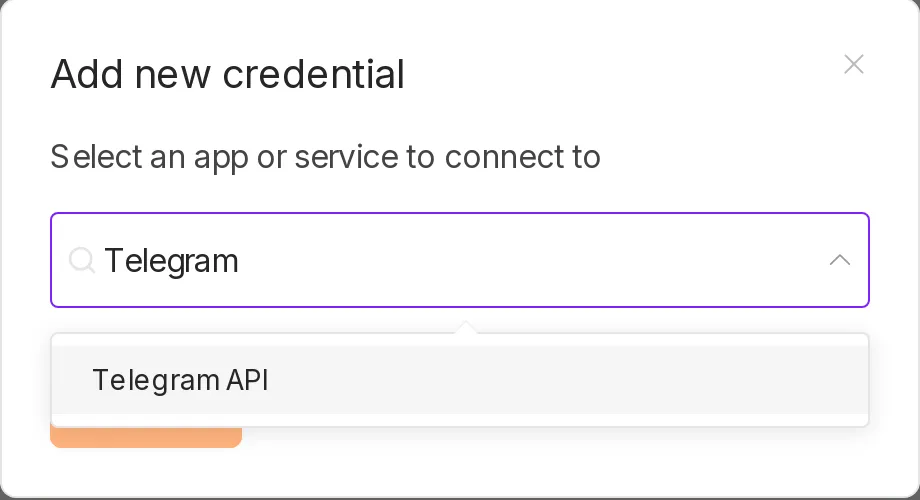
The fields you need to fill in vary by service. Forms usually include a link near the top to the official documentation.
Credential types
| Type | Description | Examples |
|---|---|---|
| API Key / Token | Generate a key in the service's dashboard and paste it into n8n | OpenAI, Notion, Telegram Bot |
| Username and password | Enter them directly | SMTP, database, FTP |
| OAuth2 | Click a button to go to the service, sign in, and authorize access | Google, Microsoft, Slack |
Example: Telegram Bot
- Search for @BotFather in Telegram, send
/newbot, and follow the instructions to name your bot. - BotFather gives you a Bot Token, such as
123456789:AAH.... - Add a Telegram API credential in n8n, paste the token, and save it.
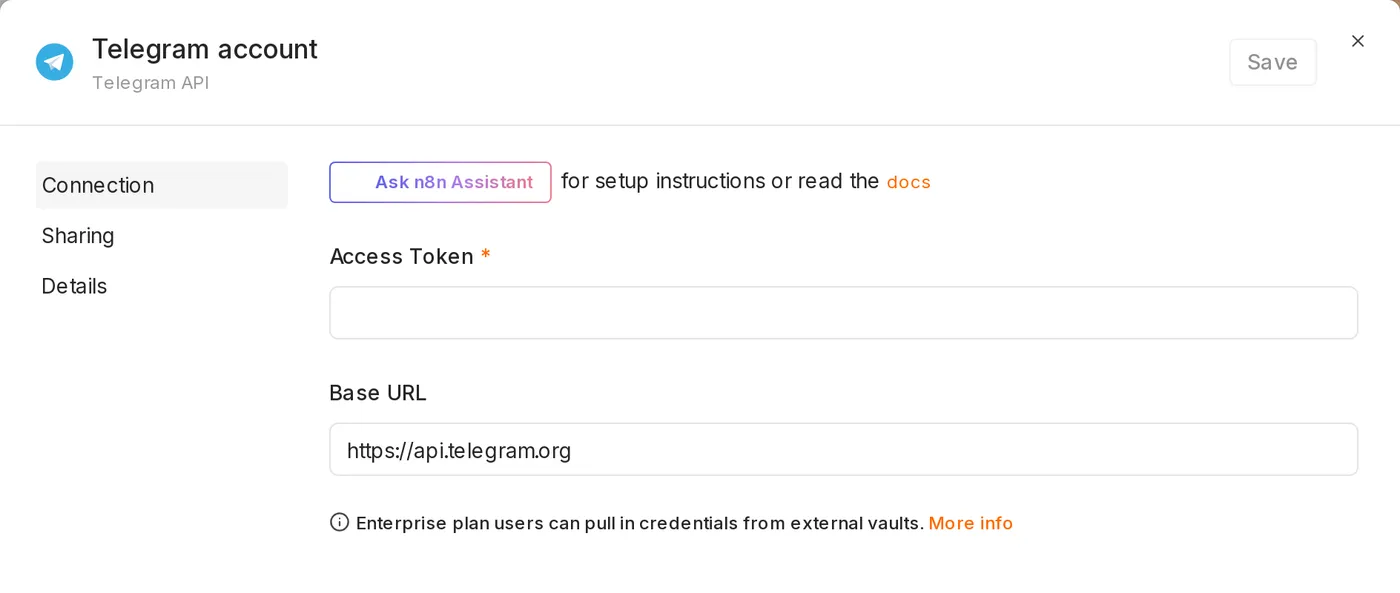
For a detailed bot example, see Telegram bot.
Example: Google authorization for self-hosted n8n
With n8n Cloud, you can sign in to Google with one click. For a self-hosted setup, first create your own OAuth client in Google Cloud:
1. Create a Google Cloud project
- Go to Google Cloud Console and create a new project.
- Under “APIs & Services → Library,” enable the APIs you need, such as Google Sheets API, Gmail API, and Google Drive API.
2. Configure the OAuth consent screen
- Go to “APIs & Services → OAuth consent screen” and select External for the user type.
- Enter an app name and contact email.
- Add your own Google account under Test users.
3. Create an OAuth client ID
-
Go to “APIs & Services → Credentials → Create Credentials → OAuth client ID.”
-
Select Web application for the application type.
-
Paste the OAuth Redirect URL shown on the n8n credential screen into Authorized redirect URIs, for example:
https://n8n.example.com/rest/oauth2-credential/callback -
After creating it, you’ll get a Client ID and Client Secret.
4. Finish authorization in n8n
- Add a Google Sheets OAuth2 API credential (or one for Gmail or Google Drive).
- Paste in the Client ID and Client Secret.
- Click Sign in with Google, sign in, and grant access.
The redirect URI must match exactly. n8n generates this URL using environment variables such as
N8N_HOST,N8N_PROTOCOL, and the Webhook URL. If it showshttp://localhost:5678, your deployment settings are not complete yet. See Self-hosting.
While the app is in “Testing” status, authorization expires sooner, so you may need to authorize again periodically. For long-term use, consider publishing the app to production (Google review may be required).
Use credentials in the HTTP Request node
When you call an API that does not have a dedicated node, select an option under Authentication in the HTTP Request node:
- Predefined Credential Type: Use credentials for services n8n supports (such as Notion). You can call an API with the same credentials even if n8n’s Notion node does not support that API.
- Generic Credential Type:
- Header Auth: For example, name
Authorization, valueBearer sk-xxx - Query Auth: Put the key in a URL parameter
- Basic Auth: Username and password
- OAuth2: Configure the OAuth endpoints yourself
- Header Auth: For example, name
Do not put API keys directly in the URL or Header fields, or they will be exposed when you export or share the workflow.
Credential encryption key
Credentials are encrypted with an encryption key. By default, the key is stored in the n8n data directory (/home/node/.n8n/config), or you can specify one with the N8N_ENCRYPTION_KEY environment variable.
- When moving or restoring n8n, you must use the same encryption key, or none of the credentials can be decrypted.
- Multiple n8n instances (for example, workers in queue mode) must use the same key.
See Backup and updates for backup instructions.
Sharing and permissions
By default, only the person who created a credential can use it. In the credential’s Sharing settings, you can share it with other users or projects (available features depend on your plan). People you share it with can use it in workflows, but cannot see its contents.
Updated October 12, 2026