Contents
n8n Webhook Tutorial: Receive External Data and Respond
Webhook lets an external service proactively notify n8n when an event occurs. For example:
- Someone submits a website form
- A payment platform reports a successful payment
- GitHub gets a new Pull Request
- You want your own program to trigger an n8n workflow
The n8n Webhook node generates a URL. Any HTTP request sent to that URL starts the workflow.
Create a webhook
- Add a workflow and select Webhook as the first node.
- Configure:
- HTTP Method: Usually POST
- Path: The URL path, such as
contact-form - Respond: When to respond (explained below)
Two URLs appear above the node:
| URL | Format | When it works |
|---|---|---|
| Test URL | https://your-domain/webhook-test/contact-form | Receives one request after you click “Listen for test event” |
| Production URL | https://your-domain/webhook/contact-form | After you publish the workflow |
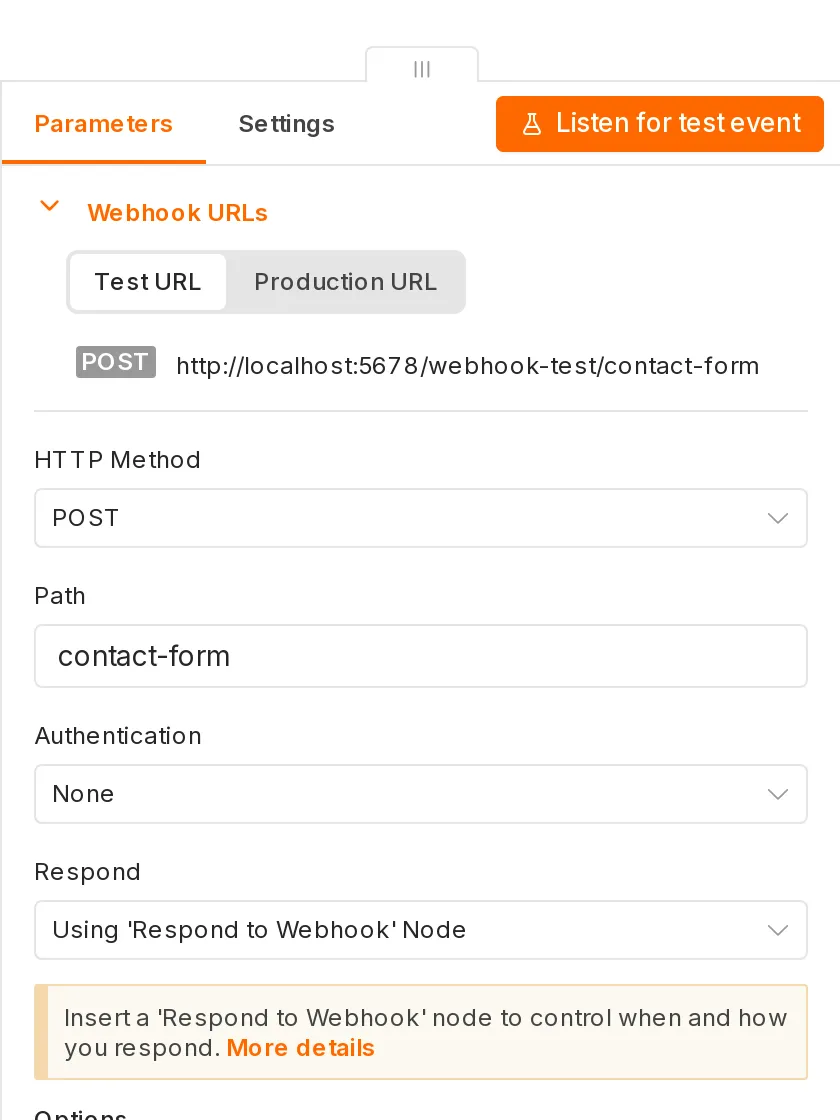
The most common mistake is configuring an external service with the Test URL and then not receiving data after publishing the workflow. For production use, be sure to switch to the Production URL.
Test
- Click Listen for test event.
- Send a request from the terminal:
curl -X POST https://your-domain/webhook-test/contact-form \
  -H "Content-Type: application/json" \
-d '{"name": "John Smith", "email": "ming@example.com", "message": "I’d like to ask about pricing"}'- The received data appears in the Webhook node’s OUTPUT:
{
  "headers": { "content-type": "application/json", "...": "..." },
  "params": {},
  "query": {},
  "body": {
    "name": "John Smith",
    "email": "ming@example.com",
    "message": "I’d like to ask about pricing"
  }
}
In subsequent nodes, read the submitted data with {{ $json.body.name }}. URL parameters (such as ?id=123) are available at {{ $json.query.id }}.
Response options
The Respond option determines when n8n responds and what it returns to the caller:
| Option | Behavior |
|---|---|
| Immediately | Responds as soon as the request arrives; the workflow continues running in the background |
| When Last Node Finishes | Waits for the entire workflow to finish and returns the last node’s data |
| Using 'Respond to Webhook' Node | The Respond to Webhook node in the workflow determines the response content |
Choose Immediately when the caller only needs to know that the request was received (for example, a payment notification). To return the processing result (for example, to create an API), use the Respond to Webhook node.
Build a simple API with n8n
[Webhook GET /price] ─▶ [Google Sheets lookup] ─▶ [Respond to Webhook]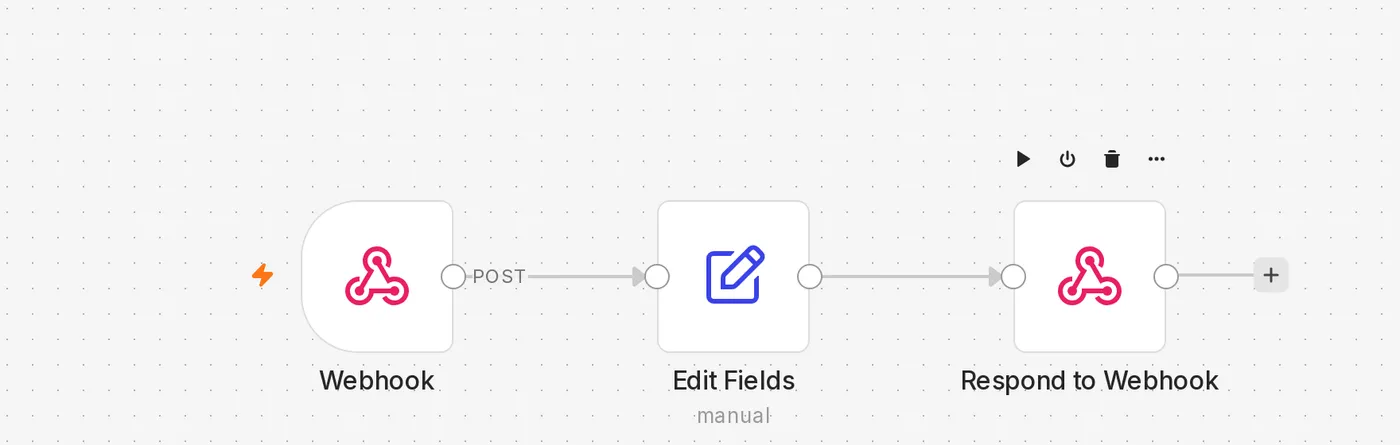
Configure the Respond to Webhook node:
- Respond With: JSON, text, binary file, or redirect
- Response Code: For example, 200 or 404
- Response Headers: For example, CORS headers
{ "product": "{{ $json.name }}", "price": {{ $json.price }} }Path parameters
The Path can include variables:
orders/:orderIdWhen you call /webhook/orders/A123, {{ $json.params.orderId }} is A123.
Authenticate requests
The Production URL is public, so anyone who knows it can call it. Protect it with these methods:
- Authentication option: Basic Auth, Header Auth, or JWT Auth. For example, configure Header Auth with the name
X-API-Key; the caller must include the correct value. - Verify signatures: Many services (Stripe, GitHub, LINE, and others) include a signature in the Header. You can verify it with a Code node.
- IP allowlist: Configure IP(s) Whitelist in the Webhook Options.
- Use a random, hard-to-guess string in the path.
Receive files
When a form uploads a file (multipart/form-data), the file appears in the binary data. You can connect it directly to nodes such as Google Drive or Extract from File.
Make your n8n instance reachable by external services
External services must be able to reach n8n over the network:
- Production deployment: Use a server with a domain and HTTPS, and configure the Webhook URL environment variable correctly. Otherwise, the URL shown by n8n will be
http://localhost:5678/.... See Self-hosting. - Local testing: Tools such as Cloudflare Tunnel and ngrok can temporarily expose local port 5678 to the internet.
Common issues
404: The requested webhook is not registered
- When using the Test URL: You did not click Listen for test event first, or it has already received a request.
- When using the Production URL: The workflow has not been published.
- The HTTP method does not match (for example, the node is set to POST but you call it with GET).
The received body is empty
Make sure the caller sends the Content-Type: application/json header.
The external service reports a timeout
You selected When Last Node Finishes, and the workflow takes too long to run. Switch to Immediately or shorten the workflow.
Updated October 12, 2026