Contents
n8n FAQ: Common Questions and Troubleshooting
Workflows do not run automatically
- Did you click Publish (the Active toggle in n8n 1.x)? Clicking Save alone does not activate triggers.
- Did you republish after making changes?
- Is the schedule time correct? See the next question.
- Check Executions for failed runs.
Schedule is off by 8 hours
n8n's timezone is not set, so it defaults to UTC. Set the GENERIC_TIMEZONE=Asia/Taipei environment variable and restart, or specify a timezone under Settings → Timezone in the workflow.
Webhook URL shows localhost
Add your public URL to the deployment settings:
N8N_WEBHOOK_URL=https://n8n.example.com/(For versions before n8n 2.30, use WEBHOOK_URL.) Also confirm that N8N_HOST and N8N_PROTOCOL are correct. See Self-hosting.
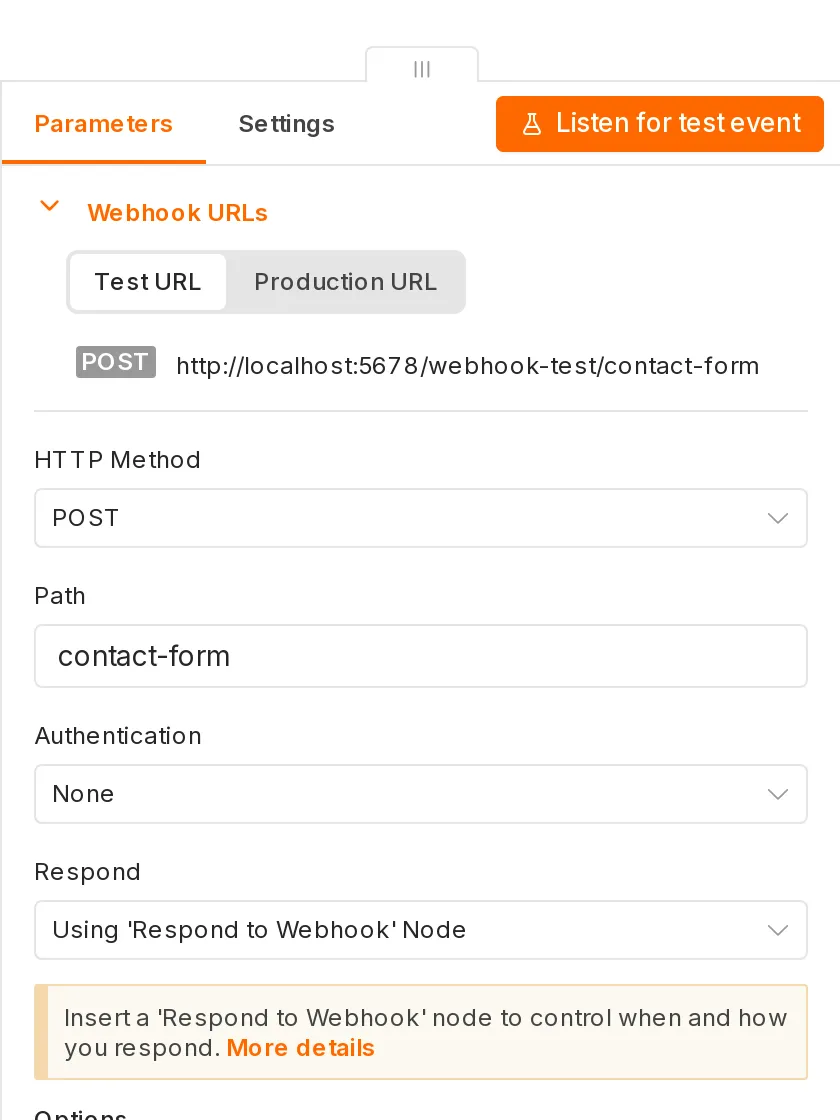
Webhook returns 404
- With a Test URL, click Listen for test event first. It can receive only one event.
- With a Production URL, the workflow must be published.
- Confirm that the HTTP method (GET / POST) matches the configuration.
See the Webhook tutorial.
A node runs many times
If an upstream node outputs multiple items, the downstream node runs once for each item. To avoid repeated runs, turn on Execute Once in the node's Settings, or combine the data first with Aggregate. See Data structure and items.
Google authorization fails: redirect_uri_mismatch
The “Authorized redirect URI” configured in Google Cloud does not match the OAuth Redirect URL shown by n8n. Copy the URL from the n8n credentials screen and paste it into Google Cloud exactly. If n8n shows localhost, fix the deployment URL settings first. See Credential management.
Google authorization expires every few days
When the OAuth app in Google Cloud is in “Testing” status, authorization expires sooner. You can publish the app to production.
Secure cookie error when connecting from another computer
This happens when connecting from a non-localhost address over http:// (not HTTPS). For production use, configure HTTPS. For testing on an internal network only, you can temporarily set N8N_SECURE_COOKIE=false.
Out of memory (JavaScript heap out of memory)
This usually happens when processing too much data or a file that is too large at once:
- Use Loop Over Items to process data in batches.
- Split the work into sub-workflows (memory is released when a sub-workflow finishes).
- Keep only the fields you need (turn on Keep Only Set Fields in Edit Fields).
- Increase the host's memory.
Database keeps growing
Execution records save the complete data for every node. Configure automatic cleanup:
EXECUTIONS_DATA_PRUNE=true
EXECUTIONS_DATA_MAX_AGE=168    # Keep 7 days (unit: hours)
You can also configure the workflow's Settings so successful executions do not save data.
Expressions show undefined or an error
- Run the preceding nodes first so the expression preview has data.
- Use
?.to handle a missing intermediate value:{{ $json.address?.city }}. - To read an earlier node, use
$('Node name')instead of$json.
See the Expressions tutorial.
Code node cannot read $env
In n8n 2.x, the Code node is blocked from reading environment variables by default. It is recommended to store the values you need as credentials or pass them in node parameters.
Workflows break after an update
Check the release notes for breaking changes. If you cannot fix the issue right away, change the image version back to the previous one and restore a database backup (database migrations usually cannot be reversed, so a backup before updating is important). See Backup and updates.
Where can I find examples?
- The Templates page on the n8n website has thousands of community-shared workflow templates that you can import and use directly.
- The official n8n community forum has many questions and answers. When you see an error message, try searching there first.
Updated October 12, 2026