Contents
n8n First Workflow Tutorial: Send a Daily Weather Notification Automatically
In this lesson, we'll build a complete small project: get the Taipei weather forecast every morning at 7:00 and send it to your inbox as a short message.
[Schedule Trigger] ─▶ [HTTP Request] ─▶ [Edit Fields] ─▶ [Send Email]
   Every day 07:00       Get weather data    Format as text      Send notification
We'll use the free Open-Meteo API, which doesn't require registration.
Step 1: Create a workflow and trigger
- On the home page, select Create Workflow and rename it "Daily Weather Notification."
- Select Add first step, search for Schedule Trigger, and select it.
- Set:
- Trigger Interval: Days
- Days Between Triggers: 1
- Trigger at Hour: 7am
- Trigger at Minute: 0
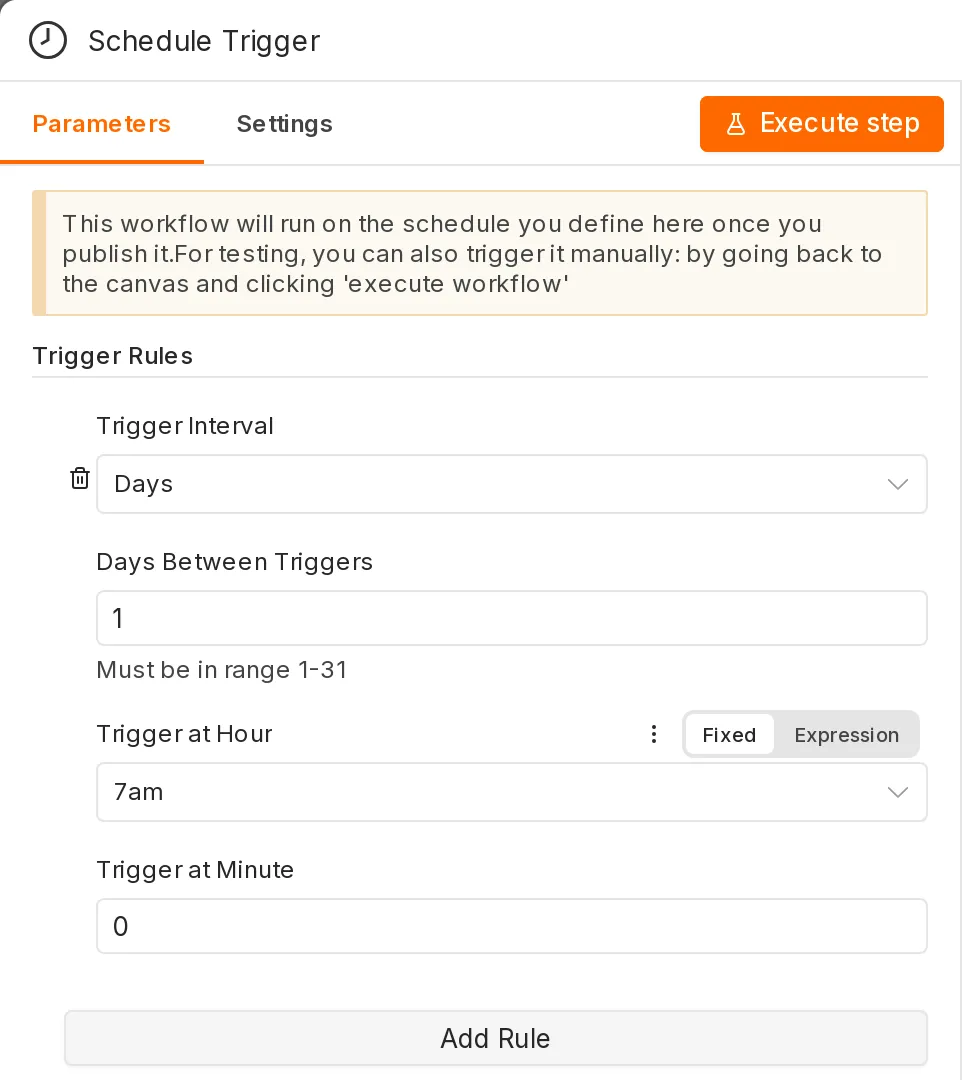
Make sure n8n's time zone is set correctly (
GENERIC_TIMEZONE=Asia/Taipei); otherwise, the workflow will run at the wrong time.
Step 2: Get weather data
-
Add an HTTP Request node after Schedule Trigger.
-
Set:
-
Method: GET
-
URL:
https://api.open-meteo.com/v1/forecast?latitude=25.03&longitude=121.56&daily=temperature_2m_max,temperature_2m_min,precipitation_probability_max&timezone=Asia%2FTaipei&forecast_days=1
-
-
Select Execute step. The API response will appear in OUTPUT on the right:
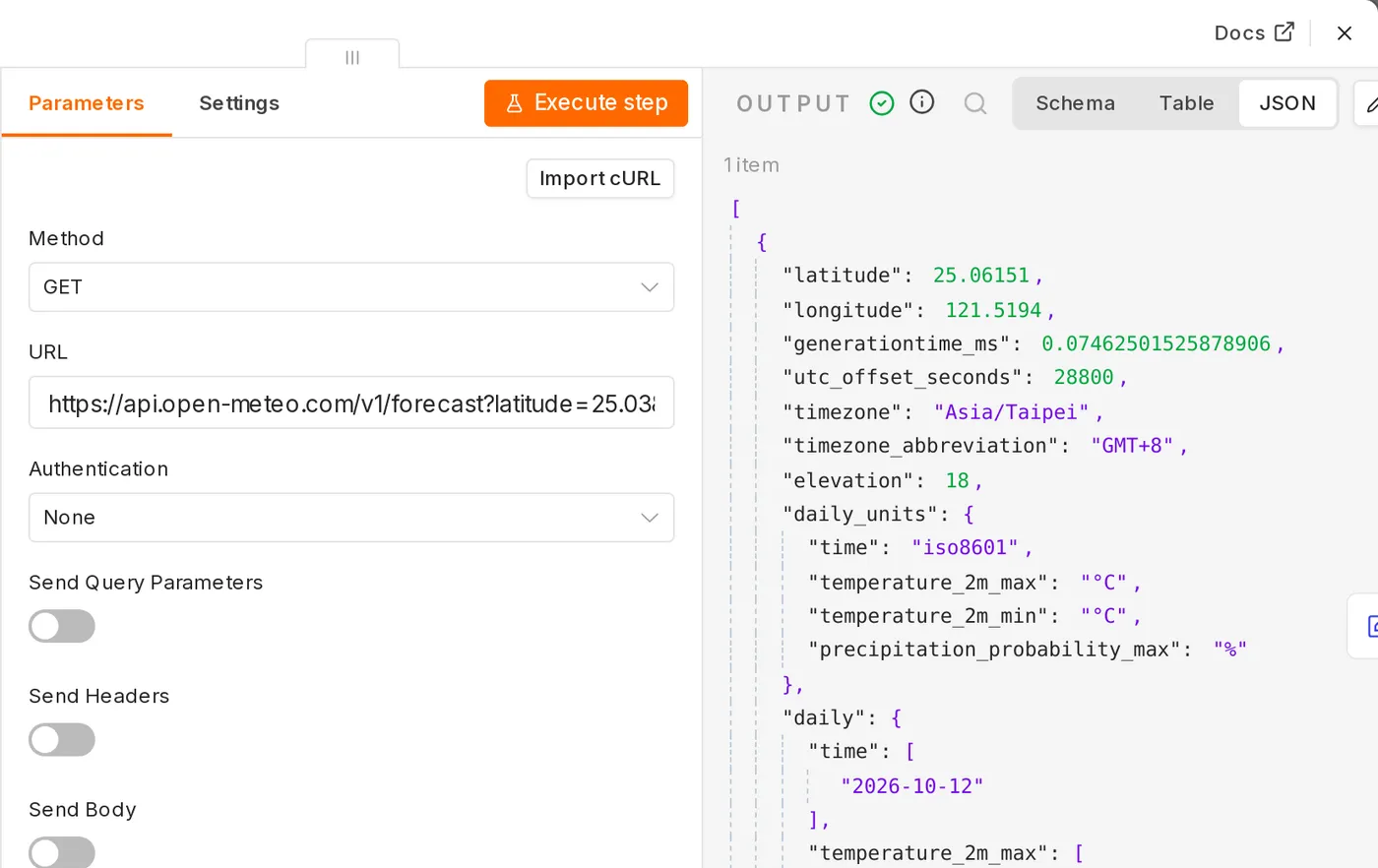
{
  "daily": {
    "time": ["2026-10-12"],
    "temperature_2m_max": [28.4],
    "temperature_2m_min": [22.1],
    "precipitation_probability_max": [60]
  }
}
(The values change every day.)
Step 3: Format a message
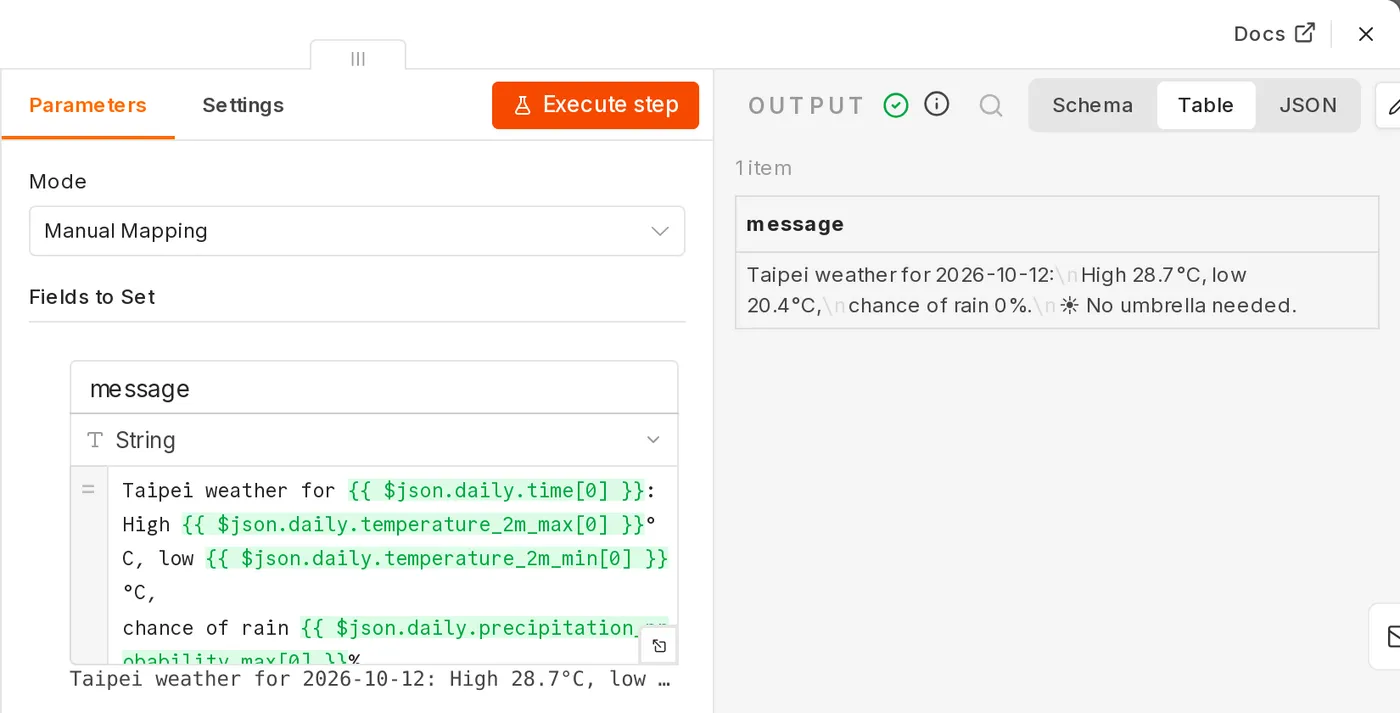
- Add an Edit Fields (Set) node.
- Select Add Field, name it
message, and set the type to String. - Switch the value field to Expression and enter:
Taipei weather for {{ $json.daily.time[0] }}:
High {{ $json.daily.temperature_2m_max[0] }}°C, low {{ $json.daily.temperature_2m_min[0] }}°C,
precipitation probability {{ $json.daily.precipitation_probability_max[0] }}%.
{{ $json.daily.precipitation_probability_max[0] >= 50 ? '☔ Remember to bring an umbrella!' : '☀️ You probably won’t need an umbrella.' }}
The content inside {{ }} is an expression. $json represents the output data from the previous node. The preview below shows the result immediately. For details on expressions, see the Expressions tutorial.
- Select Execute step to confirm the output.
Step 4: Send an email
The simplest option is the Send Email node (using SMTP):
- Add a Send Email node.
- Under Credential, select Create new credential and enter your SMTP settings. For Gmail:
- Host:
smtp.gmail.com - Port: 465, with SSL/TLS enabled
- User: your Gmail address
- Password: your Google Account app password (first enable two-step verification, then create one in your Google Account security settings)
- Host:
- Set:
- From Email and To Email: your email address
- Subject:
Today's Weather - Email Format: Text
- Text: drag the
messagefield from INPUT, or enter{{ $json.message }}
You can also use the Gmail node (OAuth authorization), Telegram, LINE, or Discord node. Just replace the final node. For credential setup, see Credential management.
Step 5: Test the whole workflow
Select Execute workflow at the bottom. The nodes run in order, and a green checkmark and the number of output items appear in the upper-right corner of each node. Check your inbox for the notification.
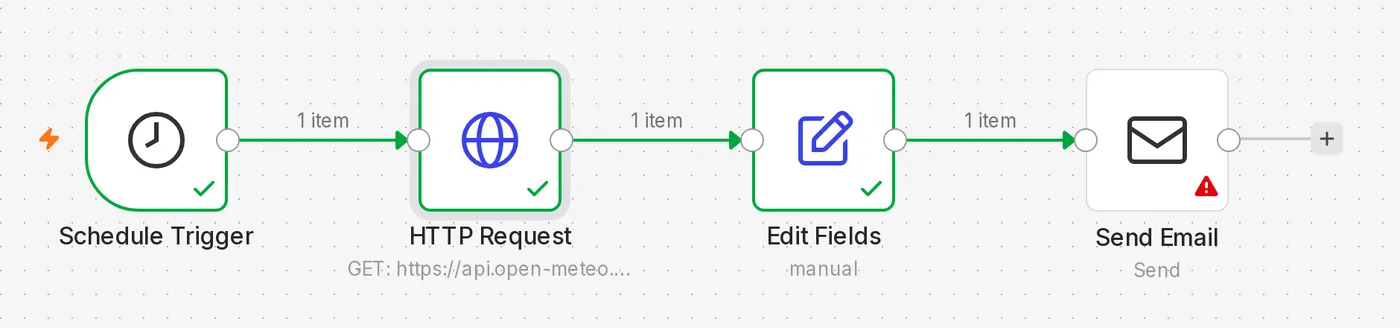
If a node shows a red error, open it to view the error message, fix the issue, and run the workflow again.
Step 6: Save and publish
- Select Save.
- Select Publish. The workflow will run automatically every morning at 7:00.
Review execution history
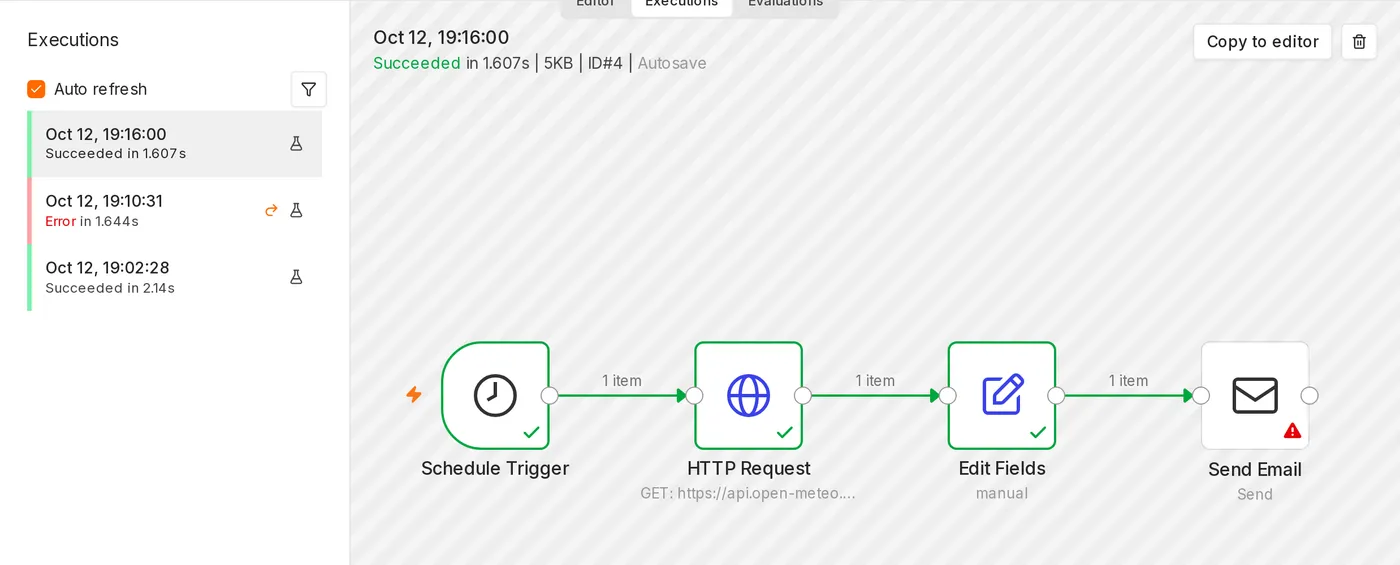
Switch to the Executions tab to see the records of daily runs. Open any execution to view the data for each node at that time.
Further exercises
- Look up the weather for Taipei, Taichung, and Kaohsiung at the same time. (Hint: Add a node before HTTP Request that generates three items. n8n runs once for each item automatically. See Data structure and items.)
- Send an email only when the precipitation probability is above 50%. (Hint: Use the If node. See Common core nodes.)
Updated October 12, 2026