Contents
n8n Data Structure Tutorial: How Items, JSON, and Nodes Handle Multiple Records
The most important—and often most confusing—concept in n8n is this: what nodes pass between them is not a single record, but a list (items) made up of multiple records.
What items look like
A node’s output looks like this in the JSON view:
[
  { "name": "Alex", "email": "ming@example.com" },
  { "name": "Jordan", "email": "hua@example.com" },
  { "name": "Taylor", "email": "mei@example.com" }
]
These are 3 items. Internally, each item in n8n is actually:
{
  "json": { "name": "Alex", "email": "ming@example.com" },
  "binary": { }
}json: Regular data.$jsonin an expression refers to this.binary: File data (images, PDFs, spreadsheets, and so on). This appears only when you need to process files.
Nodes run once for each item
This is n8n’s most important rule. Suppose the previous node outputs 3 records and the next node is “Send Email”:
[Google Sheets] ──3 items──▶ [Send Email]
                               Sends 3 emails (one for each item)
You don’t need to write a loop; n8n handles it automatically. In the Send Email node, {{ $json.email }} is ming@example.com when processing the first item, hua@example.com for the second, and so on.
The number shown in the top-right corner of a node (for example, 3 items) is the number of output items.
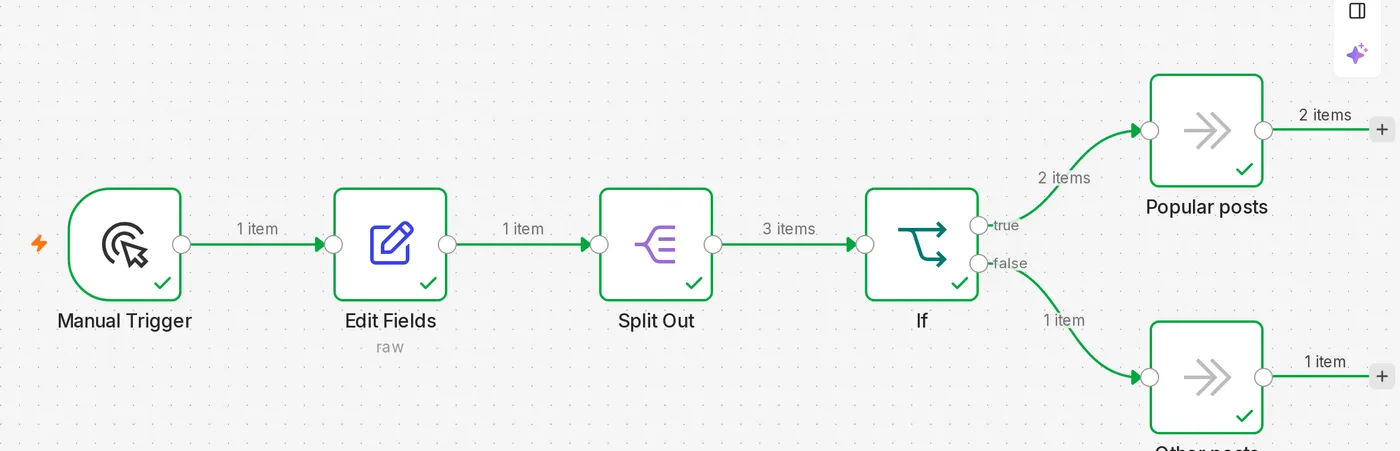
“Why was my message sent 5 times?”
The most common reason: an upstream node output 5 items, so the downstream “Send Message” node ran 5 times. To fix it:
- To run it only once: turn on Execute Once in the node’s Settings to process only the first item.
- To combine multiple items into one message: first use an Aggregate or Summarize node to combine them into one item.
Common data transformation nodes
| Node | Purpose | Example |
|---|---|---|
| Split Out | Splits an array in one record into multiple records | An API returns { "orders": [...] }; split it so each order becomes one item |
| Aggregate | Combines fields from multiple records into an array, creating one item | Combine 10 orders and send a summary at once |
| Summarize | Calculates grouped statistics (sum, count, average) | Calculate sales totals by region |
| Limit | Keeps only the first N records | Process only the 5 most recent articles |
| Remove Duplicates | Removes duplicate data | Send only one email to each recipient |
| Sort | Sorts data | Sort by date |
| Filter | Keeps only data that meets a condition | Process only orders with an amount greater than 1000 |
| Edit Fields (Set) | Adds, modifies, or removes fields | Keep only the fields you need |
Example: Split an array returned by an API
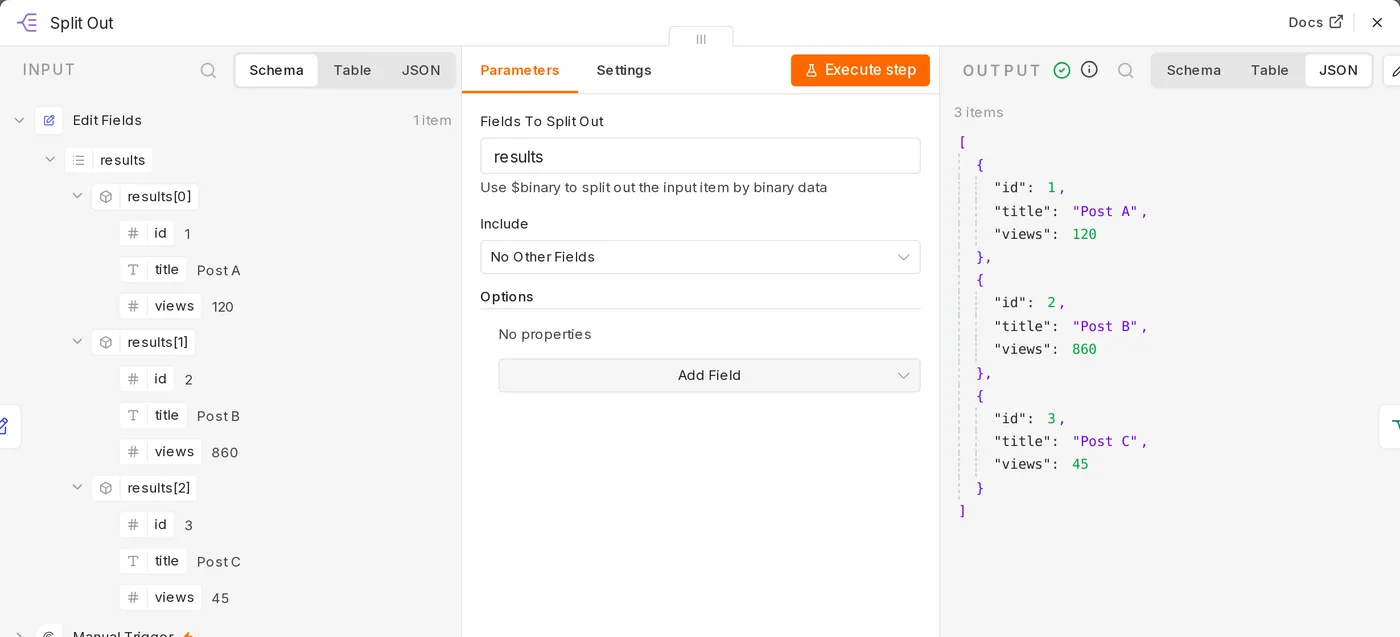
Data from an HTTP Request often comes back as “one item containing an array”:
[
  {
    "results": [
      { "id": 1, "title": "Article A" },
      { "id": 2, "title": "Article B" }
    ]
  }
]
In this case, the downstream node runs once. Add a Split Out node and enter results in the field; it will produce two items:
[
  { "id": 1, "title": "Article A" },
  { "id": 2, "title": "Article B" }
]
Item linking
n8n remembers which input item each output item came from. That means later nodes can access a value from the same item in an earlier node:
{{ $('Google Sheets').item.json.name }}This means: “the name in the Google Sheets node for the item that corresponds to the current item.” See the expressions tutorial for a full explanation of expressions.
Multiple inputs: the Merge node
When a workflow splits into two branches and you need to combine them again, use the Merge node:
| Mode | Description |
|---|---|
| Append | Adds the data from both inputs together |
| Combine by matching fields | Combines data using a shared field (similar to an SQL JOIN), such as matching customer data with orders by email |
| Combine by position | Pairs the first item with the first, the second with the second, and so on |
| Choose branch | Waits for both branches to finish, then outputs just one branch |
Binary data (files)
When you read a file, download an image, or receive an attachment, the data is stored in binary. You can preview or download it from the Binary tab in OUTPUT. Common nodes:
- Extract from File: Extracts content from CSV, Excel, PDF, and JSON files and turns it into items
- Convert to File: Converts items into CSV, Excel, or JSON files
- Read/Write Files from Disk: Reads and writes files on the server (n8n 2.x allows access only to specific folders by default)
Recap
- Nodes pass arrays of items between them
- Each node runs once for every item; you don’t need to write your own loop
- Use Split Out to split, Aggregate to aggregate, and Merge to combine
- To avoid running a node repeatedly, turn on Execute Once or combine the data first
Updated October 12, 2026