Contents
n8n Interface Guide: Learn the Workflow Editor, Nodes, and Execution History
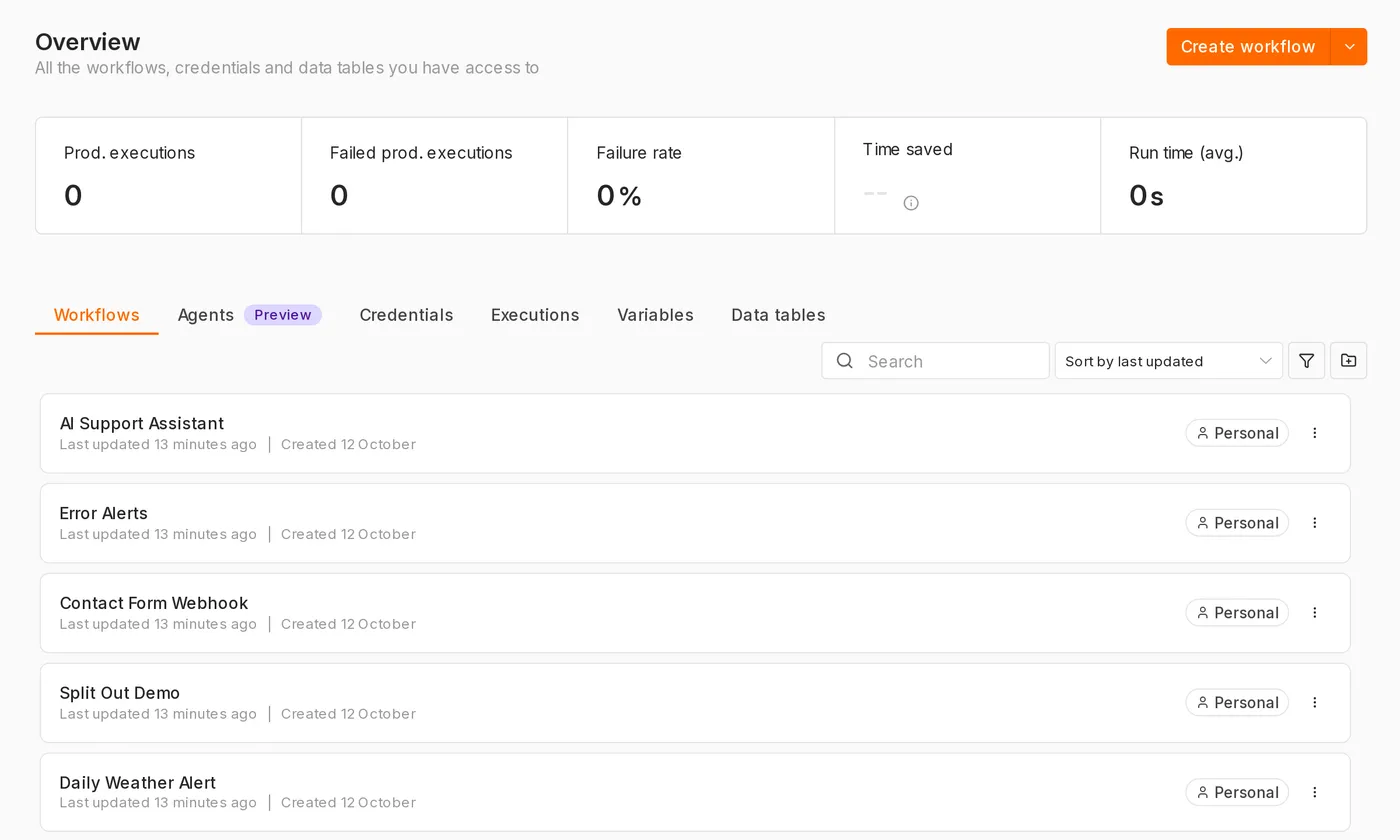
Home page (Overview)
After you log in, the home page lists:
- Workflows: all workflows
- Credentials: saved credentials (accounts and API keys)
- Executions: execution history for all workflows
Select Create Workflow in the upper-right corner to create a new workflow.
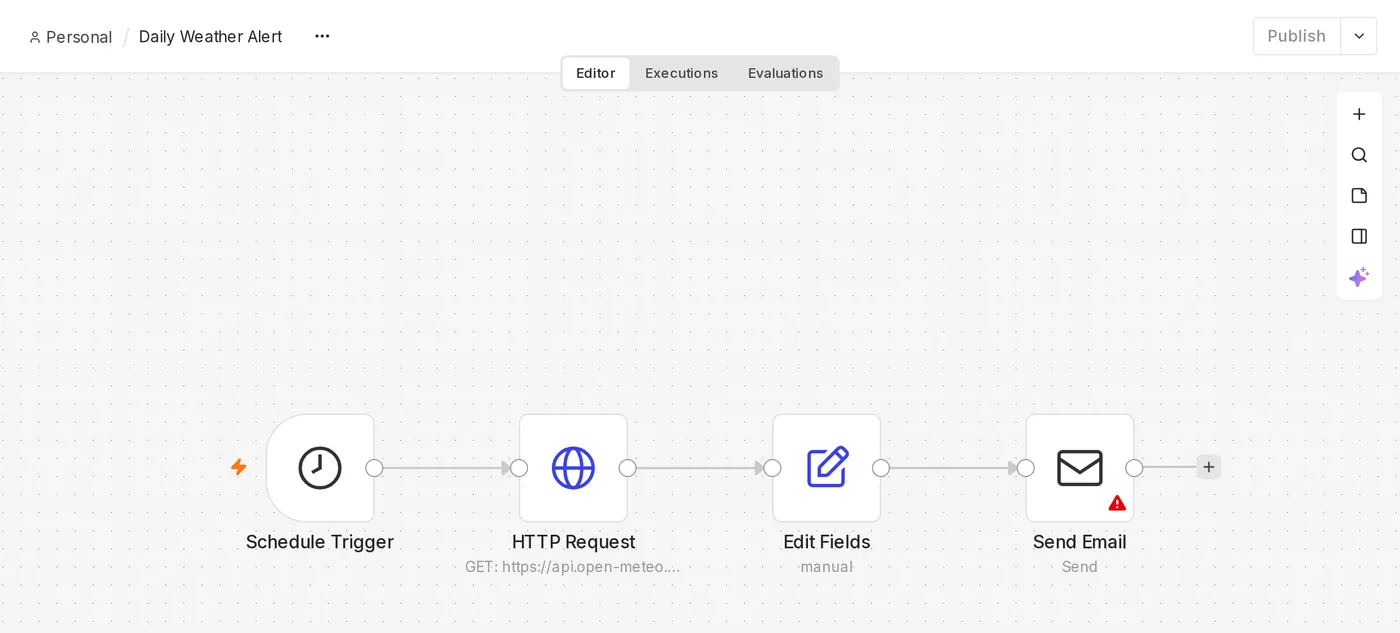
Workflow editor
┌──────────────────────────────────────────────────────────┐
│ Workflow name       [Editor | Executions]    Save  Publish │
├──────────────────────────────────────────────────────────┤
│                                                          │
│   [Trigger] ──▶ [Node A] ──▶ [Node B]                    │
│                                    ⊕                      │
│                       (Canvas)                            │
│                                                          │
│            [ Execute workflow ]                          │
└──────────────────────────────────────────────────────────┘| Area | Purpose |
|---|---|
| Canvas | Place and connect nodes; you can drag and zoom. |
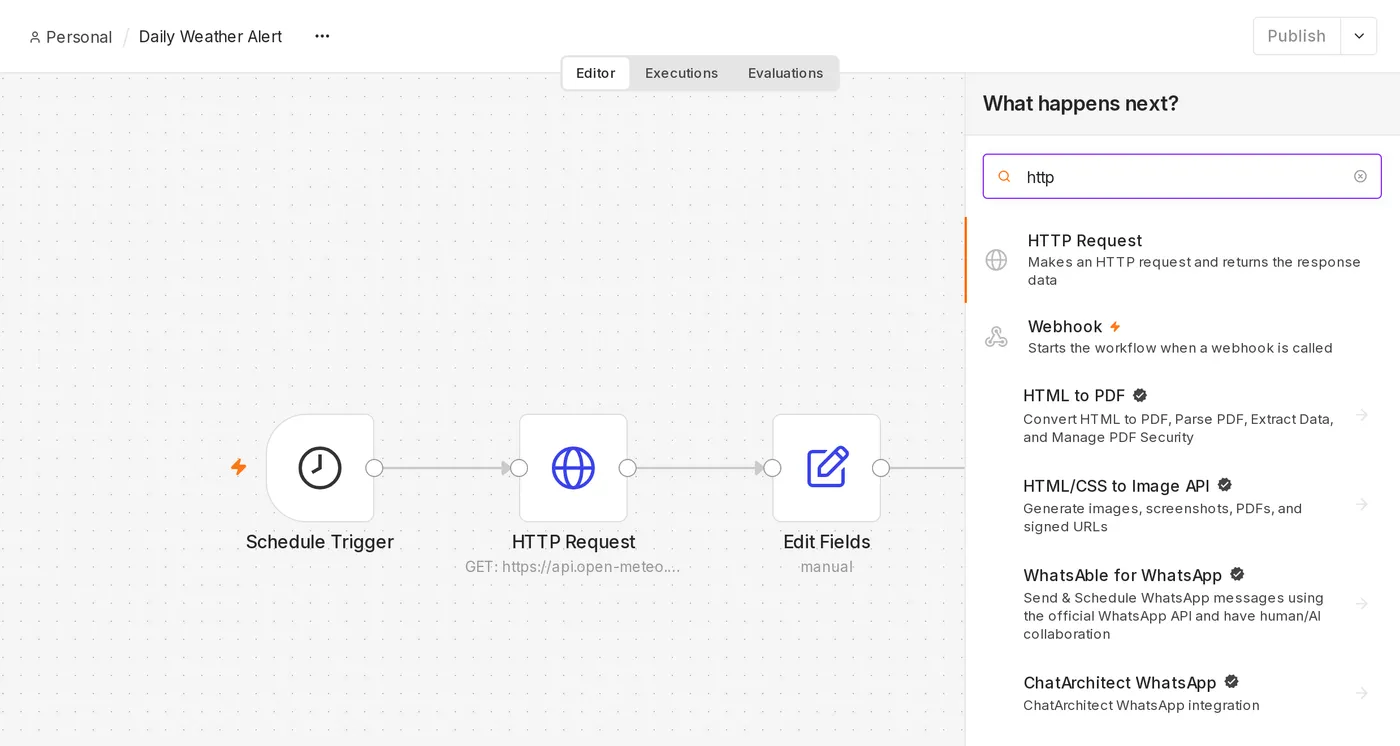
| Node panel | Select + in the upper-right corner of the canvas or press N to search for and add a node. |
| Execute workflow | Run the workflow once manually for testing. |
| Editor / Executions | Switch to this workflow's execution history. |
| Save | Save your current changes. |
| Publish | Publish the workflow so its triggers start running automatically. |
Add and connect nodes
- A new workflow prompts you to add a trigger first, such as “Trigger manually” (for testing) or “On a schedule.”
- Move your pointer to the right side of a node and select + to add the next node. n8n connects it automatically.
- You can also drag from a node's output point to another node's input point to connect them.
- Select a connection and press Delete to remove it.
Node settings panel
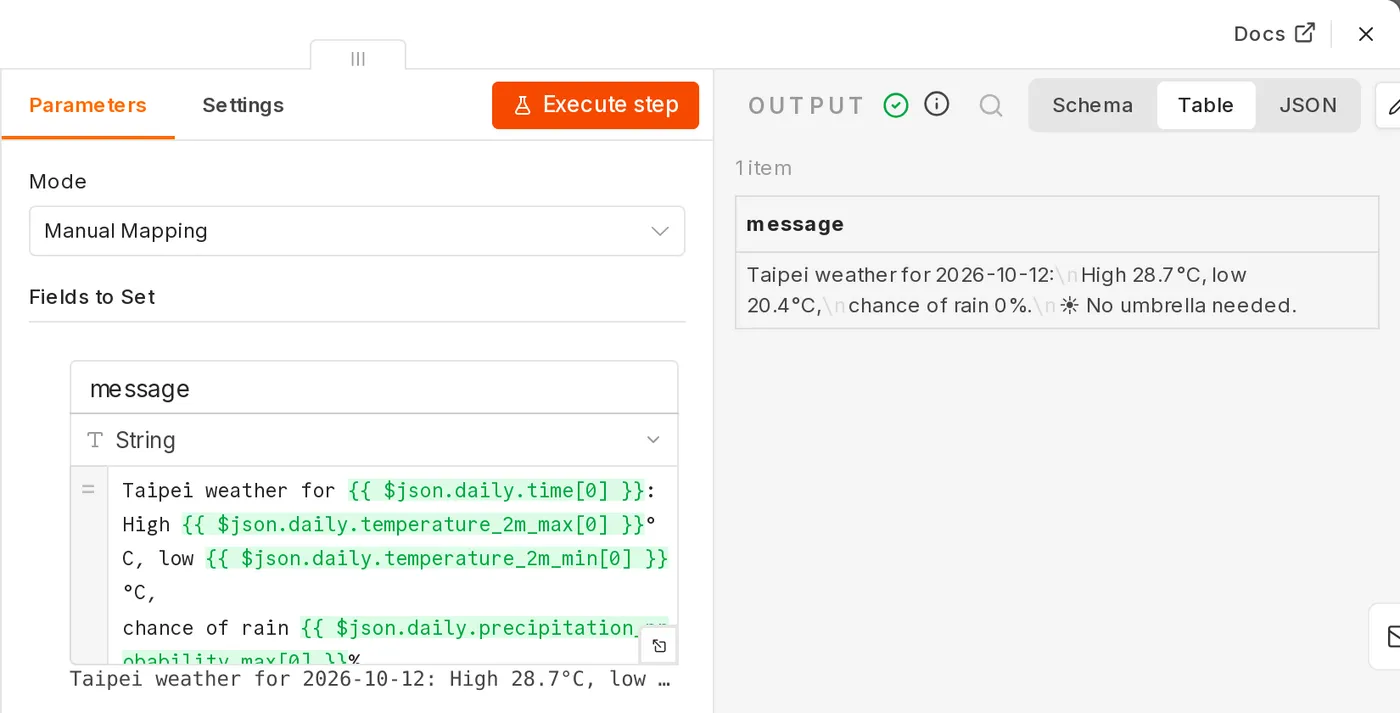
Double-click a node to open its settings panel, which has three columns:
┌──────────────┬────────────────────┬──────────────┐
│    INPUT     │     PARAMETERS     │    OUTPUT    │
│ Previous node's │  This node's settings │ This node's │
│ output data  │                    │ output data  │
└──────────────┴────────────────────┴──────────────┘- INPUT / OUTPUT can each switch between Table, JSON, and Schema views.
- Drag a field from INPUT to a parameter field. n8n automatically creates an expression, such as
{{ $json.email }}. - Select Execute step to run only this node and any preceding nodes it needs.
- The Settings tab has advanced options such as retries and continuing after failure (see Error handling).
Pin data (Pin data)
Calling an external API every time you test can waste resources, and may send duplicate emails. Select Pin (the pin icon) in the OUTPUT section to pin the current output. Later tests will use this pinned data directly.
Pinned data is used only during manual tests. It does not apply to production runs.
Save and publish
In n8n 2.x, saving and going live are separate actions:
- Save: Save a draft without affecting the version currently running.
- Publish: Publish the current version. Triggers such as schedules and Webhooks then start running automatically.
- Unpublish: Stop automatic runs.
After you edit a published workflow, select Publish again for the new version to take effect. This prevents a workflow from being triggered while you're still editing it.
In n8n 1.x, this feature was the Active toggle in the upper-right corner. Changes took effect immediately after saving.
The Trigger manually trigger can only be run manually and does not need to be published.
Execution history
The Executions tab lists the status of each run (success, failure, or running). Open a run to see the input and output data for each node at that time. This is the most important tool for debugging.
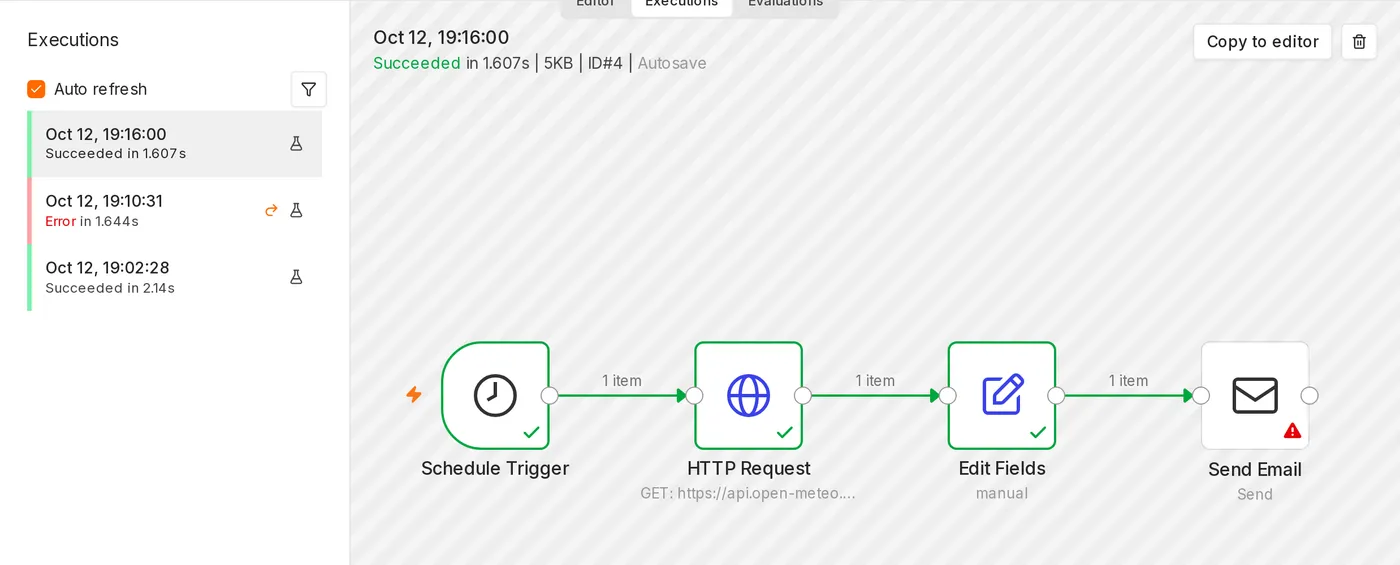
For a failed run, select Debug in editor to load its data into the editor and test it again.
Useful tips
| Action | How |
|---|---|
| Add a node | N or + on the canvas (older versions of n8n used Tab) |
| Copy / paste a node | Ctrl + C / Ctrl + V (use Cmd on Mac); you can paste across workflows |
| Disable a node | Select it and press D. Disabled nodes let data pass through directly. |
| Tidy the layout | Shift + Alt + T (Tidy up) |
| Add a note | Add a Sticky Note to explain what this part of the workflow does. |
| Rename a node | Select it and press F2 |
Node names appear in expressions (for example, $('Get order')). Choose a clear name to make future maintenance much easier.
Import and export
You can export a workflow as a JSON file (menu → Download), or import one by pasting JSON directly onto the canvas. n8n templates shared online use this format.
Updated October 12, 2026