Contents
n8n Core Nodes Tutorial: HTTP Request, If, Switch, Merge, Loop, and Wait
n8n has hundreds of integration nodes, but most workflows are built from a handful of core nodes. Once you know them, you can handle most situations.
Triggers
| Node | When it runs |
|---|---|
| Manual Trigger | When you click Execute manually (for testing) |
| Schedule Trigger | On a schedule, such as daily at 8:00, every 15 minutes, or a Cron expression |
| Webhook | When it receives an HTTP request; see the Webhook tutorial |
| Form Trigger | When someone submits a form built into n8n |
| Chat Trigger (When chat message received) | When it receives a chat message; used for AI assistants |
| Execute Workflow Trigger | When another workflow calls it (a sub-workflow) |
| Error Trigger | When another workflow encounters an error |
| Triggers for each service | For example, when Gmail receives a new email, Google Sheets gets a new row, or Telegram receives a message |
Cron mode examples for Schedule Trigger:
0 9 * * 1-5      Monday through Friday at 09:00
*/15 * * * *     Every 15 minutes
0 0 1 * *        At 00:00 on the first day of every month
HTTP Request: call any API
You can handle almost any service that n8n doesn’t provide with HTTP Request:
- Method: GET, POST, PUT, PATCH, DELETE
- Authentication: Use credentials; see Credential management
- Send Query Parameters / Headers / Body: Set parameters
- Options → Pagination: Automatically handle pagination and retrieve data from all pages at once
- Options → Batching: Control the number of requests per second to avoid API rate limits
The easiest trick: Copy the cURL command from the API documentation, select Import cURL in the HTTP Request node, and paste it. All settings will be filled in automatically.
Edit Fields (Set): organize data
Add, modify, or rename fields, or keep only the fields you need (turn on Keep Only Set Fields). Clean up your data before passing it along, and the nodes that follow will be much easier to configure.
If: choose between two paths
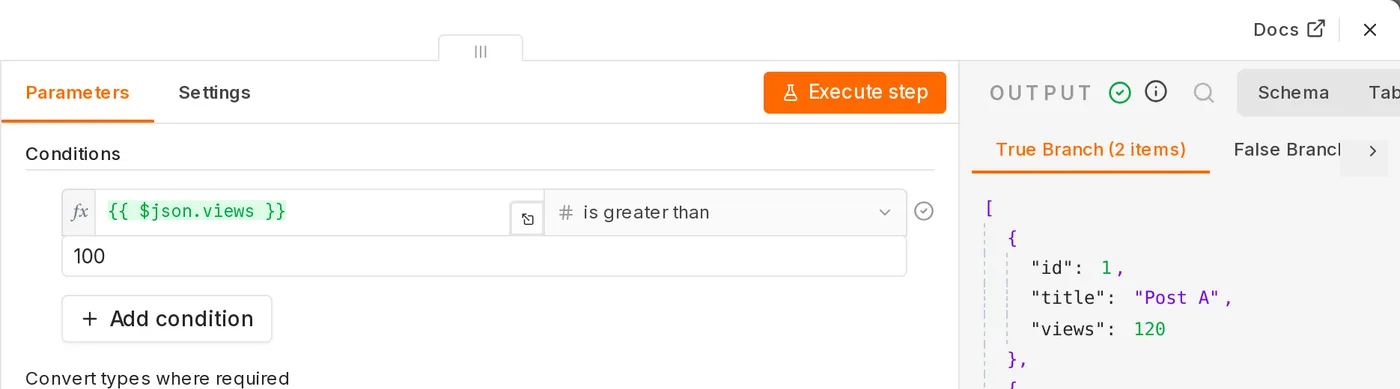
Set a condition. Matching data goes to the true output, and non-matching data goes to the false output:
            ┌─ true ──▶ [Notify manager]
[Order] ─▶ [If amount > 10000]
            └─ false ─▶ [Regular processing]
Conditions can compare strings, numbers, dates, and Boolean values, and you can combine multiple conditions with AND / OR. Watch the data types: "10000" returned by an API is a string. Convert it before comparing it as a number, or turn on Convert types where required.
Switch: multiple branches
Route data down different paths based on a value, such as assigning customer complaints to different departments based on their type:
| Rule | Output |
|---|---|
{{ $json.category }} equals “Logistics” | Output 0 → Logistics team |
| Equals “Quality” | Output 1 → Quality control team |
| Equals “Refund” | Output 2 → Finance team |
| Other (Fallback) | Output 3 → Customer support manager |
Filter: keep only data that meets conditions
Similar to If, but with only one output. Data that doesn’t meet the conditions is discarded.
Merge: combine two paths
Use this when you need to combine data from two branches. See Data structure and items for an explanation of the modes.
Loop Over Items: process in batches
n8n already runs once for each item, so in most cases you don’t need a loop. Use Loop Over Items (formerly Split in Batches) when:
- An API has rate limits, so you need to process 10 items at a time with a wait in between
- A node can process only one item at a time
[Get 500 items] ─▶ [Loop Over Items, 10 per batch] ─loop─▶ [Call API] ─▶ [Wait 1 second] ─┐
                         │                                                    │
                         └─done─▶ [Send completion notice]          ◀────────────────────┘
Connect the last node in the loop back to the Loop Over Items input. After all items are processed, the workflow continues from the done output.
Wait: pause execution
- Wait for a period of time (for example, check payment status again after 5 minutes)
- Wait until a specified time
- Wait for an external call (Webhook) before continuing, such as waiting for a manager to click an “Approve” link
When a wait lasts longer than 65 seconds, n8n saves the execution state to the database, so it doesn’t use resources while waiting.
Execute Workflow: sub-workflows
Turn commonly used steps (for example, “Send a notification to Slack and Email”) into a standalone workflow that starts with Execute Workflow Trigger. Then call it from other workflows with the Execute Workflow node. Benefits:
- Maintain a piece of logic in one place
- Break large workflows into smaller pieces that are easier to read and debug
In n8n 2.x, the parent workflow receives the output from the sub-workflow’s last node.
Code: write code
For logic that expressions and existing nodes can’t handle, write JavaScript or Python. See the Code node tutorial.
No Operation, do nothing
A node that does nothing. You can place it on a branch of an If node to make it clear in the workflow diagram that “nothing happens in this case.”
Choose the order of nodes
When you have a task to solve, think through these options in order:
- Is there a service node for it? (For example, Google Sheets or Slack)
- Can you handle it with Edit Fields + expressions?
- Can you handle it with data transformation nodes (Split Out, Aggregate, Filter, Sort)?
- Use HTTP Request to call an API
- If none of the above work, use the Code node
Updated October 12, 2026