Contents
Docker Cleanup Tutorial: Reclaim Disk Space with Prune Commands
After using Docker for a while, old images, stopped containers, build cache, and unused volumes can pile up and take tens of gigabytes. This section shows you how to find what's using the space and clean it up safely. All output below comes from commands run in sequence in the same environment.
Check how much space is in use
$ docker system df
TYPE            TOTAL     ACTIVE    SIZE      RECLAIMABLE
Images          13        3         2.886GB   2.377GB (82%)
Containers      4         1         98.3kB    16.38kB (16%)
Local Volumes   4         1         40.61MB   40.61MB (100%)
Build Cache 151 0 3.554GB 2.954GB| Field | Meaning |
|---|---|
TOTAL | Total count |
ACTIVE | Number currently used by containers |
SIZE | Space used |
RECLAIMABLE | Space that can be reclaimed (not in use) |
This environment has 13 images, of which only 3 are in use. You can reclaim 2.377 GB (82%). Build cache is even larger, with 2.954 GB. Add -v to see details for each image, container, and volume: docker system df -v.
Current images and containers:
$ docker images
IMAGE               ID             DISK USAGE   CONTENT SIZE   EXTRA
adminer:latest      74f29c416e14        164MB         43.8MB
alpine:3.23         85fe1e81d675       26.6MB         8.21MB   U
hello-node:latest   4063457524bb        245MB         62.2MB
myapp:latest        80cb5c41a286       54.9MB         24.8MB   U
mysql:8.4           24989179f588       1.12GB          254MB
nginx:1.30          9bf97bd7714f        242MB         66.5MB
nginx:1.30-alpine   0985e772fb9f       93.7MB           27MB   U
node:24-alpine      ebfe2f904627        242MB           62MB
postgres:18         74935e722416        650MB          169MB
python:3.14-slim    a2b82f3c4855        180MB         45.7MB
redis:8-alpine      3811787313eb        161MB         39.6MB
registry:3          ddf754342cfc       86.9MB         20.7MB
ubuntu:26.04        f144425ff09b        162MB         45.6MB
$ docker ps -a
CONTAINER ID IMAGE COMMAND CREATED STATUS PORTS NAMES
cc43746c9a29 alpine:3.23 "true" 7 seconds ago Exited (0) 6 seconds ago anon1
7e269fff858b nginx:1.30-alpine "/docker-entrypoint.…" 8 seconds ago Up 7 seconds 80/tcp web
bf5ff318eb63 alpine:3.23 "echo done" 8 seconds ago Exited (0) 7 seconds ago old2
b580380c1fd2 myapp "cat /version.txt" 9 seconds ago Exited (0) 8 seconds ago old1U in the EXTRA column means In Use (a container is using the image). Only web is running; the other three containers have exited, but still take up space.
Clean up individual items
| Command | What it removes |
|---|---|
docker container prune | All stopped containers |
docker image prune | Dangling images (unnamed <none> images) |
docker image prune -a | All images not used by any container |
docker builder prune | Build cache |
docker volume prune | Unused anonymous volumes |
docker volume prune -a | All unused volumes (including named volumes) |
docker network prune | Unused custom networks |
Each command asks for confirmation (Are you sure you want to continue? [y/N]). Add -f to skip confirmation, which is useful in scripts. The examples below all use -f.
Remove stopped containers
$ docker container prune -f
Deleted Containers:
cc43746c9a2993bda0fb21ab3f161b78603353714f396f86fa8c4b5caf90e25a
bf5ff318eb6331a05239ad7fa39420ff96dc1c8f84b9a3548ce38a0f71a2d63a
b580380c1fd2dc6cca2dc6e009bb877c3eb2df1cf388664a32c8932aff8169fa

Total reclaimed space: 16.38kB
The three stopped containers are removed. The running web container is unaffected.
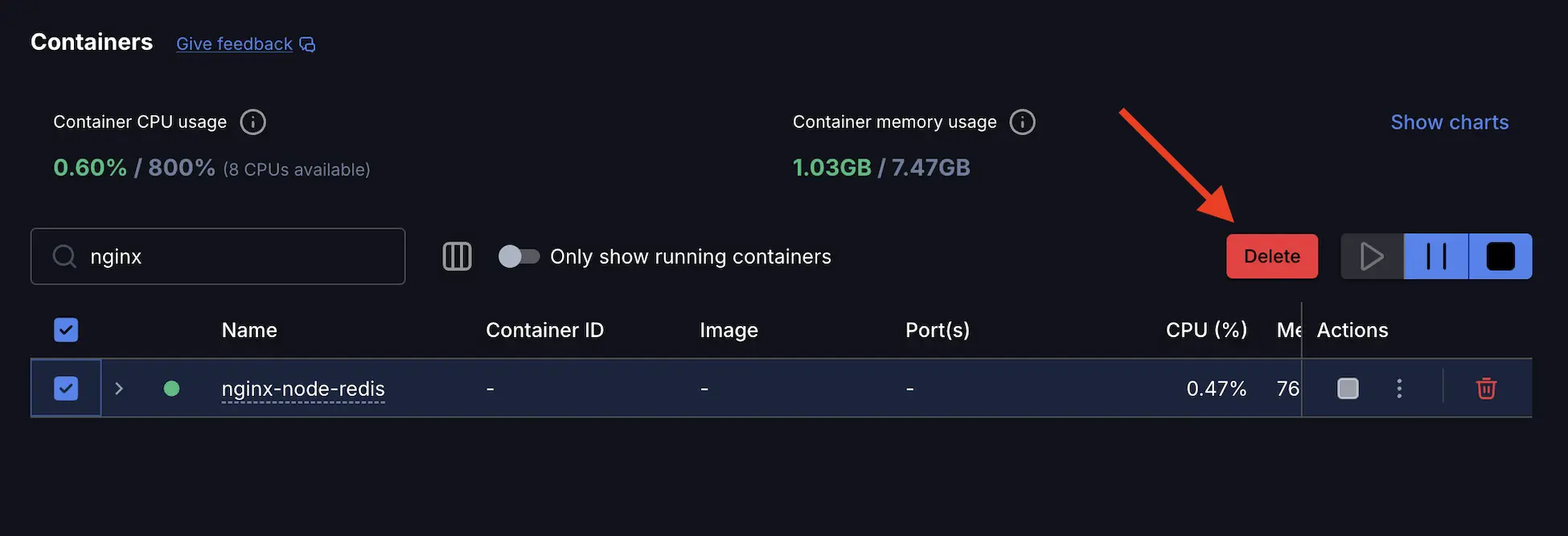
If you use Docker Desktop, you can also select containers on the Containers screen and click Delete:
Docker 29: Rebuilding no longer leaves <none> images
Previously, when you rebuilt an image with the same name (for example, by running docker build -t myapp . multiple times), the old version became a "dangling image" named <none>, which you had to clean up with docker image prune. Tested with Docker 29:
$ docker build -q --build-arg VERSION=4 -t myapp:latest .
sha256:3f33bc33eb36171280e9b90d904e25c58b2dcf509390536580ffacafc35d4595

$ docker images --filter dangling=true
IMAGE   ID             DISK USAGE   CONTENT SIZE   EXTRA

$ docker ps -a --filter name=old1
CONTAINER ID   IMAGE          COMMAND              CREATED          STATUS                      PORTS     NAMES
b580380c1fd2   80cb5c41a286   "cat /version.txt"   26 seconds ago   Exited (0) 26 seconds ago             old1
After building myapp:latest four times in a row, --filter dangling=true returns no results. Docker 29 uses the containerd image store by default. When a new image replaces an old one with the same name, the old version is no longer kept as <none>. For containers still using the old version (such as old1), the IMAGE column shows the image ID instead.
So on Docker 29, docker image prune (without -a) usually has little to clean up. The space is more likely taken up by unused images that still have names and build cache.
Remove anonymous volumes
$ docker volume ls
DRIVER    VOLUME NAME
local     6f6f8ce590c609d4f39b3a676282da88866c8ab20a064132f7746c3cf6717f2c
local     991c93cb6ebeac8570e9c15a89b4225c2bb5e20cbfde2f5bf665fa4dfa23a1aa
local     5396795eeeaab8415295814207a02f75f6ea136d5c34574ba9b16ecdc1b975f9
local     cleanup-demo_pgdata

$ docker volume prune -f
Deleted Volumes:
5396795eeeaab8415295814207a02f75f6ea136d5c34574ba9b16ecdc1b975f9
991c93cb6ebeac8570e9c15a89b4225c2bb5e20cbfde2f5bf665fa4dfa23a1aa
6f6f8ce590c609d4f39b3a676282da88866c8ab20a064132f7746c3cf6717f2c

Total reclaimed space: 0B

$ docker volume ls
DRIVER    VOLUME NAME
local cleanup-demo_pgdata- The first three volumes have long names and are anonymous volumes. For example, the
postgresimage's Dockerfile declares aVOLUME. Docker automatically creates an anonymous volume even if you don't mount one at runtime. It remains after you remove the container (see Volumes and data persistence). docker volume pruneonly removes unused anonymous volumes.cleanup-demo_pgdatais a named volume for a Compose project. It is no longer used by any container afterdocker compose down, but it was not deleted.
Remove build cache
$ docker builder du | tail -n 3
Private:	2.996GB
Reclaimable:	3.596GB
Total:		3.596GB

$ docker builder prune -f --filter until=1h | tail -n 3
lv85kuv5xx5h65k941qjoxecz               	true 	98.69kB   	About an hour ago
kc9tcgw8l1aq9dz1agx096se0               	true 	870kB     	About an hour ago
Total:	1.662GB

$ docker builder prune -f | tail -n 3
6os07ml167zpcfh09ushitk2b               	true 	8.285kB   	38 minutes ago
7ir7u28j6esk2x7pyu6q38kvk               	true 	74.75MB   	38 minutes ago
Total:	1.334GB
docker builder dushows 3.596 GB of build cache, all reclaimable.--filter until=1hremoves only cache that hasn't been used for more than an hour. It removed 1.662 GB.- Without a filter, it removed another 1.334 GB.
The tradeoff for deleting build cache is that the next build must run every step again (for example, npm ci and pip install), so it will take longer. It won't affect any images or containers.
Clean up at once: docker system prune
docker system pruneThis removes stopped containers, unused networks, dangling images, and build cache.
docker system prune -aThis also removes all unused images. The next time you need them, they must be downloaded again.
Tested: Does --volumes delete database data?
Many tutorials (including an older version of this tutorial) warn that docker system prune --volumes also deletes database volumes that are "temporarily unused" after docker compose down. Tested with Docker 29:
$ docker system prune --volumes -f
Deleted Containers:
871f1c408d23dd413804105498b5520385dfafc9e558c02447ed940684bbc483

Deleted Volumes:
e5d0caa972c5323d5a64e9baf5fcb21d66ce7fbb4879bdcc7aa068a14fdbbf76

Total reclaimed space: 8.192kB

$ docker volume ls
DRIVER    VOLUME NAME
local     cleanup-demo_pgdata
--volumes removed only one anonymous volume. The named Compose database volume cleanup-demo_pgdata is still there. Starting with Docker 23, volume prune and system prune --volumes only handle anonymous volumes by default.
The command that really removes named volumes is docker volume prune -a:
$ docker volume prune -a -f
Deleted Volumes:
cleanup-demo_pgdata

Total reclaimed space: 40.61MB

$ docker volume ls
DRIVER    VOLUME NAME
This time, cleanup-demo_pgdata was deleted, along with its 40.61 MB of database files. They can't be recovered.
Use
docker volume prune -aonly when you are sure you don't need any of the data. To remove a specific volume,docker volume rm nameis safer. For a Compose project, usedocker compose down -v, which removes only that project's volumes. If you're using Docker 20.10 or earlier,--volumesstill removes named volumes.
Remove all unused images
$ docker image prune -a -f | grep -E "^untagged|^Total"
untagged: nginx:1.30
untagged: node:24-alpine
untagged: postgres:18
untagged: python:3.14-slim
untagged: myapp:latest
untagged: mysql:8.4
untagged: redis:8-alpine
untagged: registry:3
untagged: ubuntu:26.04
untagged: adminer:latest
untagged: alpine:3.23
untagged: hello-node:latest
Total reclaimed space: 2.665GB

$ docker images
IMAGE               ID             DISK USAGE   CONTENT SIZE   EXTRA
nginx:1.30-alpine   0985e772fb9f       93.7MB           27MB   U

$ docker system df
TYPE            TOTAL     ACTIVE    SIZE      RECLAIMABLE
Images          1         1         93.66MB   0B (0%)
Containers      1         1         81.92kB   0B (0%)
Local Volumes   0         0         0B        0B
Build Cache 26 0 599.6MB 506.9MB- All 12 images except
nginx:1.30-alpine, which is used by thewebcontainer, were deleted. This reclaimed 2.665 GB. - The final
docker system dfshows that only 93.66 MB of images remain.
These images will be downloaded automatically the next time you run a container or build. If your network is slow or the images are large (AI model images can easily be several GB), consider using --filter to remove only older images:
docker image prune -a --filter "until=168h" # Remove only images created more than 7 days agoNote that until checks the image's creation time (when the image author built it), not when you downloaded it.
Container logs also use disk space
By default, json-file logs have no size limit. Here's a test with a container that continuously writes output (the yes command prints a lot of text every second):
$ docker run -d --name noisy alpine:3.23 sh -c "timeout 3 yes hello-docker-log; sleep 600"
863ccacbc4bcf86a81cc3bf7603cef1d6ecc004553ac4b36dd7ef52172ed3dc6

$ docker inspect --format "{{.LogPath}}" noisy
/var/lib/docker/containers/863ccacbc4bcf86a81cc3bf7603cef1d6ecc004553ac4b36dd7ef52172ed3dc6/863ccacbc4bcf86a81cc3bf7603cef1d6ecc004553ac4b36dd7ef52172ed3dc6-json.log

$ du -h $(docker inspect --format "{{.LogPath}}" noisy)
69.3M	/var/lib/docker/containers/863ccacbc4bcf86a81cc3bf7603cef1d6ecc004553ac4b36dd7ef52172ed3dc6/863ccacbc4bcf86a81cc3bf7603cef1d6ecc004553ac4b36dd7ef52172ed3dc6-json.log

$ docker rm -f noisy
noisy
After only 3 seconds of output, the log file was already 69.3 MB. A long-running container that produces lots of logs can grow to tens of gigabytes, and the log isn't automatically deleted until the container is removed. Log files are in /var/lib/docker/containers/CONTAINER_ID/. On a Linux host, find the largest log files like this:
sudo du -h /var/lib/docker/containers/*/*-json.log | sort -h | tailSet a limit for a single container
$ docker run -d --name noisy --log-opt max-size=10m --log-opt max-file=3 alpine:3.23 sh -c "timeout 3 yes hello-docker-log; sleep 600"
fab1c34ceecb955dc33c01f0e7aa0a60b4137e68d0fe465d52ce23b49ba66161

$ ls -lh $(dirname $(docker inspect --format "{{.LogPath}}" noisy)) | grep json
-rw-------    1 root     root        3.2K Oct 13 01:07 config.v2.json
-rw-r-----    1 root     root        7.2M Oct 13 01:07 fab1c34ceecb955dc33c01f0e7aa0a60b4137e68d0fe465d52ce23b49ba66161-json.log
-rw-r-----    1 root     root        9.5M Oct 13 01:07 fab1c34ceecb955dc33c01f0e7aa0a60b4137e68d0fe465d52ce23b49ba66161-json.log.1
-rw-r-----    1 root     root        9.5M Oct 13 01:07 fab1c34ceecb955dc33c01f0e7aa0a60b4137e68d0fe465d52ce23b49ba66161-json.log.2
-rw-------    1 root     root        1.5K Oct 13 01:07 hostconfig.json

$ docker inspect --format '{{json .HostConfig.LogConfig}}' noisy
{"Type":"json-file","Config":{"max-file":"3","max-size":"10m"}}

$ docker rm -f noisy
noisy
max-size=10m sets a maximum of 10 MB per file. max-file=3 keeps up to 3 files, rotating older ones to .1 and .2. With the same amount of output, the logs take only about 26 MB total and won't grow beyond that.
In Compose:
services:
  app:
    image: myapp
    logging:
      options:
        max-size: "10m"
        max-file: "3"
Set a global log limit
To apply the limit to all new containers, edit /etc/docker/daemon.json on Linux. In Docker Desktop, edit the same JSON under Settings → Docker Engine:
{
  "log-driver": "json-file",
  "log-opts": {
    "max-size": "10m",
    "max-file": "3"
  }
}
After editing on Linux, run sudo systemctl restart docker. In Docker Desktop, click Apply & restart. The setting applies only to new containers. Remove and recreate existing containers (in Compose, use docker compose up -d --force-recreate).
Docker Desktop: disk space hasn't increased after cleanup
On Windows and macOS, all Docker data is stored in a virtual disk file. Deleting images frees space inside the virtual disk, but the file itself may not shrink immediately.
- Docker Desktop: Go to Settings → Resources → Advanced to view and adjust the virtual disk limit. Clean / Purge data on the Troubleshoot screen deletes all Docker data (all images, containers, and volumes). Use it only as a last resort.
- Windows (WSL 2): If the
.vhdxfile is still large, runwsl --shutdown, then usediskpart'scompact vdiskcommand to compact the corresponding.vhdxfile.
Recommended regular cleanup
On a server, you can use cron to run these commands once a week:
docker container prune -f --filter "until=168h"
docker image prune -af --filter "until=168h"
docker builder prune -af --filter "until=168h"
These commands don't touch any volumes, so your database data is safe. Add a global log limit, and disk usage is less likely to get out of control.
Recap
- Check
docker system dffirst, then decide what to clean up. image prune -aremoves all unused images;builder pruneclears build cache.volume pruneremoves only anonymous volumes;-aincludes named volumes.- Set log limits with
max-sizeandmax-file.
Exercises
Exercise 1: Write a set of cleanup commands for cron that won't touch any volumes and will remove only images and build cache older than 7 days.
Answer
docker image prune -af --filter "until=168h"
docker builder prune -af --filter "until=168h"
FAQ
Is docker system prune safe?
Without --volumes, it doesn't affect any volumes. Since Docker 23, even with --volumes, it only removes anonymous volumes. The truly dangerous command is docker volume prune -a.
Why hasn't free disk space increased on Windows after cleanup?
Docker Desktop stores data in a virtual disk file, which may not shrink immediately after images are deleted. See the last section of this chapter.
Can I delete all build cache?
Yes. It won't affect any images or containers, but the next build will take longer.
Updated October 14, 2026