Contents
Run Your First Docker Container: docker run Tutorial
In this section, you'll run an nginx web server and learn how to inspect, enter, stop, and remove a container. Each step includes the actual output.
Start nginx
docker run -d -p 8080:80 --name web nginx:1.30$ docker run -d -p 8080:80 --name web nginx:1.30
Unable to find image 'nginx:1.30' locally
1.30: Pulling from library/nginx
ecc510c1e359: Pull complete
f4616bb1be1c: Pull complete
f1a6a629b824: Pull complete
3d774efa34e3: Pull complete
cb44c3fe542b: Pull complete
121907e00c1c: Pull complete
220a6ac36368: Pull complete
Digest: sha256:9bf97bd7714f5e24c1ccd545ecb9eb5435cb6d109c97cebb15e7e455e0239edb
Status: Downloaded newer image for nginx:1.30
b470f4d4563701824e59040cdfcd2154b4bbcca581e6d2d75cae5f2c23dbcfdaHere's what happened, in order:
- The
nginx:1.30image isn't on your machine (Unable to find image ... locally), so Docker first downloads it from Docker Hub. - An image consists of multiple layers. Each
Pull completeline means one layer has finished downloading. - After the download, Docker uses this image to create a new container named
web. -druns the container in the background, so the command exits immediately and prints only the container ID (a long string of hexadecimal characters).
Parameter overview
| Parameter | Meaning |
|---|---|
-d | detached; run in the background |
-p 8080:80 | Map port 8080 on the host to port 80 in the container |
--name web | Name the container web so you can refer to it by name later |
nginx:1.30 | Image name and version (tag) |
Open it in a browser
Open a browser and enter http://localhost:8080:
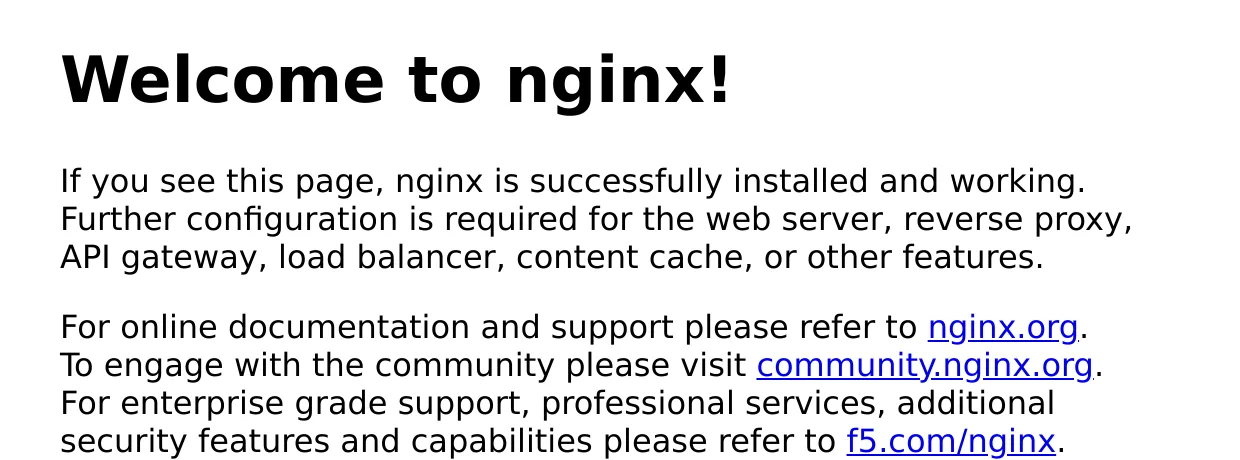
Traffic flows like this: browser → host port 8080 → Docker forwards it to container port 80 → nginx in the container.
You can also test with curl in a terminal:
$ curl -s http://localhost:8080 | head -n 4
<!DOCTYPE html>
<html>
<head>
<title>Welcome to nginx!</title>
List running containers: docker ps
$ docker ps
CONTAINER ID   IMAGE        COMMAND                  CREATED         STATUS         PORTS                                     NAMES
b470f4d45637 nginx:1.30 "/docker-entrypoint.…" 7 seconds ago Up 7 seconds 0.0.0.0:8080->80/tcp, [::]:8080->80/tcp web| Column | Meaning |
|---|---|
| CONTAINER ID | The first 12 characters of the container ID; you can use it instead of the name in commands |
| IMAGE | The image in use |
| COMMAND | The command run when the container starts |
| CREATED / STATUS | When it was created and its current status (Up means it's running) |
| PORTS | Port mapping; 0.0.0.0:8080->80/tcp is the -p 8080:80 mapping from earlier |
| NAMES | The container name |
View logs: docker logs
nginx records every request in its logs. You just made one request from the browser and another with curl:
$ docker logs web
/docker-entrypoint.sh: /docker-entrypoint.d/ is not empty, will attempt to perform configuration
/docker-entrypoint.sh: Looking for shell scripts in /docker-entrypoint.d/
/docker-entrypoint.sh: Launching /docker-entrypoint.d/10-listen-on-ipv6-by-default.sh
10-listen-on-ipv6-by-default.sh: info: Getting the checksum of /etc/nginx/conf.d/default.conf
10-listen-on-ipv6-by-default.sh: info: Enabled listen on IPv6 in /etc/nginx/conf.d/default.conf
/docker-entrypoint.sh: Sourcing /docker-entrypoint.d/15-local-resolvers.envsh
/docker-entrypoint.sh: Launching /docker-entrypoint.d/20-envsubst-on-templates.sh
/docker-entrypoint.sh: Launching /docker-entrypoint.d/30-tune-worker-processes.sh
/docker-entrypoint.sh: Configuration complete; ready for start up
2026/10/12 14:38:25 [notice] 1#1: using the "epoll" event method
2026/10/12 14:38:25 [notice] 1#1: nginx/1.30.5
2026/10/12 14:38:25 [notice] 1#1: built by gcc 14.2.0 (Debian 14.2.0-19)
2026/10/12 14:38:25 [notice] 1#1: OS: Linux 5.4.0-216-generic
2026/10/12 14:38:25 [notice] 1#1: getrlimit(RLIMIT_NOFILE): 1048576:1048576
2026/10/12 14:38:25 [notice] 1#1: start worker processes
2026/10/12 14:38:25 [notice] 1#1: start worker process 28
172.17.0.1 - - [12/Oct/2026:14:38:29 +0000] "GET / HTTP/1.1" 200 896 "-" "Mozilla/5.0 (X11; Linux x86_64) AppleWebKit/537.36 (KHTML, like Gecko) HeadlessChrome/130.0.6723.31 Safari/537.36" "-"
172.18.0.1 - - [12/Oct/2026:14:38:31 +0000] "GET / HTTP/1.1" 200 896 "-" "curl/8.22.0" "-"
The first lines are startup messages from nginx; you can see the version is nginx/1.30.5. The last two lines are the requests you just made: one from the browser (the User-Agent identifies the browser) and one from curl. Add -f to keep following new logs (press Ctrl + C to exit):
docker logs -f webEnter a container: docker exec
docker exec runs a command inside a running container:
$ docker exec web nginx -v
nginx version: nginx/1.30.5

$ docker exec web ls /usr/share/nginx/html
50x.html
index.html
Add -it to open an interactive shell and look around:
$ docker exec -it web bash
root@b470f4d45637:/# cat /etc/os-release | head -n 2
PRETTY_NAME="Debian GNU/Linux 13 (trixie)"
NAME="Debian GNU/Linux"
root@b470f4d45637:/# ls /etc/nginx
conf.d
fastcgi_params
mime.types
modules
nginx.conf
scgi_params
uwsgi_params
root@b470f4d45637:/# ps aux
bash: line 1: ps: command not found
root@b470f4d45637:/# exit
exit
The output shows a few things:
- The official nginx image is based on Debian 13 (trixie).
b470f4d45637in the prompt is the container's hostname; by default, it's the container ID.- The container doesn't have the
pscommand. The official image includes only what's needed to run nginx, so many common tools are omitted. That's normal. If you need debugging tools, you can install them temporarily (apt-get update && apt-get install -y procps), or use docker top to inspect the container from outside.
Type exit to leave; the container keeps running.
Change the web page
Change the home page inside the container, then refresh the browser:
$ docker exec web sh -c 'echo "<h1>Hello from my first container</h1>" > /usr/share/nginx/html/index.html'

$ curl -s http://localhost:8080
<h1>Hello from my first container</h1>
Changing files directly inside a container is suitable only for temporary testing. When you remove the container, the changes disappear. The right approach is to mount the web files into the container (see Volume) or add them to a Dockerfile.
Stop, start, and remove
$ docker stop web
web

$ docker ps -a
CONTAINER ID   IMAGE         COMMAND                  CREATED              STATUS                              PORTS     NAMES
b470f4d45637   nginx:1.30    "/docker-entrypoint.…"   12 seconds ago       Exited (0) Less than a second ago             web
786dd898c04b   hello-world   "/hello"                 About a minute ago   Exited (0) About a minute ago                 frosty_shirley

$ docker start web
web

$ curl -s http://localhost:8080
<h1>Hello from my first container</h1>

$ docker rm web
Error response from daemon: cannot remove container "web": container is running: stop the container before removing or force remove

$ docker rm -f web
web

$ docker ps -a
CONTAINER ID   IMAGE         COMMAND    CREATED              STATUS                          PORTS     NAMES
786dd898c04b   hello-world   "/hello"   About a minute ago   Exited (0) About a minute ago             frosty_shirley
docker stop: Stops the container. It still exists, appears indocker ps -a, and has the statusExited.docker start: Restarts an existing container. The home page you changed is still there.docker rm: Removes a stopped container. If you use it on a running container, you'll get thecontainer is runningerror shown above. Stop it first withdocker stopor force removal with-f.
The docker ps -a list still includes the hello-world container you ran in the previous section: it finished running (Exited (0)) but wasn't removed. Containers started without --name get a random name, such as frosty_shirley.
After you remove the container, the home page you changed disappears too. Start a new container from the same image, and you'll see the original nginx welcome page again.
Run a one-off command
Not every container needs to run long term. This container runs one command and exits; --rm removes it automatically when it finishes:
$ docker run --rm ubuntu:26.04 cat /etc/os-release
Unable to find image 'ubuntu:26.04' locally
26.04: Pulling from library/ubuntu
06ad70e463aa: Pull complete
4e07a0f12b2c: Pull complete
Digest: sha256:f144425ff09be612d6d9ad965196e9cdc23dae1f42110a8a11a3e9a8198759f7
Status: Downloaded newer image for ubuntu:26.04
PRETTY_NAME="Ubuntu 26.04.1 LTS"
NAME="Ubuntu"
VERSION_ID="26.04"
VERSION="26.04.1 LTS (Resolute Raccoon)"
VERSION_CODENAME=resolute
ID=ubuntu
ID_LIKE=debian
HOME_URL="https://www.ubuntu.com/"
SUPPORT_URL="https://help.ubuntu.com/"
BUG_REPORT_URL="https://bugs.launchpad.net/ubuntu/"
PRIVACY_POLICY_URL="https://www.ubuntu.com/legal/terms-and-policies/privacy-policy"
UBUNTU_CODENAME=resolute
LOGO=ubuntu-logo
This Ubuntu container has only the Ubuntu user-space files. It has no boot process or desktop, and it takes only a moment to start and exit.
Use the Docker Desktop GUI
On Windows and macOS, you can also complete each step above with the mouse in Docker Desktop.
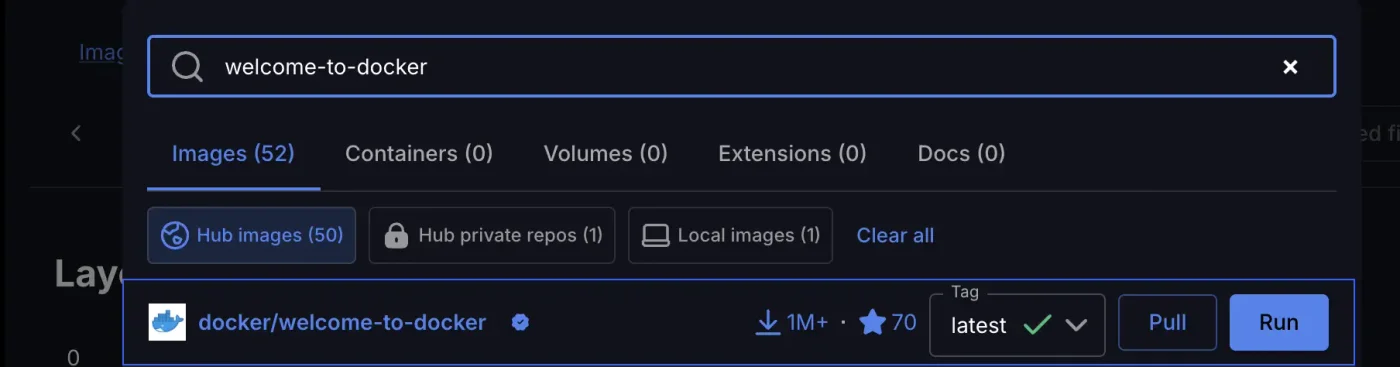
Search for and pull an image
Enter the image name in the search box at the top, choose the version (Tag), and click Pull to download it, or click Run directly:
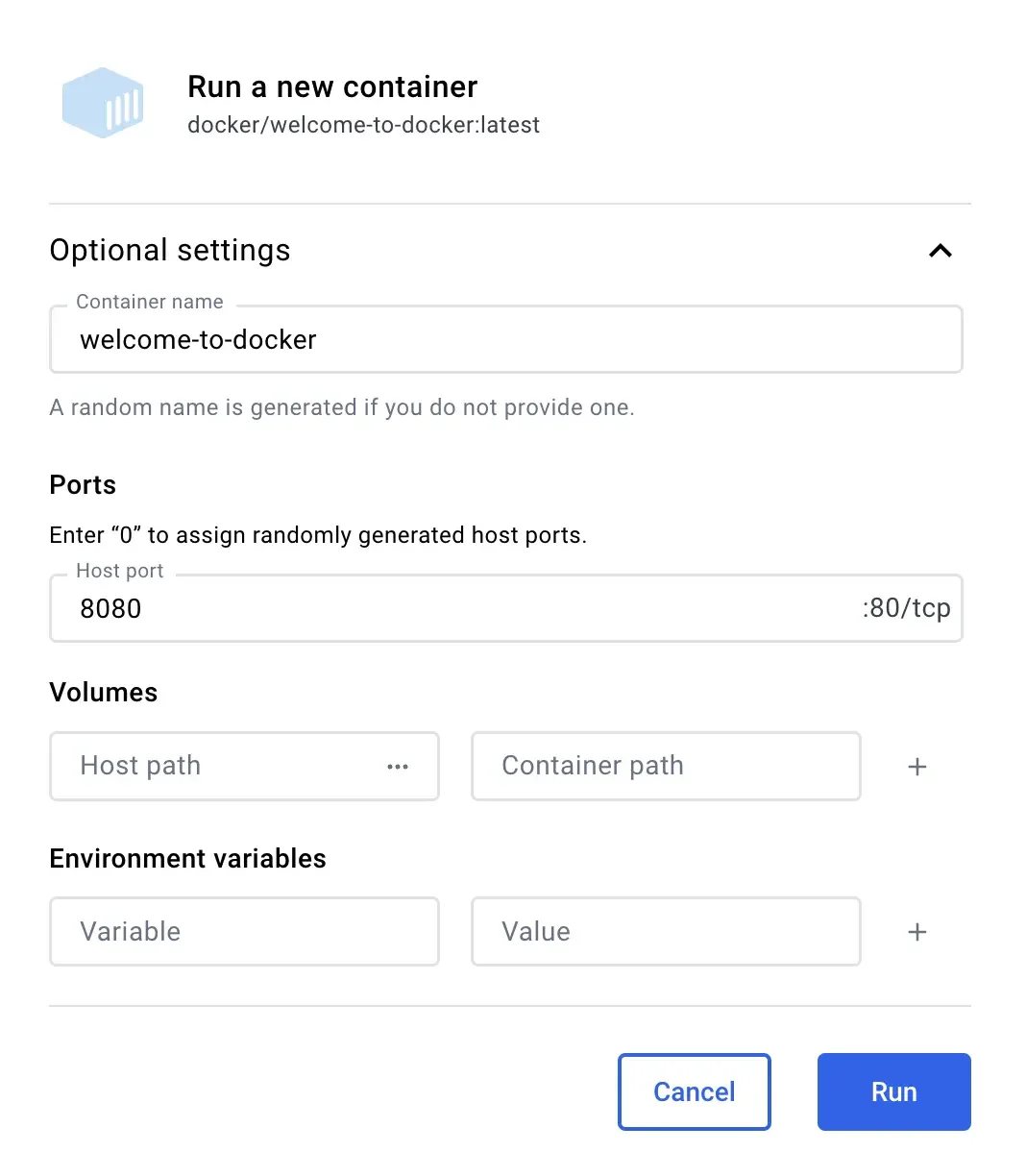
Configure and run a container
After clicking Run, expand Optional settings to set the container name, ports, Volume, and environment variables. These correspond to --name, -p, -v, and -e in docker run:
View and manage containers
The Containers item in the left menu lists all containers, equivalent to docker ps -a. Click the link in the Port(s) column to open it in a browser. Use the buttons on the right to stop, restart, or remove a container:
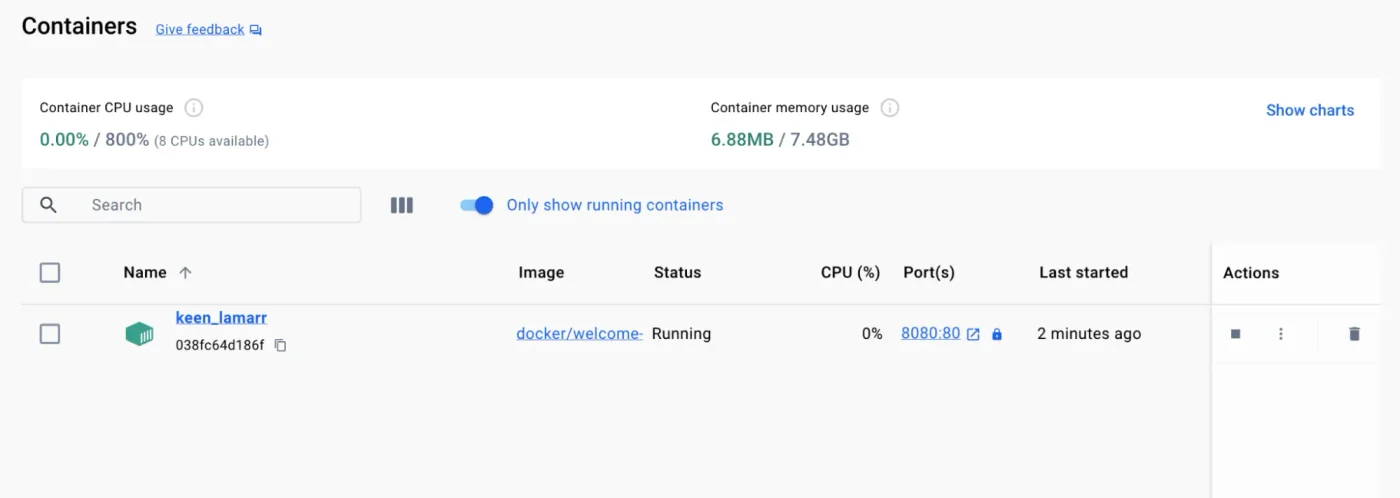
Open a container to see tabs such as Logs (equivalent to docker logs), Exec (equivalent to docker exec), and Files (browse files inside the container):
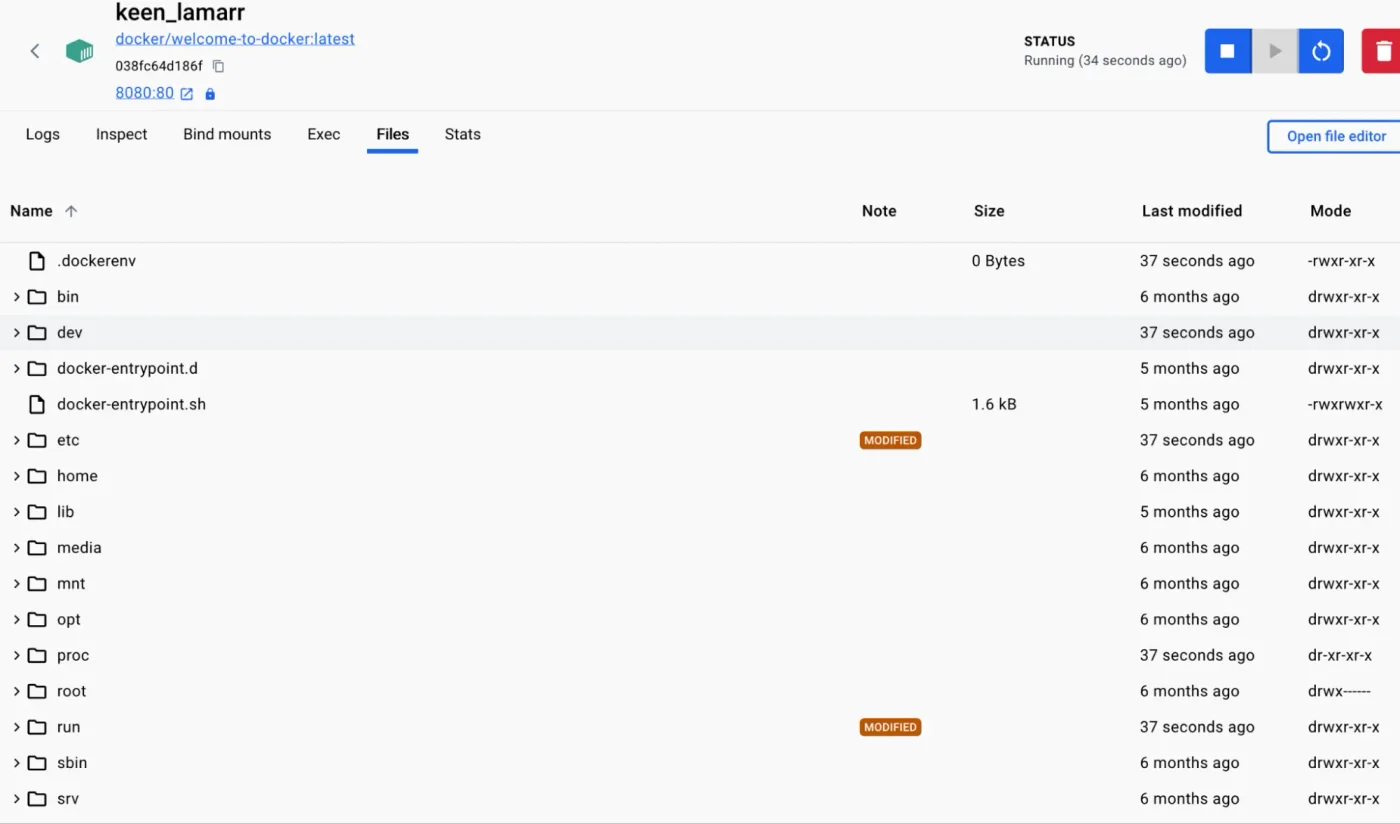
The GUI is convenient for checking status, but in practice you'll mainly use commands: you can put commands in documentation and scripts, and Linux servers can only be managed with commands.
Windows users: command syntax differences
The commands in this tutorial use bash on Linux and macOS. On Windows, the Docker commands themselves are identical, but the terminal (shell) syntax differs:
| Syntax | Linux / macOS (bash) | Windows PowerShell | Windows CMD |
|---|---|---|---|
| Current directory | $(pwd) | ${PWD} | %cd% |
| Line continuation | \ at end of line | ` at end of line | ^ at end of line |
| Environment variable | $HOME | $env:USERPROFILE | %USERPROFILE% |
Read input from a file < | Yes | Not supported | Yes |
Commands in this tutorial that need different syntax are shown in three tabs: Linux / macOS, Windows PowerShell, and Windows CMD. Select a tab to switch the whole page to that syntax. For example, mount the site directory in the current directory into nginx:
docker run -d -p 8080:80 -v "$(pwd)/site:/usr/share/nginx/html:ro" nginx:1.30docker run -d -p 8080:80 -v "${PWD}/site:/usr/share/nginx/html:ro" nginx:1.30docker run -d -p 8080:80 -v "%cd%/site:/usr/share/nginx/html:ro" nginx:1.30A few common pitfalls (see Common error messages for the actual error messages):
- In PowerShell,
"$PWD:/app"causes an error; you must write"${PWD}:/app". - PowerShell doesn't support
<. To restore a database, usedocker cp; the database chapters include examples. - If you edit a shell script on Windows and it uses CRLF line endings, running it in a container can produce
no such file or directory.
You can also use Docker Desktop from a terminal in WSL (for example, Ubuntu). In that case, use the Linux syntax from this tutorial.
Recap
docker run -d -p host-port:container-port --name name imagestarts a container in the background and maps ports.- Use
docker psto list running containers; add-ato include stopped ones. - Use
docker logsto view output anddocker exec -it container shto enter a container. - Use
docker stop/start/rm -fto control and remove containers; changing files inside a container directly is suitable only for temporary testing.
Exercises
- Start another nginx container and map it to host port 8081:
docker run -d -p 8081:80 --name web2 nginx:1.30. Openhttp://localhost:8081to check it. - Use
docker psto confirm that both containers are running at the same time, each mapped to a different host port. - Remove both containers:
docker rm -f web web2.
The next section takes a closer look at images: naming and tag rules, and how to pull, inspect, and remove them.
FAQ
Can't open http://localhost:8080?
First, use docker ps to confirm the container is running and the PORTS column shows 0.0.0.0:8080->80/tcp. If another program is using 8080, docker run reports port is already allocated; use -p 8081:80 instead.
Why aren't commands like ps and vim available in the container?
Official images contain only what's needed to run the service, keeping the image small and reducing vulnerabilities. For debugging, use docker exec to run tools already in the image, or start another container that includes the tools.
Can I use a container ID and name interchangeably?
Yes. You can use the name or the first few characters of the ID in commands, as long as they don't match another container.
Updated October 14, 2026