Contents
Docker Networking Tutorial: Connect Containers with Bridge and Custom Networks
When an application needs to connect to a database, cache, or another container, you need to understand Docker networking. The key idea is simple: put containers that need to communicate on the same custom network, and they can connect to each other by name.
Network drivers
A fresh Docker installation has three built-in networks:
$ docker network ls
NETWORK ID     NAME      DRIVER    SCOPE
a74caef4acb9   bridge    bridge    local
b9a49b39804b   host      host      local
87a8a7fd2cd9 none null local| Driver | Description |
|---|---|
bridge | The default. Containers have their own IP addresses on a virtual network |
host | The container uses the host's network directly, without isolation (most fully supported on Linux) |
none | No network |
overlay | Spans multiple hosts (Docker Swarm) |
macvlan | Makes a container appear on the local network like a physical machine |
Limitations of the default bridge
When you do not specify a network, the container connects to the default network named bridge. On this network, containers cannot connect by name:
$ docker run -d --name web1 nginx:1.30
b1d3fb9024c112c5990d9ac85012cd3f5e38c114ab4409a06f960c6d8cdb496e

$ docker run --rm alpine:3.23 ping -c 1 -W 2 web1
ping: bad address 'web1'

$ docker inspect --format '{{.NetworkSettings.IPAddress}}' web1

template parsing error: template: :1:18: executing "" at <.NetworkSettings.IPAddress>: map has no entry for key "IPAddress"

$ docker inspect --format '{{range .NetworkSettings.Networks}}{{.IPAddress}}{{end}}' web1
172.18.0.2

$ docker run --rm alpine:3.23 ping -c 1 172.18.0.2
PING 172.18.0.2 (172.18.0.2): 56 data bytes
64 bytes from 172.18.0.2: seq=0 ttl=64 time=0.058 ms

--- 172.18.0.2 ping statistics ---
1 packets transmitted, 1 packets received, 0% packet loss
round-trip min/avg/max = 0.058/0.058/0.058 ms

$ docker rm -f web1
web1- The name
web1cannot be resolved (bad address), but the IP172.18.0.2works. - Docker assigns the IP automatically, though, and it may change when you recreate the container. Do not hard-code it in your configuration.
Change in Docker 29: Older versions let you get a container's IP with
{{.NetworkSettings.IPAddress}}. Docker 29 removed this field (as shown by thetemplate parsing errorabove). Use{{range .NetworkSettings.Networks}}{{.IPAddress}}{{end}}instead.
In practice, you will almost always create a custom network.
Custom networks: connect by name
docker network create appnet
docker run -d --name db --network appnet -e POSTGRES_PASSWORD=secret postgres:18
$ docker network create appnet
fadfeb6028cb78335fa94cfd7536265256a914cc461caae1026b6ebb21e9d7a0
$ docker run -d --name db --network appnet -e POSTGRES_PASSWORD=secret postgres:18
227033e27591e6a1c195a6d63a141aaf4486c6285477792fe3080e1d4deeb2c0
$ docker run --rm --network appnet alpine:3.23 ping -c 2 db
PING db (172.19.0.2): 56 data bytes
64 bytes from 172.19.0.2: seq=0 ttl=64 time=0.069 ms
64 bytes from 172.19.0.2: seq=1 ttl=64 time=0.092 ms
--- db ping statistics ---
2 packets transmitted, 2 packets received, 0% packet loss
round-trip min/avg/max = 0.069/0.080/0.092 ms
$ docker run --rm --network appnet -e PGPASSWORD=secret postgres:18 psql -h db -U postgres -c "SELECT version();"
version
--------------------------------------------------------------------------------------------------------------------
PostgreSQL 18.6 (Debian 18.6-1.pgdg13+2) on x86_64-pc-linux-gnu, compiled by gcc (Debian 14.2.0-19) 14.2.0, 64-bit
(1 row)
$ docker network inspect appnet --format "{{range .Containers}}{{.Name}} {{.IPv4Address}}{{println}}{{end}}"
db 172.19.0.2/16- On
appnet, Docker's built-in DNS resolves the namedbto the database container's IP. - The PostgreSQL client connected with
-h dband retrieved the database version (PostgreSQL 18.6). - The database container has no
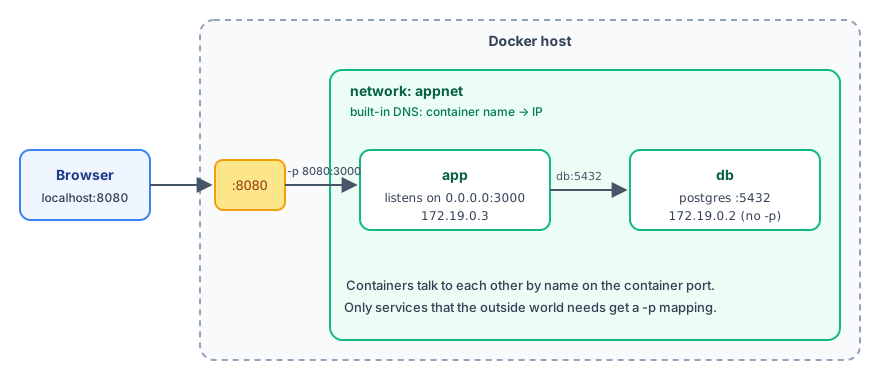
-poption, so the host and external clients cannot reach it. Only containers on the same network can, which is more secure.
Write the container name in your application's connection settings too. For example:
docker run -d --name app --network appnet -p 3000:3000 \
  -e DATABASE_URL=postgres://postgres:secret@db:5432/postgres \
  myapp
Keep in mind:
- Container-to-container connections use the container's port (5432), regardless of
-p. - Use
-ponly for services that the host or external clients need to access, such as a website. - Avoid using names like
weborapp, which are also top-level domains, as connection targets. They work on the same network, but lookups from outside the network may resolve to unexpected addresses and make troubleshooting confusing.
Connect one container to multiple networks and use network aliases
$ docker network create appnet
77fadbc5633854c9e75fd9aa65325d0155ad33f5de453abac7f15f6766402bee

$ docker run -d --name app --network appnet nginx:1.30
25b4c1d92caeef5ca8765daf2f3ad6247982cacfad4914000ded8a0a455df851

$ docker network create frontend
45a9ab78fddb9f1b47a22b9ce156144286888c42eadc2b4f589986fe1f98cee0

$ docker network connect frontend app

$ docker inspect --format '{{range $k, $v := .NetworkSettings.Networks}}{{$k}} {{$v.IPAddress}}{{println}}{{end}}' app
appnet 172.19.0.2
frontend 172.20.0.2


$ docker run -d --name search --network appnet --network-alias es nginx:1.30
43b07713e7ec032d21e37fdf690064b389f798ed26b2715e7ea18c15840647af

$ docker run --rm --network appnet alpine:3.23 getent hosts es
172.19.0.3        es  es

$ docker rm -f app search
app
search

$ docker network rm appnet frontend
appnet
frontend
docker network connectadds a running container to another network.appnow has two IP addresses. This is often used for isolation: put Nginx and the application on the frontend network, and the application and database on the backend network. Nginx then cannot reach the database.--network-alias eslets other containers on the same network connect tosearchusing the namees. If multiple containers use the same alias, DNS returns multiple IP addresses.
Manage networks
docker network create appnet
docker network ls
docker network inspect appnet               # See which containers and IPs are on it
docker network connect appnet container-name # Add a running container to the network
docker network disconnect appnet container-name
docker network rm appnet
docker network prune                        # Remove unused networks
Port mapping: the application must listen on 0.0.0.0
-p 8000:8000 tells Docker to forward traffic sent to port 8000 on the host to port 8000 on the container's network interface. So the application inside the container must listen on 0.0.0.0 (all interfaces), not just 127.0.0.1 (the container's own localhost). Compare the two cases using Python's built-in web server:
$ docker run -d --name localonly -p 8000:8000 python:3.14-slim python -m http.server 8000 --bind 127.0.0.1
246edb96a9affefaab188ac7d5ceec2fb103b511bdac352cca6ed3a80ae6764a

$ curl -sS http://localhost:8000
curl: (52) Empty reply from server

$ docker rm -f localonly
localonly

$ docker run -d --name allif -p 8000:8000 python:3.14-slim python -m http.server 8000 --bind 0.0.0.0
438fa44edf6aec790a7e6b2bfcdb7af33c16a14c661c50b8d9564ff52844e5e6

$ curl -s http://localhost:8000 | head -n 3
<!DOCTYPE HTML>
<html lang="en">
<head>

$ docker rm -f allif
allif- When the application listens only on
127.0.0.1, the port is mapped butcurlgetsEmpty reply from server: traffic reaches the container, but the application is listening only on the container's own localhost and does not receive it. - Change the listen address to
0.0.0.0and it works.
Many development servers listen only on localhost by default. Specify the address when you run them in a container:
flask run --host 0.0.0.0
uvicorn main:app --host 0.0.0.0
vite --host 0.0.0.0
Connect from a container to the host
To let a container access a service on the host, such as a database running there, use the special name host.docker.internal:
$ docker run --rm alpine:3.23 getent hosts host.docker.internal

$ docker run --rm --add-host=host.docker.internal:host-gateway alpine:3.23 getent hosts host.docker.internal
172.18.0.1 host.docker.internal host.docker.internal- Docker Desktop (Windows and macOS):
host.docker.internalis supported by default. - Linux: This name is not available by default (the first command produces no output). Add
--add-host=host.docker.internal:host-gatewayto resolve it to the host's address on the Docker network.
The service on the host must also listen on an interface the container can reach, not just 127.0.0.1.
The host and none networks
docker run -d --network host nginx:1.30The container uses the host's network interface directly. If nginx listens on port 80, it uses port 80 on the host, so you do not need -p (and Docker ignores it if specified). This offers the best performance, but removes isolation and can cause port conflicts with applications on the host. Behavior on Docker Desktop is not exactly the same as on Linux.
--network none provides no network access at all, except for the local loopback interface:
$ docker run --rm --network none alpine:3.23 ip addr
1: lo: <LOOPBACK,UP,LOWER_UP> mtu 65536 qdisc noqueue state UNKNOWN qlen 1000
    link/loopback 00:00:00:00:00:00 brd 00:00:00:00:00:00
    inet 127.0.0.1/8 scope host lo
       valid_lft forever preferred_lft forever
    inet6 ::1/128 scope host
       valid_lft forever preferred_lft forever
Use it for tasks that do not need a network or should not have network access, such as processing untrusted files.
Troubleshooting
Cannot connect between containers using localhost
Each container has its own localhost. When you connect to localhost:5432 from the app container, you reach app itself, not the database container. Use the container name instead, such as db:5432.
Cannot connect to a container from the host
Check these items in order:
- Run
docker psand check whether thePORTSfield shows0.0.0.0:8080->80/tcp. - Check whether the application inside the container is listening on
0.0.0.0(theEmpty reply from serverabove is a typical symptom). - Check whether the host firewall or cloud security group allows the port.
Cannot connect to the internet from a container
This is usually a DNS issue. You can specify DNS servers in /etc/docker/daemon.json (in Docker Desktop, go to Settings → Docker Engine). Restart Docker after making the change:
{ "dns": ["1.1.1.1", "8.8.8.8"] }When you use Docker Compose, Compose automatically creates a network for the project, and services can connect directly using their service names.
Recap
- The default bridge network does not provide name resolution. Use a custom network for container-to-container communication.
- On a custom network, containers can connect by container name or
--network-alias. - Applications must listen on
0.0.0.0for port mapping to work. - Use
host.docker.internalfor a container to connect to the host.
Exercises
Exercise 1: Create a network named lab, start a redis:8-alpine container named cache on it, then test with redis-cli -h cache ping from another container.
Answer
docker network create lab
docker run -d --name cache --network lab redis:8-alpine
docker run --rm --network lab redis:8-alpine redis-cli -h cache ping
The output is PONG. See docker network for network commands.
FAQ
Why can't I use localhost in a container to connect to another container?
Each container has its own network, so localhost refers to the container itself. To connect to another container, put both on the same custom network and connect by container name.
How can a container connect to a service running on the host?
On Docker Desktop, use host.docker.internal. On Linux, add --add-host host.docker.internal:host-gateway. See [Connect from a container to the host](#connect-from-a-container-to-the-host).
How do I get a container's IP in Docker 29?
{{.NetworkSettings.IPAddress}} has been removed. Use docker inspect -f "{{range .NetworkSettings.Networks}}{{.IPAddress}}{{end}}" container instead.
Updated October 14, 2026