Contents
Docker Compose File Tutorial: Complete compose.yaml Syntax Guide
compose.yaml has four main top-level sections:
name: myapp          # Project name (optional; defaults to the folder name)

services:            # Containers to run
  ...

volumes:             # Named volumes
  ...

networks:            # Custom networks (optional; one is created automatically by default)
  ...
The sections below explain the most commonly used settings under services, followed by a complete example that you can run.
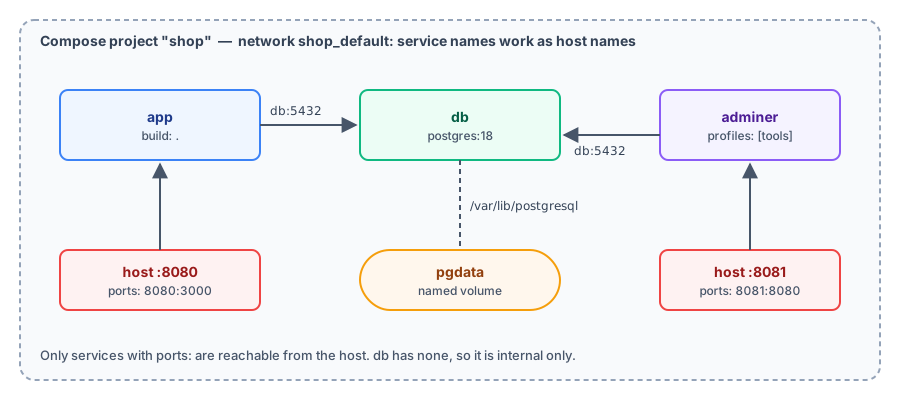
image and build
Use an existing image:
services:
  redis:
    image: redis:8-alpine
Build from a Dockerfile:
services:
  app:
    build: .                     # Use the Dockerfile in the current folder
For more options:
services:
  app:
    build:
      context: ./backend
      dockerfile: Dockerfile.prod
      target: prod               # Target stage in a multi-stage build
      args:
        APP_VERSION: "1.4.2"
    image: myorg/app:1.4.2       # Image name after the build
When you specify both build and image, Compose names the build result with the image value. You can then run docker compose push.
ports
    ports:
      - "8080:80"              # Host:container
      - "127.0.0.1:5432:5432"  # Expose on localhost only
      - "9000-9002:9000-9002"  # Range
Add quotation marks. YAML interprets some number:number formats as base-60 numbers, which can cause strange errors.
expose only documents intended use; it does not publish a port. Services on the same network can already communicate with each other.
volumes
services:
  db:
    image: postgres:18
    volumes:
      - pgdata:/var/lib/postgresql                               # Named volume
      - ./init.sql:/docker-entrypoint-initdb.d/init.sql:ro       # Bind mount (relative path)

volumes:
pgdata:-
Paths starting with
./or../are bind mounts relative tocompose.yaml. -
A name by itself is a named volume. You must declare it in the top-level
volumes:section. Compose prefixes its actual name with the project name (for example,shop_pgdata). -
To use a volume created outside Compose:
volumes:
  pgdata:
    external: true
environment and env_file
    environment:
      NODE_ENV: production
      DATABASE_URL: postgres://app:${DB_PASSWORD}@db:5432/app
    env_file:
      - .env.app
${...} values come from a .env file or the current environment variables. See Environment variables and .env files.
depends_on and healthcheck: wait until the database is actually ready
depends_on controls startup order only: it ensures the db container starts first, but does not ensure that the database accepts connections. PostgreSQL takes a few seconds to start, and the application can fail if it tries to connect too soon. With healthcheck and condition: service_healthy, Compose waits for the health check to pass before starting the application.
A working example (compose.yaml):
name: shop

services:
  app:
    image: postgres:18
    command: ["psql", "-h", "db", "-U", "shop", "-c", "SELECT 'app connected' AS status;"]
    environment:
      PGPASSWORD: ${DB_PASSWORD}
    depends_on:
      db:
        condition: service_healthy

  db:
    image: postgres:18
    environment:
      POSTGRES_USER: shop
      POSTGRES_PASSWORD: ${DB_PASSWORD:?DB_PASSWORD is required}
      POSTGRES_DB: shop
    volumes:
      - pgdata:/var/lib/postgresql
    healthcheck:
      test: ["CMD-SHELL", "pg_isready -h 127.0.0.1 -U shop -d shop"]
      interval: 2s
      timeout: 3s
      retries: 20

  adminer:
    image: adminer
    ports:
      - "8081:8080"
    profiles: [tools]

volumes:
  pgdata:
app uses the PostgreSQL client to simulate an application that connects to the database at startup. Set DB_PASSWORD=change-me in .env.
Start db by itself first and watch its health status change:
$ docker compose up -d db
[+] up 3/3
 ✔ Network shop_default Created                                                                 0.0s
 ✔ Volume shop_pgdata   Created                                                                 0.0s
 ✔ Container shop-db-1  Started                                                                 0.3s
$ docker compose ps
NAME IMAGE COMMAND SERVICE CREATED STATUS PORTS
shop-db-1 postgres:18 "docker-entrypoint.s…" db 1 second ago Up Less than a second (health: starting) 127.0.0.1:5432->5432/tcpA few seconds later:
$ docker compose ps
NAME        IMAGE         COMMAND                  SERVICE   CREATED          STATUS                   PORTS
shop-db-1   postgres:18   "docker-entrypoint.s…"   db        10 seconds ago   Up 9 seconds (healthy)   127.0.0.1:5432->5432/tcp
The status changes from health: starting to healthy. Stop it, then start app from scratch:
$ docker compose up app
[+] up 3/3
 ✔ Network shop_default Created                                                                 0.0s
 ✔ Container shop-db-1  Created                                                                 0.0s
 ✔ Container shop-app-1 Created                                                                 0.1s
Attaching to app-1
Container shop-db-1 Waiting
Container shop-db-1 Healthy
app-1  |     status
app-1  | ---------------
app-1  |  app connected
app-1  | (1 row)
app-1  |
app-1 exited with code 0

w Enable Watch   d Detach
Compose starts db first, displays Waiting, and starts app only after it becomes Healthy. The first connection from app succeeds (app connected). Without condition: service_healthy, app tries to connect before the database is ready.
(The last line, w Enable Watch d Detach, shows the keyboard shortcuts available while Compose runs in the foreground.)
The
pg_isreadyhealth check includes-h 127.0.0.1. Without it, the database is marked healthy during its initial setup, and the application then fails to connect. See the test results in PostgreSQL. MySQL has the same issue; see MySQL.
Values you can use for condition:
| Value | Meaning |
|---|---|
service_started | The container has started (default) |
service_healthy | The health check has passed |
service_completed_successfully | The service has finished running with exit code 0; useful for one-off tasks such as database migrations |
You can also add restart: true under depends_on so that app restarts when db restarts.
restart
restart: unless-stoppedAvailable values: no, always, on-failure, and unless-stopped (see Container lifecycle for their behavior).
command and entrypoint
Override the image's CMD / ENTRYPOINT:
    command: ["npm", "run", "dev"]
    entrypoint: ["/app/docker-entrypoint.sh"]
networks
By default, all services are on the same project-name_default network. To isolate services, you can define your own networks:
services:
  web:
    image: nginx:1.30-alpine
    networks: [frontend]
  app:
    build: .
    networks: [frontend, backend]
  db:
    image: postgres:18
    networks: [backend]

networks:
  frontend:
  backend:
web can connect to app, but not to db.
profiles: selectively start services
The adminer service in the example above has profiles: [tools]:
$ docker compose config --services
db
app
$ docker compose --profile tools config --services
db
app
adminerWithout a profile, adminer does not start. Add --profile tools to start it. This is useful for services you only start when needed, such as management tools and test mail servers.
Resource limits and other common settings
services:
  app:
    image: myorg/app:1.4.2
    container_name: app          # Fixed container name (cannot be scaled later)
    user: "1000:1000"
    working_dir: /app
    mem_limit: 512m
    cpus: 1.5
    init: true                   # Equivalent to docker run --init
    logging:
      driver: json-file
      options:
        max-size: "10m"
        max-file: "3"
    extra_hosts:
      - "host.docker.internal:host-gateway"
compose.override.yaml: merge settings
Compose automatically merges compose.yaml and compose.override.yaml. The example folder also contains this file:
# compose.override.yaml
services:
  db:
    ports:
      - "127.0.0.1:5432:5432"
Use docker compose config to inspect the final merged configuration (note the ports at the end):
$ docker compose config db
name: shop
services:
  db:
    environment:
      POSTGRES_DB: shop
      POSTGRES_PASSWORD: change-me
      POSTGRES_USER: shop
    image: postgres:18
    networks:
      default: null
    volumes:
      - type: volume
        source: pgdata
        target: /var/lib/postgresql
        volume: {}
    healthcheck:
      test:
        - CMD-SHELL
        - pg_isready -h 127.0.0.1 -U shop -d shop
      timeout: 3s
      interval: 2s
      retries: 20
    ports:
      - mode: ingress
        host_ip: 127.0.0.1
        target: 5432
        published: "5432"
        protocol: tcp
networks:
  default:
    name: shop_default
volumes:
  pgdata:
    name: shop_pgdata
If you explicitly specify a single file with -f compose.yaml, the override is not merged and ports is absent:
$ docker compose -f compose.yaml config db
name: shop
services:
  db:
    environment:
      POSTGRES_DB: shop
      POSTGRES_PASSWORD: change-me
      POSTGRES_USER: shop
    image: postgres:18
    networks:
      default: null
    volumes:
      - type: volume
        source: pgdata
        target: /var/lib/postgresql
        volume: {}
    healthcheck:
      test:
        - CMD-SHELL
        - pg_isready -h 127.0.0.1 -U shop -d shop
      timeout: 3s
      interval: 2s
      retries: 20
networks:
  default:
    name: shop_default
volumes:
  pgdata:
    name: shop_pgdata
docker compose config also expands shorthand into the full format (for example, pgdata:/var/lib/postgresql becomes type: volume, source, and target) and substitutes ${DB_PASSWORD}. If a setting does not seem to take effect, use this command first to check what Compose actually read.
A common division of responsibilities:
compose.yaml: settings shared by all environments.compose.override.yaml: development-only settings (mount source code, expose debugging ports). Applied automatically when you rundocker compose uplocally.compose.prod.yaml: production settings, specified withdocker compose -f compose.yaml -f compose.prod.yaml up -d.
Recap
imageuses an existing image;buildbuilds from a Dockerfile.- Only
depends_onwithcondition: service_healthywaits until a service is actually ready. profileslet you start services such as management tools only when needed.compose.override.yamlis merged automatically. Usedocker compose configto inspect the final configuration.
Exercises
Exercise 1: Add restart: unless-stopped to the db service in this chapter and limit its memory to 512 MB.
Answer
  db:
    image: postgres:18
    restart: unless-stopped
    mem_limit: 512m
Run docker compose up -d to apply the changes.
Exercise 2: adminer has profiles: [tools]. How do you start it too?
Answer
docker compose --profile tools up -dFAQ
Why doesn't depends_on wait for the database to be ready?
Writing only depends_on: [db] guarantees startup order. To wait until the database accepts connections, add a healthcheck and condition: service_healthy. See this chapter and [PostgreSQL](/docker/postgresql/) for the health check syntax.
What happens if YAML indentation is wrong?
docker compose config reports an error, such as did not find expected key. See [Common error messages](/docker/errors/). Use spaces only, not tabs.
Do I still need to write version: '3.8'?
No. The Compose Specification no longer uses the version field. Newer versions ignore it and display a warning.
Updated October 14, 2026