Contents
Docker Compose Commands Tutorial: Manage Services, Logs, and Containers
Run all docker compose commands from the directory containing compose.yaml (or a subdirectory), or use -f to specify the file. You can add a service name after a command to operate on that service only; without one, the command applies to the entire project. All examples in this section use the compose-demo project from the Compose tutorial.
Start and stop
| Command | Purpose |
|---|---|
docker compose up | Creates and starts; logs appear in the foreground, and Ctrl+C stops it |
docker compose up -d | Starts in the background |
docker compose up -d --build | Rebuilds images before starting |
docker compose up -d app | Starts only app (and its dependencies) |
docker compose up -d --force-recreate | Recreates containers even if the configuration has not changed |
docker compose up -d --remove-orphans | Removes containers for services that are no longer in the configuration file |
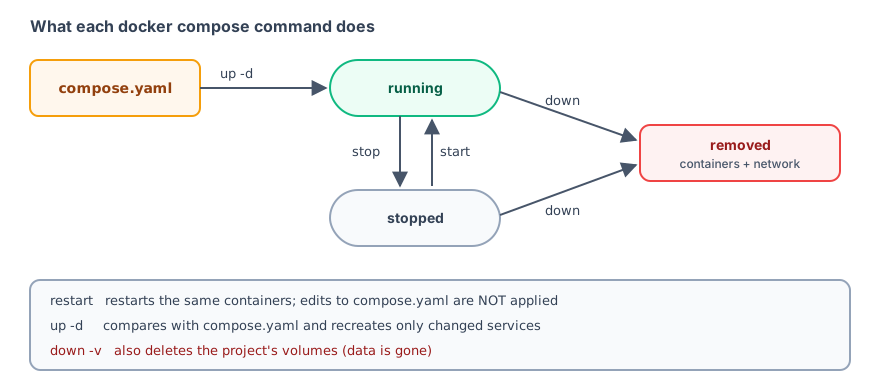
docker compose stop | Stops containers but keeps them |
docker compose start | Starts stopped containers |
docker compose restart app | Restarts the service (does not apply new configuration; see the test below) |
docker compose down | Stops and removes containers and networks |
docker compose down -v | Also removes volumes (data will be lost) |
docker compose down --rmi local | Also removes images built by Compose |
See actual output for up, stop, start, and down in the Compose tutorial.
Check status
$ docker compose ps
NAME                     IMAGE               COMMAND                  SERVICE   CREATED          STATUS         PORTS
compose-demo-adminer-1   adminer             "entrypoint.sh docke…"   adminer   10 seconds ago   Up 9 seconds   0.0.0.0:8081->8080/tcp, [::]:8081->8080/tcp
compose-demo-db-1        postgres:18         "docker-entrypoint.s…"   db        10 seconds ago   Up 9 seconds   5432/tcp
compose-demo-web-1       nginx:1.30-alpine   "/docker-entrypoint.…"   web       10 seconds ago   Up 8 seconds   0.0.0.0:8080->80/tcp, [::]:8080->80/tcp

$ docker compose ls
NAME                STATUS              CONFIG FILES
compose-demo        running(3)          /work/compose-demo/compose.yaml

$ docker compose images
CONTAINER                REPOSITORY          TAG                 PLATFORM            IMAGE ID            SIZE                CREATED
compose-demo-adminer-1   adminer             latest              linux/amd64         74f29c416e14        164MB               2 weeks ago
compose-demo-db-1        postgres            18                  linux/amd64         74935e722416        644MB               6 days ago
compose-demo-web-1       nginx               1.30-alpine         linux/amd64         0985e772fb9f        92.8MB              2 weeks ago

$ docker compose top web
SERVICE  #   PID    USER  TIME  COMMAND
web      1   21356  root  0:00  nginx: master process nginx -g daemon off;
web 1 21425 101 0:00 nginx: worker process| Command | Details |
|---|---|
docker compose ps | Containers and status for this project (-a includes stopped containers) |
docker compose ls | All Compose projects on this machine and the locations of their configuration files |
docker compose images | Images, platforms, and sizes used by each container |
docker compose top web | Processes inside the service container |
View logs
$ docker compose logs --tail 2 -t web
web-1  | 2026-10-13T00:18:19.618825771Z 2026/10/13 00:18:19 [notice] 1#1: start worker processes
web-1  | 2026-10-13T00:18:19.619080382Z 2026/10/13 00:18:19 [notice] 1#1: start worker process 30
docker compose logs # all services
docker compose logs -f app # follow app continuously
docker compose logs --tail 50 -t # last 50 lines, with timestampsRun commands in a service
exec: in a running container
$ docker compose exec web nginx -v
nginx version: nginx/1.30.5

$ docker compose exec db psql -U postgres -c "SELECT now();"
              now
-------------------------------
 2026-10-13 00:18:28.618314+00
(1 row)


$ docker compose exec -T db pg_dump -U postgres postgres > backup.sql && wc -l backup.sql
27 backup.sql

$ rm backup.sql- Use the service name (
web,db) to select a container; you do not need to know its actual container name. -Tdisables the pseudo-TTY. Always add it when redirecting output to a file (for example,pg_dump > backup.sqlabove) or using the command in a script, or the output may contain terminal control characters.docker compose exec web shopens an interactive shell.
run: start a new one-off container
$ docker compose run --rm web nginx -t
Container compose-demo-web-run-80040d25219f Creating
Container compose-demo-web-run-80040d25219f Created
/docker-entrypoint.sh: /docker-entrypoint.d/ is not empty, will attempt to perform configuration
/docker-entrypoint.sh: Looking for shell scripts in /docker-entrypoint.d/
/docker-entrypoint.sh: Launching /docker-entrypoint.d/10-listen-on-ipv6-by-default.sh
10-listen-on-ipv6-by-default.sh: info: Getting the checksum of /etc/nginx/conf.d/default.conf
10-listen-on-ipv6-by-default.sh: info: Enabled listen on IPv6 in /etc/nginx/conf.d/default.conf
/docker-entrypoint.sh: Sourcing /docker-entrypoint.d/15-local-resolvers.envsh
/docker-entrypoint.sh: Launching /docker-entrypoint.d/20-envsubst-on-templates.sh
/docker-entrypoint.sh: Launching /docker-entrypoint.d/30-tune-worker-processes.sh
/docker-entrypoint.sh: Configuration complete; ready for start up
nginx: the configuration file /etc/nginx/nginx.conf syntax is ok
nginx: configuration file /etc/nginx/nginx.conf test is successful
run uses the service configuration (image, environment variables, volumes, and network) to create a new container to run the command (named compose-demo-web-run-…). --rm removes it automatically when it exits. The example uses it to check the nginx configuration (nginx -t) without affecting the running service.
| exec | run | |
|---|---|---|
| Container | Uses a container that is already running | Creates a new container |
| Must the service be started first? | Yes | No |
Applies ports? | — | Not by default; add --service-ports if needed |
| Good for | Debugging in a running service | One-off tasks such as tests and database migrations |
After changing configuration: restart is not enough; use up -d
This is the most common misunderstanding. Try this: add the environment variable SITE_TITLE: v2 to the web service in compose.yaml, then try restart and up -d separately:
$ docker compose --progress plain restart web
 Container compose-demo-web-1 Restarting
 Container compose-demo-web-1 Started

$ docker compose exec web sh -c "echo SITE_TITLE=\$SITE_TITLE"
SITE_TITLE=

$ docker compose up -d
[+] up 3/3
 ✔ Container compose-demo-db-1      Running                                                     0.0s
 ✔ Container compose-demo-adminer-1 Running                                                     0.0s
 ✔ Container compose-demo-web-1     Started                                                     0.4s

$ docker compose exec web sh -c "echo SITE_TITLE=\$SITE_TITLE"
SITE_TITLE=v2restartonly stops and starts the existing container. Its configuration was set when it was created, so it cannot see the new environment variable (SITE_TITLE=is empty).up -dcomparescompose.yamlwith the existing containers. When it detects a change toweb, it recreatesweb(Started), while unchanged servicesdbandadminerstay as they are (Running).
After changing
compose.yamlor.env, always usedocker compose up -d.
Build and images
docker compose build              # build all services with a build configuration
docker compose build --no-cache app
docker compose pull               # download the latest images for all services
docker compose push               # push services with an image name
$ docker compose pull
[+] pull 3/3
✔ Image adminer Pulled 0.7s
✔ Image nginx:1.30-alpine Pulled 0.5s
✔ Image postgres:18 Pulled 1.3sA common workflow for updating services that use prebuilt images:
docker compose pull
docker compose up -d
docker image prune -f   # remove replaced old images
Check configuration
$ docker compose config --services
db
adminer
web

$ docker compose config --volumes
pgdata

$ docker compose port web 80
0.0.0.0:8080
docker compose config # show the full configuration after merging and variable substitution
docker compose config --services # list all service names
docker compose config --volumes # list volumes
docker compose port web 80 # show where a service container port is mapped on the hostSee a full output example for docker compose config in Compose file syntax.
Other commands
docker compose cp web:/etc/nginx/nginx.conf ./nginx.conf   # copy a file
docker compose watch                                       # watch for file changes and sync or rebuild automatically during development
docker compose up -d --scale worker=3                      # start 3 workers
Global options
Put these options between docker compose and the subcommand:
docker compose -f compose.yaml -f compose.prod.yaml up -d
docker compose -p myproject up -d          # specify the project name
docker compose --env-file .env.prod up -d  # specify an .env file
docker compose --profile tools up -d       # enable a profile
docker compose --progress plain up -d      # plain-text progress output (useful for CI logs)
Common workflows
| I want to… | Command |
|---|---|
| Start a day of development | docker compose up -d |
I changed compose.yaml or .env | docker compose up -d |
| I changed the Dockerfile or package list | docker compose up -d --build |
| See why a service stopped working | docker compose logs app |
| Run SQL in the database | docker compose exec db psql -U postgres |
| Run a one-off database migration | docker compose run --rm app <migration command> |
| Finish for the day | docker compose stop or down |
| Start over completely (including data) | docker compose down -v |
Recap
- After changing
compose.yamlor.env, always usedocker compose up -d. - Use
execwith a running container;run --rmstarts a one-off container. - Use
docker compose configto check the final merged configuration. - See docker compose up and docker compose down for all options for
upanddown.
Exercises
Exercise 1: Change the host port for web in compose.yaml, then try docker compose restart web and docker compose up -d separately. Which one applies the new port?
Answer
Only up -d does. restart restarts the existing container, and the port configuration is set when the container is created.
Exercise 2: Use a one-off container to run psql --version in the db service's network, and automatically remove the container when it exits.
Answer
docker compose run --rm db psql --versionFAQ
What's the difference between docker compose restart and up -d?
restart only restarts the same containers, so changes to compose.yaml and .env are not applied; up -d compares the configuration and recreates services that have changed.
Should I use docker compose exec or run?
exec runs a command in an already running container; run starts a new one-off container, which is useful for tasks like database migrations. Add --rm to remove it afterward.
How do I see all Compose projects?
docker compose ls lists all Compose projects on this machine and the locations of their configuration files.
Updated October 14, 2026