Contents
Docker Desktop Tutorial: Explore the Interface and Its Commands
After you install Docker, Windows and macOS users get the Docker Desktop GUI. This tutorial mainly uses commands because you can copy them, put them in scripts, and use them on servers. The GUI is very handy for checking status, browsing files inside containers, and finding logs. This section walks through each screen and lists the corresponding commands.
The screenshots in this section come from the Docker official documentation (Apache-2.0 license), and show Docker Desktop version 4.56. Menu locations and buttons may differ slightly in newer versions, but the features are the same.
The home screen and sidebar
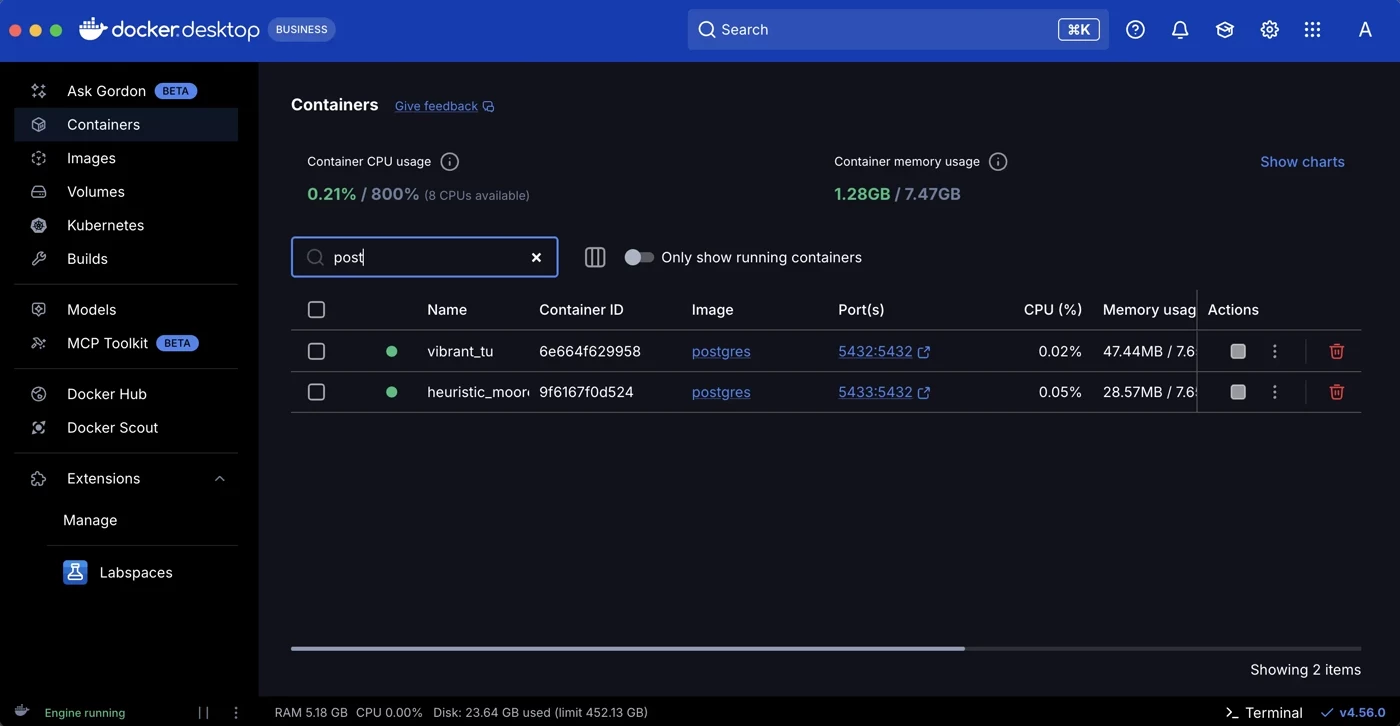
The most commonly used items in the sidebar are:
| Menu | Contents | Corresponding command |
|---|---|---|
| Containers | All containers, including stopped ones | docker ps -a |
| Images | Local images | docker images |
| Volumes | All volumes | docker volume ls |
| Builds | Build history, including the steps and duration of each build | docker buildx history ls |
| Docker Hub | Browse images on Docker Hub | docker search |
| Docker Scout | Scan images for vulnerabilities | docker scout |
| Extensions | Third-party extensions | — |
At the top, Search (or the Ctrl+K / ⌘K shortcut) searches local containers and images, as well as images on Docker Hub.
The status bar at the bottom shows Engine running (Docker Engine is running), along with memory, CPU, and disk usage for the Docker Desktop virtual machine. Terminal in the lower-right opens a terminal in the interface.
Containers: the container list
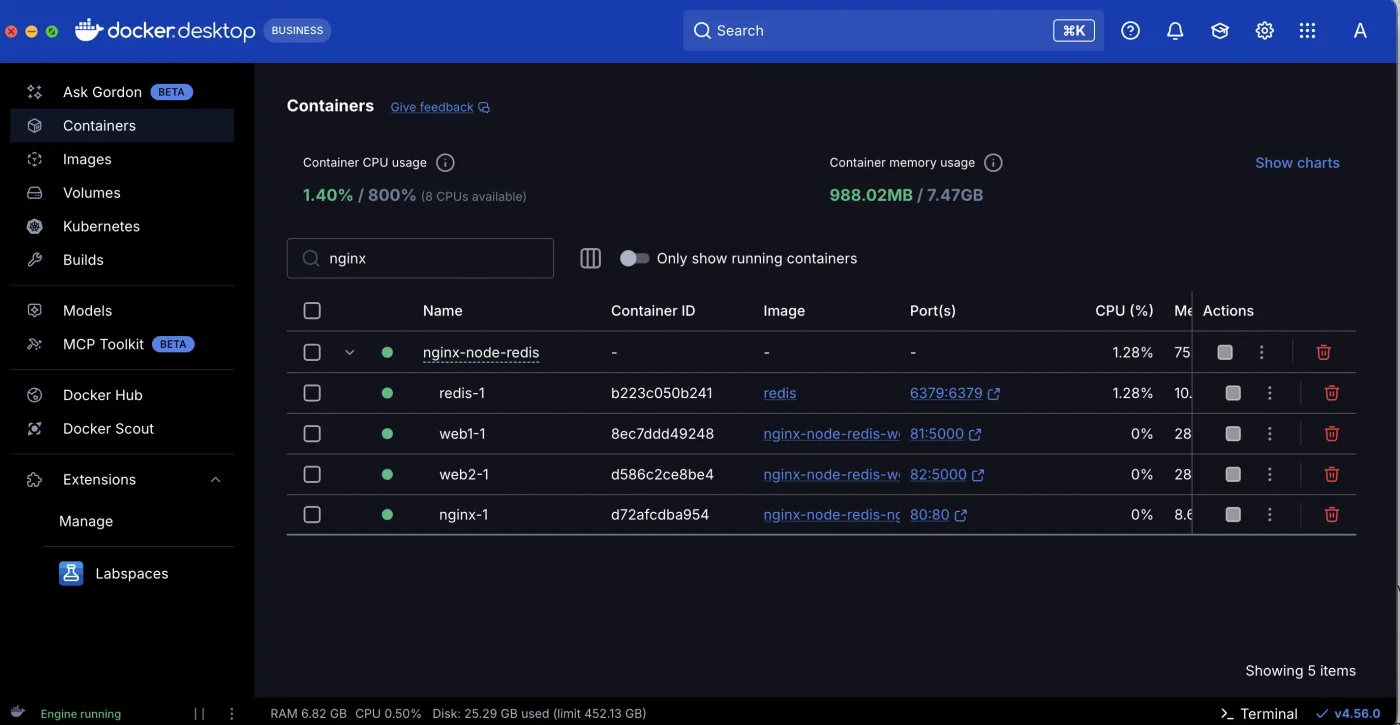
Each row represents a container:
- The green dot on the left means it is running; gray means it is stopped.
- Select the Image column to open the details page for that image.
- Port(s) shows port mappings such as
8080:80. Select it to openhttp://localhost:8080in your browser. - In Actions, the square stops a running container or the triangle starts a stopped one.
⋮opens more options (restart, open a terminal, and so on), and the trash can deletes the container. - The Only show running containers toggle is equivalent to
docker ps(without-a). - The search box filters by name, equivalent to
docker ps --filter name=....
Rows such as nginx-node-redis that can be expanded represent a Compose project. Expand one to see its services, as described below.
Ports
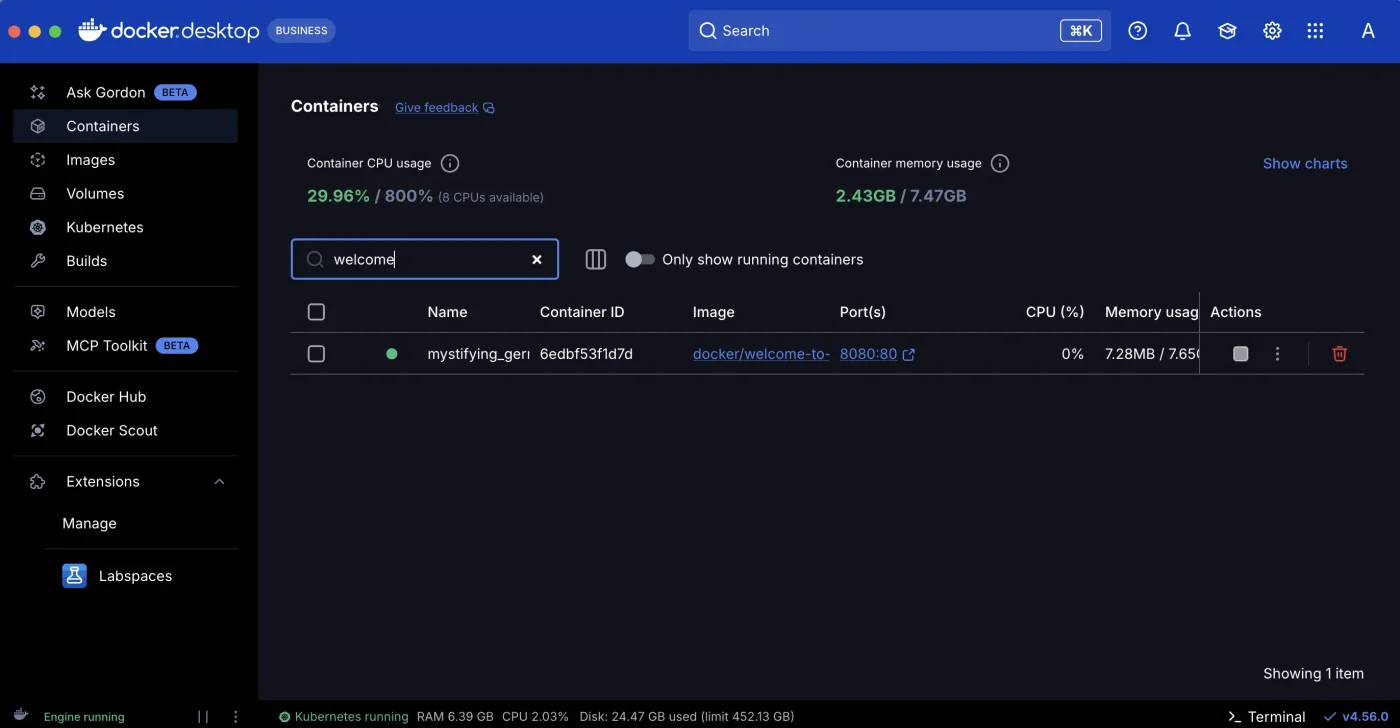
This corresponds to docker run -p 8080:80. See docker run options.
Stop or delete multiple containers
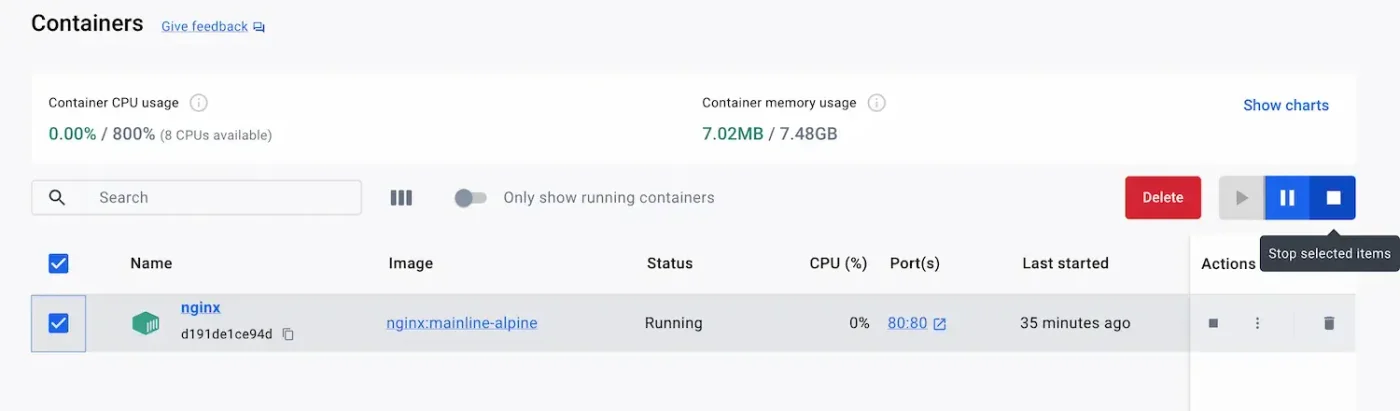
Select one or more containers. Delete and the start, pause, and stop buttons appear at the top. They correspond to docker rm -f, docker start, docker pause, and docker stop.
The container details page
Select a container name to open its details page. The top has buttons to stop, start, restart, and delete it, and the bottom has several tabs:
| Tab | Contents | Corresponding command |
|---|---|---|
| Logs | Container output, updated in real time and searchable | docker logs -f |
| Inspect | The container's full configuration (JSON) | docker inspect |
| Bind mounts | Host folders mounted in the container | docker inspect -f "{{json .Mounts}}" |
| Exec | Open a terminal inside the container | docker exec -it container sh |
| Files | Browse and edit files inside the container | docker exec, docker cp |
| Stats | Live charts for CPU, memory, network, and disk | docker stats |
Exec: run commands inside a container
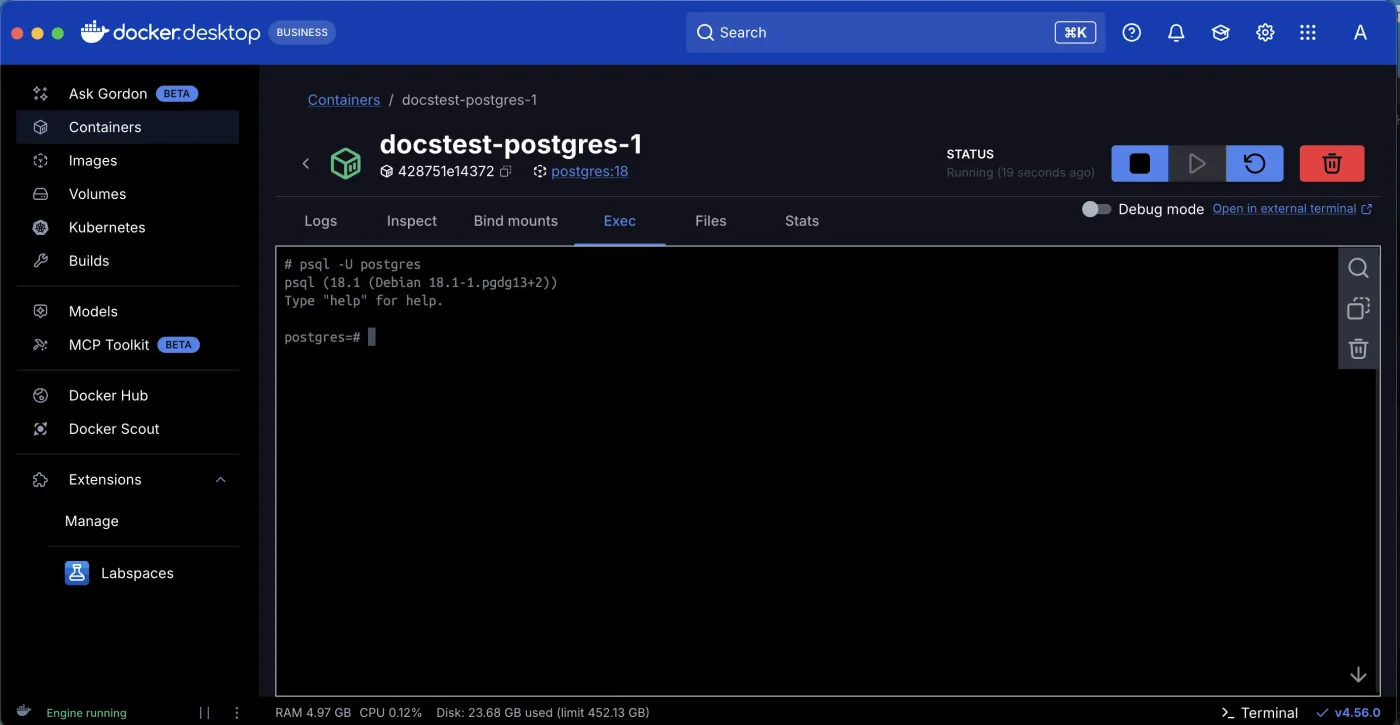
The Debug mode toggle switches to docker debug, which lets you get into a container even if it has no shell. Exec is enough for most situations. See View logs and debug.
Files: browse files inside a container
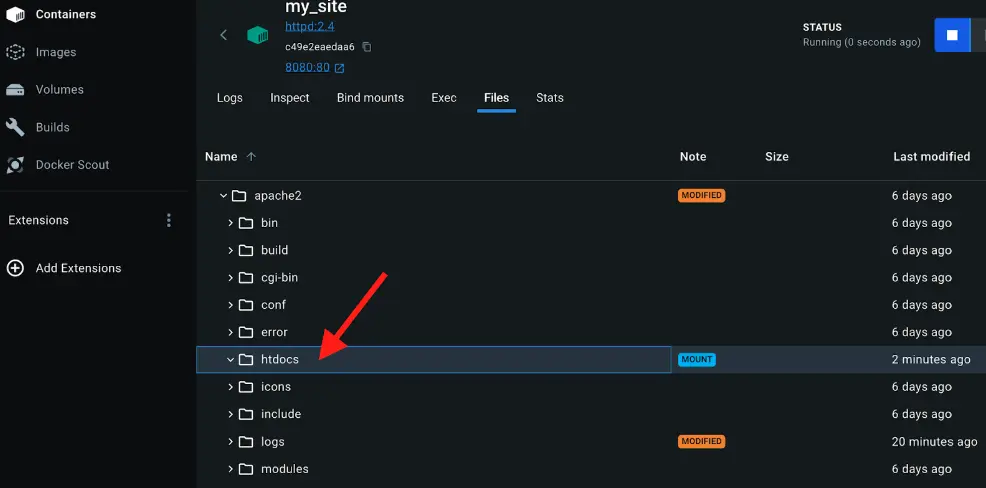
The Files tab displays the container's entire filesystem in a tree and marks:
- MOUNT: This folder is mounted from the host (a bind mount or volume).
- MODIFIED: This folder has changed compared with the image. These are the files that
docker diffwould list (see How it works under the hood).
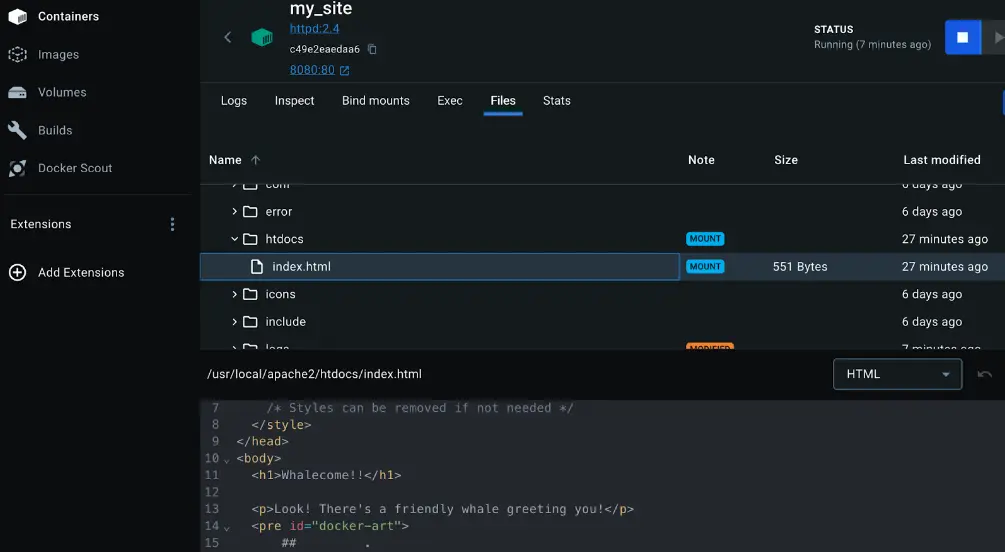
Select a file to view its contents directly. This is especially handy for checking whether a configuration file was actually mounted, and is equivalent to docker exec container cat file-path.
Compose projects
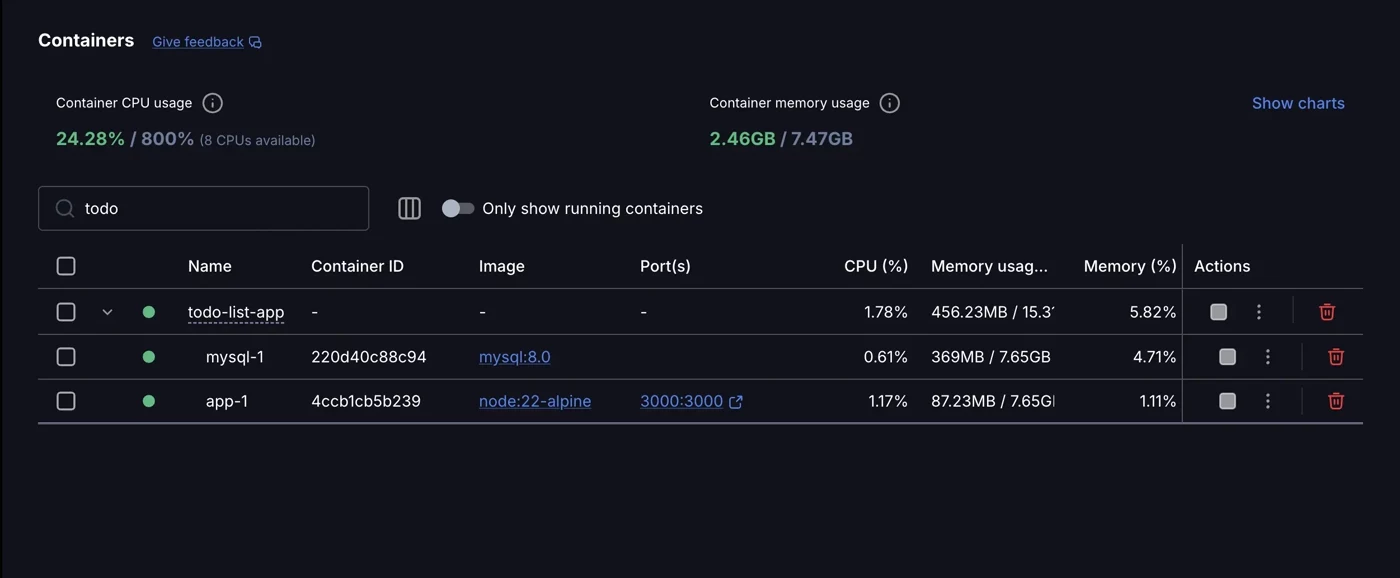
Projects started with docker compose up are grouped by project name (here, todo-list-app). Expand the group to see service containers such as mysql-1 and app-1. Selecting Stop or Delete for the group is equivalent to running docker compose stop or docker compose down for the whole project. See Get started with Docker Compose.
Images
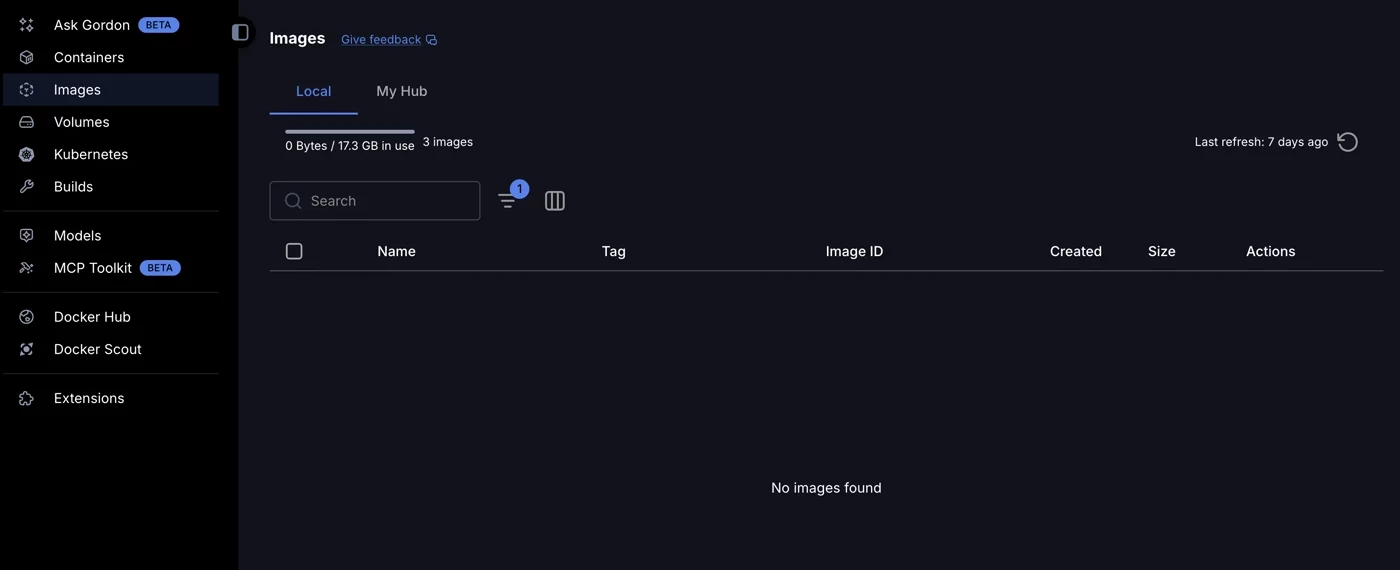
- Local: Local images, equivalent to
docker images. The total disk space used by images appears at the top. - My Hub: After you sign in, your Docker Hub repositories appear here.
- Select an image name to see its layers (see Images) and vulnerability scan results.
- The triangle in Actions starts a new container from the image; the trash can runs
docker rmi.
Search for and download images
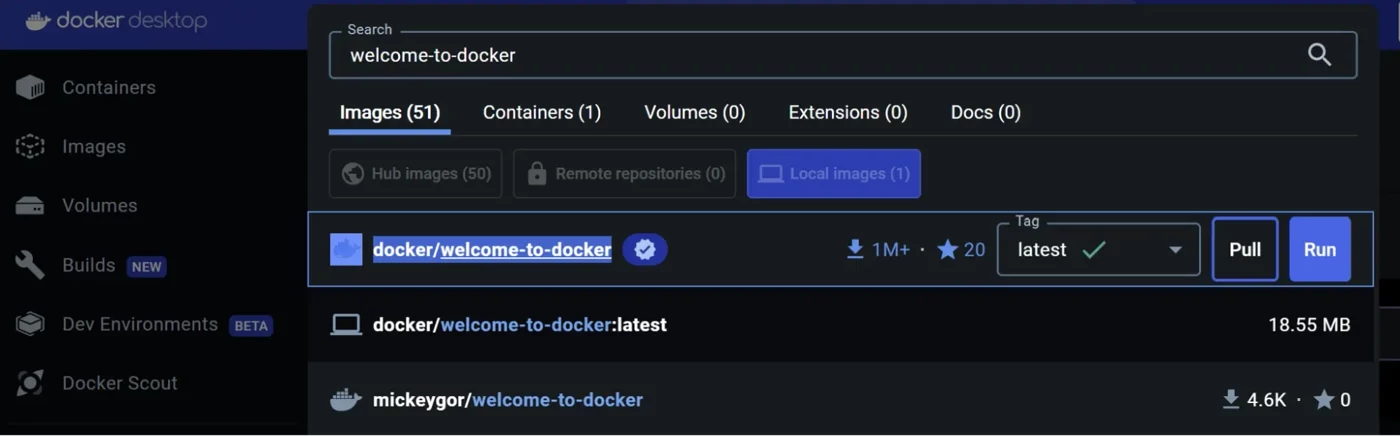
Enter a name in the search box at the top:
- A blue check mark indicates a Docker Official Image or an image from a verified publisher. Choose one of these first.
- On the right, you can see download counts and stars, and choose a tag (version).
- Pull is equivalent to
docker pull. Run downloads the image and starts it right away (a window opens where you can set the container name and ports).
Volumes and Settings
- Volumes: Lists all volumes. Open one to see its files and which containers use it, or export a backup. The corresponding commands are
docker volume lsanddocker volume inspect. See Volumes and data persistence. - Settings (gear icon in the upper-right):
- General: Start Docker Desktop when you sign in.
- Resources: Set the CPU, memory, and disk limits available to the virtual machine (when Windows uses WSL 2, WSL manages these limits).
- Docker Engine: Edit
daemon.jsondirectly, for example to set a log size limit.
- Troubleshoot (bug icon in the upper-right): Restart Docker, view diagnostic information, and clear all data (this deletes all images, containers, and volumes).
GUI and command reference
| What you want to do | Docker Desktop | Command |
|---|---|---|
| See which containers are available | Containers | docker ps -a |
| Open a website | Select the link under Port(s) | Open http://localhost:port in a browser |
| View logs | Container → Logs | docker logs -f container |
| Enter a container | Container → Exec | docker exec -it container sh |
| View files inside a container | Container → Files | docker exec container ls path |
| View resource usage | Container → Stats | docker stats |
| Stop / delete | Select → Stop / Delete | docker stop, docker rm |
| Download an image | Search → Pull | docker pull |
| Delete an image | Images → trash can | docker rmi |
| Check disk usage | Top of Images screen, status bar | docker system df |
Get comfortable with both approaches: the GUI makes it easy to check status day to day, while tutorials, scripts, and server deployments call for commands.
Recap
- Docker Desktop and the
dockercommands operate on the same Docker Engine, so both show the same content. - In the Containers list, select Port(s) to open a website; Compose projects appear as groups.
- The Logs, Exec, Files, and Stats tabs on the container details page are useful for debugging. Files marks MOUNT and MODIFIED items.
- When searching for images, start with official images that have a verified badge, and choose a fixed tag.
Exercises
Exercise 1: Start a container with the command docker run -d --name hello -p 8080:80 nginx:1.30-alpine, then find it in the Docker Desktop Containers list and select Port(s) to open the website.
Hint
A container created with a command appears in the list right away. Select 8080:80 to open http://localhost:8080 and see the nginx welcome page. When you finish, select the trash can in the interface to delete it, then use docker ps -a to confirm that it is gone.
Exercise 2: In the Files tab for the hello container, find the nginx home page file and write the corresponding command.
Answer
The file is at /usr/share/nginx/html/index.html. The corresponding command is:
docker exec hello cat /usr/share/nginx/html/index.htmlFAQ
Is there a difference between using the GUI and using commands?
No. Docker Desktop's interface calls the same Docker Engine. Containers you create in the interface also appear in docker ps, and containers you create with commands appear in the interface.
Is Docker Desktop available on Linux too?
There is a Linux version of Docker Desktop, but Linux servers usually have only Docker Engine installed and are operated with commands. The commands in this tutorial work in both environments.
What are Ask Gordon, Models, and MCP Toolkit in the sidebar?
These are AI-related features added to Docker Desktop (an AI assistant, running AI models locally, and MCP tools). They are not required for using containers, and this tutorial does not use them.
Why can CPU usage in the interface exceed 100%?
The limit is the number of cores × 100%. For example, with 8 CPUs, the limit is 800%. A container using one full core shows 100%.
Updated October 14, 2026