Contents
Docker Hub Tutorial: Push Images to Docker Hub and Private Registries
To run an image you built on your computer on a server or share it with your team, you need to push it to a Registry. Docker Hub is the most common option, followed by GitHub Container Registry (ghcr.io) and the registries offered by cloud platforms.
Image names determine where images are pushed
When you push, Docker uses the image name to determine which Registry and account to send it to (see Images for naming rules):
| Name | Push destination |
|---|---|
yourname/mysite:1.0.0 | The yourname account on Docker Hub |
ghcr.io/yourname/mysite:1.0.0 | GitHub Container Registry |
localhost:5000/mysite:1.0.0 | A private Registry on local port 5000 |
So before pushing, use docker tag to give the image the appropriate name.
What happens if you push without logging in?
First, see what happens when you push directly to Docker Hub without logging in:
$ docker tag nginx:1.30 yourname/mysite:1.0.0

$ docker push yourname/mysite:1.0.0
The push refers to repository [docker.io/yourname/mysite]
f4616bb1be1c: Unavailable
f1a6a629b824: Unavailable
3d774efa34e3: Unavailable
ecc510c1e359: Unavailable
push access denied, repository does not exist or may require authorization: server message: insufficient_scope: authorization failed
push access denied ... authorization failed: Docker Hub rejected the push because you are not logged in, and yourname is not your account. Follow the steps below to sign up, log in, and push.
Push to Docker Hub
1. Create an account
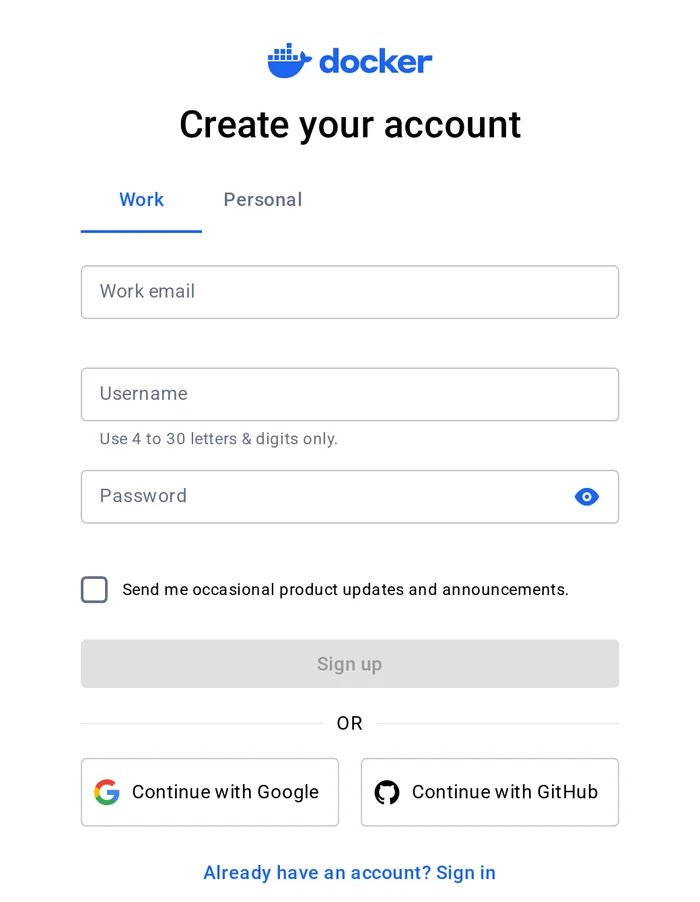
Sign up on the Docker website (you can use email or sign in with a Google or GitHub account). Username is the namespace at the start of your image names:
2. Create an access token and log in
We recommend creating a Personal Access Token in your Docker Hub account settings and using it instead of your password to log in. You can also limit its permissions, for example, to read and write but not delete.
docker login -u yournameWhen prompted, paste your access token. A successful login displays Login Succeeded.
3. Create a repository (optional)
Docker Hub automatically creates a repository the first time you push. To set a description in advance or make it private, click Create repository on the Docker Hub website:
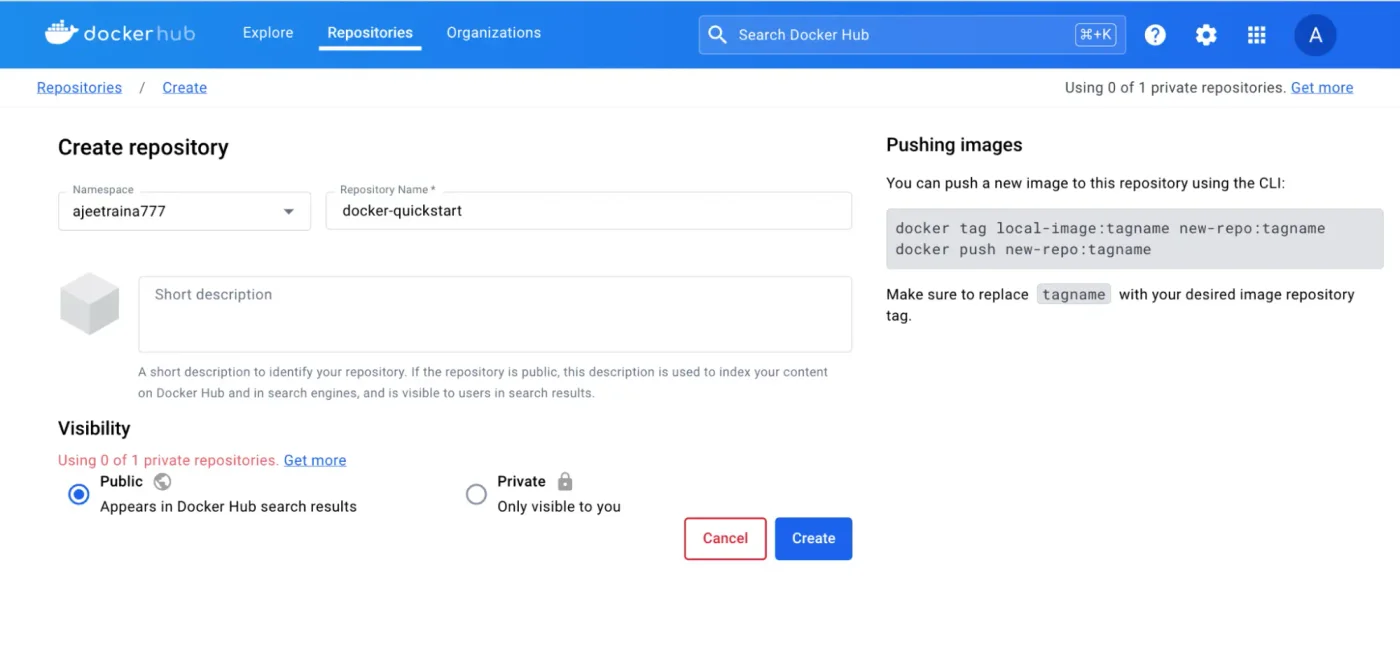
Repositories on Docker Hub are public by default. The free plan limits the number of private repositories; see Docker Hub's plan details.
4. Tag and push
docker build -t yourname/mysite:1.0.0 -t yourname/mysite:latest .
docker push yourname/mysite:1.0.0
docker push yourname/mysite:latest
You can use -t multiple times to assign several names at once. You can also push every tag at once with docker push --all-tags yourname/mysite. The push output has the same format as the example under "Run a private Registry" below.
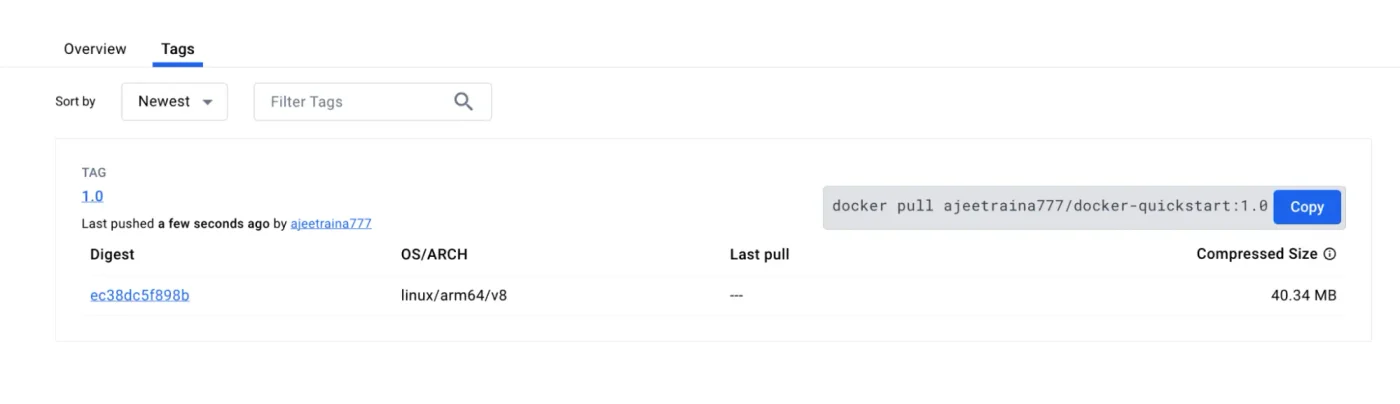
After pushing, the Tags tab in your Docker Hub repository shows each tag and the command others can use to pull it:
5. Use the image on another machine
docker pull yourname/mysite:1.0.0
docker run -d -p 8080:80 yourname/mysite:1.0.0
Run a private Registry: push and pull in practice
Docker provides an official registry image that lets you quickly run a private Registry. This is also the easiest way to try pushing an image yourself, without needing an account:
$ docker run -d -p 5000:5000 --restart unless-stopped -v registry-data:/var/lib/registry --name registry registry:3
Unable to find image 'registry:3' locally
3: Pulling from library/registry
e2de96513ba9: Already exists
90764beeca7f: Pull complete
8dc2188d2a74: Pull complete
783ed5b12fca: Pull complete
2aef3a8beb68: Pull complete
Digest: sha256:ddf754342cfc8acc51a56d5d0ab6af06826461864460636d8bd5c546dab2a7b8
Status: Downloaded newer image for registry:3
c5d02febbf0fd6d8c17e6818990adb28fd0a97c380a0d4c0a58ec793f685e4a0
Tag and push the image:
$ docker tag nginx:1.30 localhost:5000/mysite:1.0.0

$ docker tag nginx:1.30 localhost:5000/mysite:latest

$ docker push localhost:5000/mysite:1.0.0
The push refers to repository [localhost:5000/mysite]
3d774efa34e3: Pushed
ecc510c1e359: Pushed
f4616bb1be1c: Pushed
f1a6a629b824: Pushed
cb44c3fe542b: Pushed
121907e00c1c: Pushed
220a6ac36368: Pushed
1.0.0: digest: sha256:6e2a172ae5503c0df64cd3294b57c86394ced402016a8cc45436086fa51f5d02 size: 2288

i Info → Not all multiplatform-content is present and only the available single-platform image was pushed
         sha256:9bf97bd7714f5e24c1ccd545ecb9eb5435cb6d109c97cebb15e7e455e0239edb -> sha256:6e2a172ae5503c0df64cd3294b57c86394ced402016a8cc45436086fa51f5d02

$ docker push --all-tags localhost:5000/mysite
The push refers to repository [localhost:5000/mysite]
220a6ac36368: Layer already exists
3d774efa34e3: Layer already exists
ecc510c1e359: Layer already exists
f4616bb1be1c: Layer already exists
f1a6a629b824: Layer already exists
cb44c3fe542b: Layer already exists
121907e00c1c: Layer already exists
1.0.0: digest: sha256:6e2a172ae5503c0df64cd3294b57c86394ced402016a8cc45436086fa51f5d02 size: 2288
220a6ac36368: Layer already exists
3d774efa34e3: Layer already exists
ecc510c1e359: Layer already exists
f4616bb1be1c: Layer already exists
f1a6a629b824: Layer already exists
cb44c3fe542b: Layer already exists
121907e00c1c: Layer already exists
latest: digest: sha256:6e2a172ae5503c0df64cd3294b57c86394ced402016a8cc45436086fa51f5d02 size: 2288

i Info → Not all multiplatform-content is present and only the available single-platform image was pushed
         sha256:9bf97bd7714f5e24c1ccd545ecb9eb5435cb6d109c97cebb15e7e455e0239edb -> sha256:6e2a172ae5503c0df64cd3294b57c86394ced402016a8cc45436086fa51f5d02

i Info → Not all multiplatform-content is present and only the available single-platform image was pushed
sha256:9bf97bd7714f5e24c1ccd545ecb9eb5435cb6d109c97cebb15e7e455e0239edb -> sha256:6e2a172ae5503c0df64cd3294b57c86394ced402016a8cc45436086fa51f5d02- On the first push, every layer is marked Pushed (uploaded).
- When you push
latestwith--all-tags, every layer is marked Layer already exists:1.0.0andlatestare the same image, and the Registry already has these layers, so it does not need to upload them again. - The final
Infois a notice from Docker 29: only thelinux/amd64platform of nginx was pulled locally, so that is the only platform pushed. To push a multi-platform image, see Multi-platform images.
Use the Registry API to check its contents:
$ curl -s http://localhost:5000/v2/_catalog
{"repositories":["mysite"]}

$ curl -s http://localhost:5000/v2/mysite/tags/list
{"name":"mysite","tags":["1.0.0","latest"]}
Remove the local image, then pull it back from your Registry:
$ docker rmi localhost:5000/mysite:1.0.0 localhost:5000/mysite:latest
Untagged: localhost:5000/mysite:1.0.0
Untagged: localhost:5000/mysite:latest

$ docker pull localhost:5000/mysite:1.0.0
1.0.0: Pulling from mysite
Digest: sha256:6e2a172ae5503c0df64cd3294b57c86394ced402016a8cc45436086fa51f5d02
Status: Downloaded newer image for localhost:5000/mysite:1.0.0
localhost:5000/mysite:1.0.0
This Registry has no account authentication or HTTPS, so use it only for testing on your computer or internal network. You can use a Registry at
localhostdirectly; Docker rejects HTTP registries at other addresses unless you configureinsecure-registries. For production, add TLS and authentication, or use a Registry provided by a cloud platform, such as AWS ECR, Google Artifact Registry, or Azure Container Registry.
Push to GitHub Container Registry (ghcr.io)
This is a good fit for projects hosted on GitHub. First, create a Personal Access Token on GitHub with the write:packages permission, then:
echo $GITHUB_TOKEN | docker login ghcr.io -u your-github-username --password-stdin
docker tag mysite ghcr.io/your-account/mysite:1.0.0
docker push ghcr.io/your-account/mysite:1.0.0
--password-stdin reads the password from standard input to keep it out of your command history.
Tag naming recommendations
| Practice | Example | Description |
|---|---|---|
| Semantic versioning | 1.4.2, 1.4, 1 | Push multiple levels so users can choose how much they want to update |
| Git commit | sha-3f2a1c9 | Each image can be traced to the exact source code |
| Environment | staging, production | Mutable tags that point to the currently deployed version |
latest | latest | Convenient for trying an image, but do not rely on it in production |
For production deployments, use a fixed version number so you know which version is running on the server and can quickly roll back to the previous one (see Deploy to a cloud server).
Log out and credentials
docker logout
docker logout ghcr.io
Login information is stored in ~/.docker/config.json by default. Docker Desktop uses the operating system's credential manager (Windows Credential Manager or macOS Keychain), which is more secure.
Recap
- The prefix of an image name determines which Registry receives the push.
- Log in with an access token; do not use your account password.
- Use
docker tagto add the destination name, then rundocker push. - Use a fixed version tag in production; do not rely on
latest.
Exercises
Exercise 1: Use the method in this chapter to start a local Registry (registry:3, mapped to port 5000), push alpine:3.23 to it, remove the local copy, then pull it back.
Answer
docker run -d -p 5000:5000 --name registry registry:3
docker tag alpine:3.23 localhost:5000/alpine:3.23
docker push localhost:5000/alpine:3.23
docker rmi localhost:5000/alpine:3.23
docker pull localhost:5000/alpine:3.23
FAQ
Why do I get denied: requested access to the resource is denied when pushing?
Usually, you are not logged in, or the account part of the image name is not your account. Use yourname/repository:tag and run docker login first.
Do Docker Hub private repositories cost money?
Free accounts can create a limited number of private repositories. Check Docker Hub's official plan details for current limits. You can also use GitHub Container Registry.
Can I push images automatically?
You can use GitHub Actions to build and push automatically whenever you push code or create a version tag. See [Automated builds with GitHub Actions](/docker/ci-cd/).
Updated October 14, 2026