Contents
Docker Images Tutorial: Pull, Tag, Inspect, and Understand Image Layers
An image is a template for creating a container. Behind the docker run nginx:1.30 command from the previous section, Docker first downloaded the nginx:1.30 image. This section explains image naming, downloading, viewing, and removing images, as well as their “layer by layer” structure.
Image name components
A complete image name looks like this:
docker.io/library/nginx:1.30-alpine
└───┬───┘ └──┬──┘ └─┬─┘ └────┬────┘
registry namespace name tag| Part | Description | Default when omitted |
|---|---|---|
| registry | Server that stores images | docker.io (Docker Hub) |
| namespace | User or organization name | library for official images |
| name (repository) | Image name | Required |
| tag | Version label | latest |
These three forms refer to the same image:
docker pull nginx
docker pull nginx:latest
docker pull docker.io/library/nginx:latest
For images in other registries, include the full address, such as GitHub's ghcr.io/owner/app:1.0 or Google's gcr.io/distroless/static-debian13.
Common tag names
Official images usually offer several variants:
| Example tag | Meaning |
|---|---|
python:3.14 | Full Debian-based version with many packages, including build tools |
python:3.14-slim | Minimal Debian version with only what's needed to run Python |
python:3.14-alpine | Based on Alpine Linux; the smallest in size |
node:24-trixie | Specifies the Debian release codename (trixie = Debian 13) |
nginx:1.30 / nginx:1.31 | nginx stable (even-numbered) and mainline (odd-numbered) versions |
Later in this section, you'll download these three Python images and compare their sizes.
Download images: docker pull
If an image isn't on your machine when you run docker run, Docker downloads it automatically. docker pull only downloads the image; it doesn't run it. If you run pull again for an image you already have, Docker checks for updates:
$ docker pull nginx:1.30
1.30: Pulling from library/nginx
Digest: sha256:9bf97bd7714f5e24c1ccd545ecb9eb5435cb6d109c97cebb15e7e455e0239edb
Status: Image is up to date for nginx:1.30
docker.io/library/nginx:1.30
Image is up to date means your local image is already current, so nothing was downloaded again. The last line is the full image name, showing the default registry docker.io and namespace library.
See shared layers for yourself
Next, download another version of nginx, 1.31:
$ docker pull nginx:1.31
1.31: Pulling from library/nginx
ecc510c1e359: Already exists
807ab930f3a0: Pull complete
04bdbc7ea6b5: Pull complete
f7e1db57b58b: Pull complete
8020170dc65f: Pull complete
1efc53192927: Pull complete
947d22046304: Pull complete
Digest: sha256:f9ea18bfa4fad859e1ed38259d711da7ccad2c3516e875cec3351a57c859f571
Status: Downloaded newer image for nginx:1.31
docker.io/library/nginx:1.31
The first layer, ecc510c1e359, says Already exists: nginx 1.30 and 1.31 both start from the same Debian 13 base layer. That layer is already on disk, so Docker doesn't need to download it again. This is the “images share base layers” idea from Section 1.
The same thing happens when you download python:3.14-slim, which is also based on Debian 13:
$ docker pull python:3.14-slim
3.14-slim: Pulling from library/python
ecc510c1e359: Already exists
a5883d972f3b: Pull complete
6aaf5b0aae75: Pull complete
bb8166eb34e6: Pull complete
Digest: sha256:a2b82f3c48559aa0a8446d9af49826b6e2b2016f4cd2afabfe6013ec53729170
Status: Downloaded newer image for python:3.14-slim
docker.io/library/python:3.14-slim
View local images: docker images
$ docker images
IMAGE                ID             DISK USAGE   CONTENT SIZE   EXTRA
hello-world:latest   5e2309035332       25.9kB         9.49kB   U
nginx:1.30           9bf97bd7714f        242MB         66.5MB
nginx:1.31           f9ea18bfa4fa        243MB         66.7MB
ubuntu:26.04         f144425ff09b        162MB         45.6MB
Docker 29's
docker imagesoutput format differs from older versions. Older versions have the fieldsREPOSITORY TAG IMAGE ID CREATED SIZE, and many tutorials online still show that format. Don't worry if yours looks different; the information is the same.
| Field | Meaning |
|---|---|
| IMAGE | Name and tag |
| ID | First 12 characters of the image ID |
| DISK USAGE | Space used on disk after extraction |
| CONTENT SIZE | Compressed content size, roughly equal to the download size |
| EXTRA | U means a container is using this image (In use); here, it's the hello-world container left over from the previous section |
docker image ls and docker images are the same command. Common ways to filter the results:
$ docker images -q
b9767f56a1cc
a2b82f3c4855
9bf97bd7714f
f9ea18bfa4fa
f6a589d43c42
f144425ff09b
5e2309035332
-q outputs only IDs and is often used with other commands for batch processing. docker images nginx lists only nginx images, while docker images --filter dangling=true lists “dangling” images without a name (usually old versions replaced by a rebuild).
Compare slim, alpine, and full images
Download two more Python versions:
$ docker pull python:3.14-alpine
3.14-alpine: Pulling from library/python
e2de96513ba9: Pull complete
48f6a2588427: Pull complete
2a22c5887fa2: Pull complete
d486488257d0: Pull complete
Digest: sha256:f6a589d43c42b9e7f7dc67a12d37132491f362859a5d750607710cc56da3bc72
Status: Downloaded newer image for python:3.14-alpine
docker.io/library/python:3.14-alpine

$ docker pull python:3.14
3.14: Pulling from library/python
4846f2900730: Pull complete
62fe2e747f69: Pull complete
4dc3950125eb: Pull complete
b2eb680928d4: Pull complete
083b5813628d: Pull complete
9b0ef59a9f4a: Pull complete
6e255bfcc16c: Pull complete
Digest: sha256:b9767f56a1cc620aa72d38cc3557d26412e38a4597c92953476136b78894ccbd
Status: Downloaded newer image for python:3.14
docker.io/library/python:3.14
$ docker images python
IMAGE ID DISK USAGE CONTENT SIZE EXTRA
python:3.14 b9767f56a1cc 1.63GB 433MB
python:3.14-alpine f6a589d43c42 82.6MB 21MB
python:3.14-slim a2b82f3c4855 180MB 45.7MBThe size difference is substantial, even though they're all Python 3.14:
| Version | Download size (CONTENT SIZE) | Disk space (DISK USAGE) |
|---|---|---|
python:3.14 | 433 MB | 1.63 GB |
python:3.14-slim | 45.7 MB | 180 MB |
python:3.14-alpine | 21 MB | 82.6 MB |
- Full includes build tools such as gcc. Use it when you need to compile packages in the image (or as the build stage in a multi-stage build).
- slim is a good choice for most applications.
- alpine is the smallest, but it uses musl instead of glibc. Installing some packages that need compilation (such as some Python packages) can be more difficult on Alpine. When in doubt,
slimis usually the safer choice.
Add a tag to an image: docker tag
docker tag doesn't copy an image; it adds another name that points to the same content:
$ docker tag nginx:1.30 myname/nginx:v1

$ docker images --filter reference=nginx:1.30 --filter reference=myname/nginx
IMAGE             ID             DISK USAGE   CONTENT SIZE   EXTRA
myname/nginx:v1   9bf97bd7714f        242MB         66.5MB
nginx:1.30        9bf97bd7714f        242MB         66.5MB
The IDs are the same, which means both names refer to the same image. Before pushing to Docker Hub, you need to name the image in the form your-account/name:tag. See Push to Docker Hub.
A tag isn't a fixed version
A tag is just a “label.” Maintainers can point it to new content at any time. Next month, nginx:1.30 might point to 1.30.6. If you need to pin the content exactly, use a digest (a SHA256 hash of the content):
$ docker images --digests nginx
REPOSITORY   TAG       DIGEST                                                                    IMAGE ID       CREATED      SIZE
nginx        1.30      sha256:9bf97bd7714f5e24c1ccd545ecb9eb5435cb6d109c97cebb15e7e455e0239edb   9bf97bd7714f   6 days ago   242MB
nginx        1.31      sha256:f9ea18bfa4fad859e1ed38259d711da7ccad2c3516e875cec3351a57c859f571   f9ea18bfa4fa   6 days ago   243MB
docker pull nginx@sha256:9bf97bd7714f5e24c1ccd545ecb9eb5435cb6d109c97cebb15e7e455e0239edbDownloading by digest always gives you exactly the same content.
Remove images: docker rmi
You can't remove an image while a container (including a stopped one) is using it:
$ docker run -d --name web nginx:1.30
e34409bcf1727f02fc3b0558d202dd057f2116b4a2e9186f83bbed4625842272

$ docker rmi nginx:1.30
Error response from daemon: conflict: unable to delete nginx:1.30 (must be forced) - container e34409bcf172 is using its referenced image 9bf97bd7714f
Remove the container that uses the image first, then remove the image:
$ docker rm -f web
web

$ docker rmi nginx:1.30
Untagged: nginx:1.30
Deleted: sha256:9bf97bd7714f5e24c1ccd545ecb9eb5435cb6d109c97cebb15e7e455e0239edbUntagged: removes the name.Deleted: the image itself is deleted only when no other names point to it. If an alias such asmyname/nginx:v1still points to the same image, you'll see onlyUntagged.
Clean up images you don't need:
docker image prune      # Remove dangling images only (unnamed <none> images)
docker image prune -a   # Remove all images not used by containers
Image layers: docker history
docker history lists each image layer and the Dockerfile instruction that created it:
$ docker history nginx:1.30
IMAGE          CREATED      CREATED BY                                      SIZE      COMMENT
9bf97bd7714f   6 days ago   CMD ["nginx" "-g" "daemon off;"]                0B        buildkit.dockerfile.v0
<missing>      6 days ago   STOPSIGNAL SIGQUIT                              0B        buildkit.dockerfile.v0
<missing>      6 days ago   EXPOSE map[80/tcp:{}]                           0B        buildkit.dockerfile.v0
<missing>      6 days ago   ENTRYPOINT ["/docker-entrypoint.sh"]            0B        buildkit.dockerfile.v0
<missing>      6 days ago   COPY 30-tune-worker-processes.sh /docker-ent…   16.4kB    buildkit.dockerfile.v0
<missing>      6 days ago   COPY 20-envsubst-on-templates.sh /docker-ent…   12.3kB    buildkit.dockerfile.v0
<missing>      6 days ago   COPY 15-local-resolvers.envsh /docker-entryp…   12.3kB    buildkit.dockerfile.v0
<missing>      6 days ago   COPY 10-listen-on-ipv6-by-default.sh /docker…   12.3kB    buildkit.dockerfile.v0
<missing>      6 days ago   COPY docker-entrypoint.sh / # buildkit          8.19kB    buildkit.dockerfile.v0
<missing>      6 days ago   RUN /bin/sh -c set -x     && groupadd --syst…   88.2MB    buildkit.dockerfile.v0
<missing>      6 days ago   ENV DYNPKG_RELEASE=1~trixie                     0B        buildkit.dockerfile.v0
<missing>      6 days ago   ENV PKG_RELEASE=1~trixie                        0B        buildkit.dockerfile.v0
<missing>      6 days ago   ENV ACME_VERSION=0.4.1                          0B        buildkit.dockerfile.v0
<missing>      6 days ago   ENV NJS_RELEASE=1~trixie                        0B        buildkit.dockerfile.v0
<missing>      6 days ago   ENV NJS_VERSION=1.0.1                           0B        buildkit.dockerfile.v0
<missing>      6 days ago   ENV NGINX_VERSION=1.30.5                        0B        buildkit.dockerfile.v0
<missing>      6 days ago   LABEL maintainer=NGINX Docker Maintainers <d…   0B        buildkit.dockerfile.v0
<missing>      7 days ago   # debian.sh --arch 'amd64' out/ 'trixie' '@1…   87.7MB    debuerreotype 0.17
Read from bottom to top:
- The bottom layer is Debian 13 (trixie), at 87.7 MB.
- The
RUN ... groupadd ...command in the middle installed nginx itself. At 88.2 MB, it's the largest layer. COPYadds startup scripts, which are only a few KB each.ENV,EXPOSE,CMD, and similar instructions only set configuration, so their size is 0B.
<missing> isn't an error. It means those intermediate layers were built on another machine, so they don't have standalone IDs on this machine.
Layers provide two benefits:
- Sharing: When multiple images use Debian 13 as a base, that layer is stored and downloaded only once (as shown earlier by
Already exists). - Caching: When building an image, unchanged layers can be reused directly. This is the basis of the build cache.
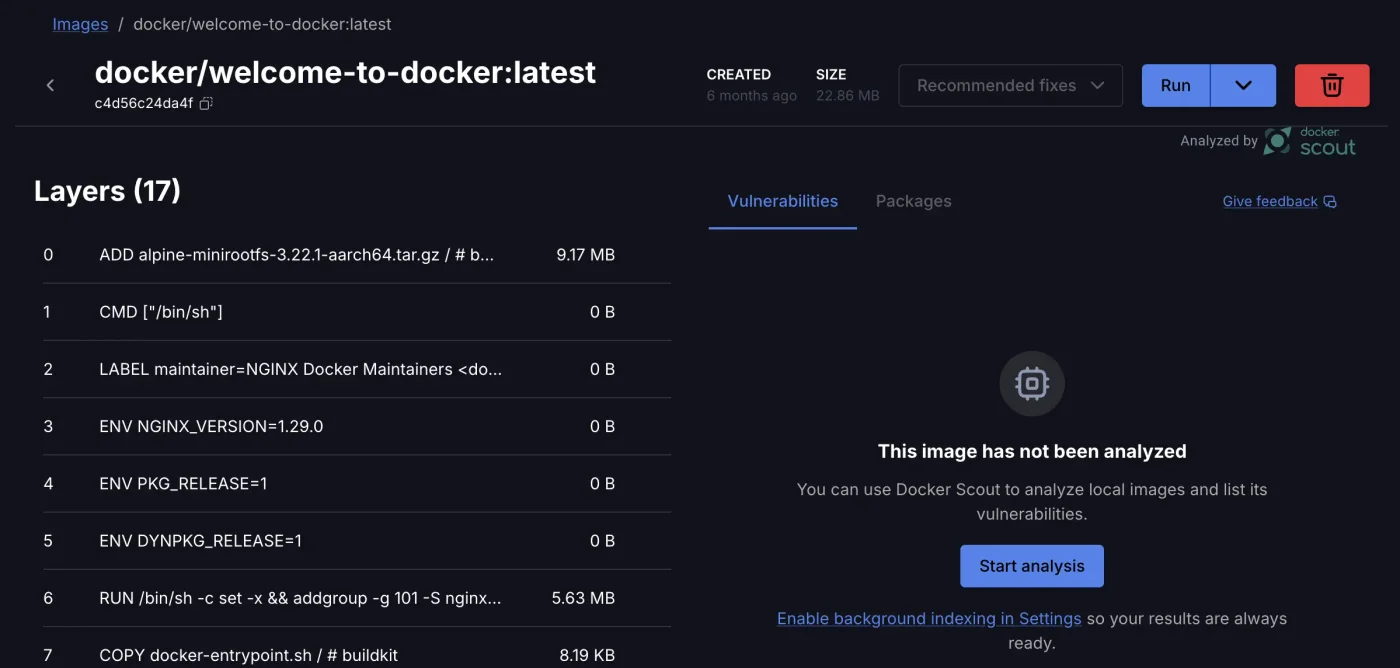
When a container starts, Docker adds a writable layer on top of these read-only layers. New or modified files inside the container are written to this layer. It disappears when you remove the container, so store data you need to keep in a Volume.
In Docker Desktop, you can also click an image to see the same layer information:
View image configuration: docker inspect
docker inspect outputs the full image configuration (a large block of JSON). Use --format to select only the fields you need:
$ docker inspect --format '{{.Config.Cmd}}' nginx:1.30
[nginx -g daemon off;]

$ docker inspect --format '{{.Os}}/{{.Architecture}}' nginx:1.30
linux/amd64

$ docker inspect --format '{{json .Config.ExposedPorts}}' nginx:1.30
{"80/tcp":{}}

$ docker inspect --format '{{range .Config.Env}}{{println .}}{{end}}' nginx:1.30
PATH=/usr/local/sbin:/usr/local/bin:/usr/sbin:/usr/bin:/sbin:/bin
NGINX_VERSION=1.30.5
NJS_VERSION=1.0.1
NJS_RELEASE=1~trixie
ACME_VERSION=0.4.1
PKG_RELEASE=1~trixie
DYNPKG_RELEASE=1~trixie
This tells you that the container runs nginx -g daemon off; by default, this is the linux/amd64 version, port 80 is exposed, and the image has built-in environment variables.
Export and import: docker save / load
When moving images between machines without network access, you can save an image as a tar file:
$ docker save -o nginx-1.30.tar nginx:1.30

$ ls -lh nginx-1.30.tar
-rw-------    1 root     root       63.4M Oct 12 14:41 nginx-1.30.tar

$ docker rmi nginx:1.30
Untagged: nginx:1.30
Deleted: sha256:9bf97bd7714f5e24c1ccd545ecb9eb5435cb6d109c97cebb15e7e455e0239edb

$ docker load -i nginx-1.30.tar
Loaded image: nginx:1.30
Copy the tar file to another machine and run docker load to use the image. You don't need to connect to Docker Hub.
Manage images with Docker Desktop
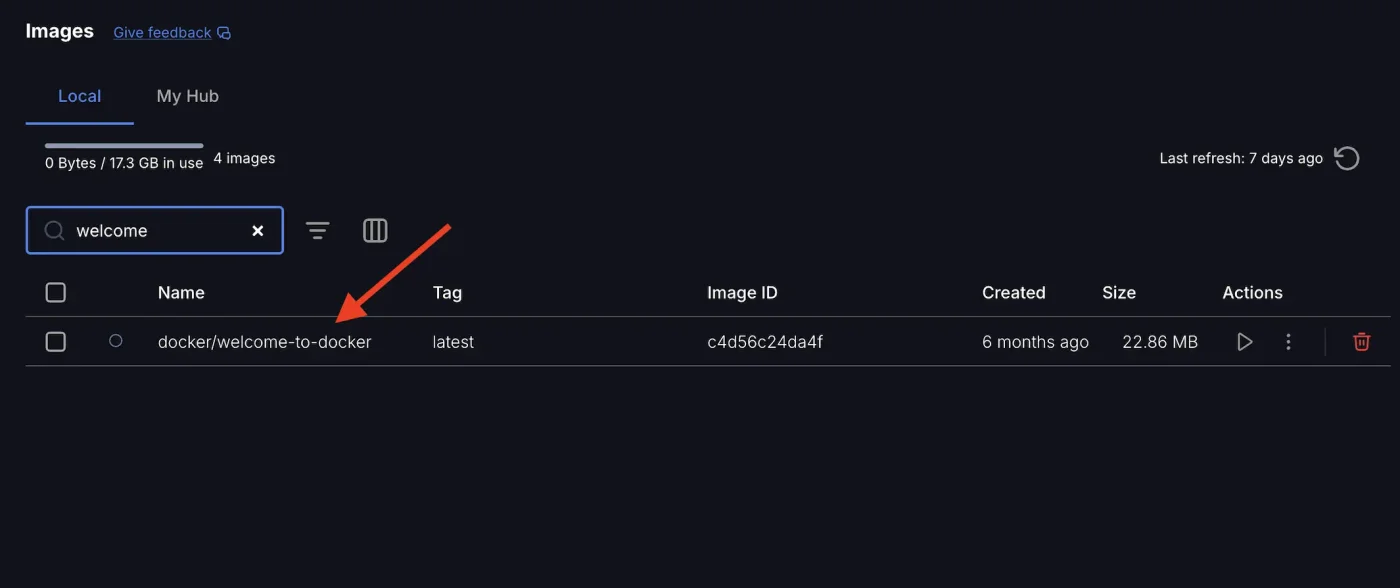
Select Images in the Docker Desktop sidebar to see all local images, just as with docker images. You can use the buttons on the right to run or remove an image:
Command reference
| Command | Purpose |
|---|---|
docker pull name:tag | Download an image |
docker images | List local images |
docker images -q | List IDs only |
docker tag source new-name | Add a new name / tag |
docker rmi name | Remove an image |
docker image prune -a | Remove all unused images |
docker history name | View layers |
docker inspect name | View configuration |
docker save -o a.tar name | Export to a tar file |
docker load -i a.tar | Import from a tar file |
The next section introduces the states a container goes through, from creation to removal.
Recap
- An image name has the form
[registry/]repository:tag; official images omit the prefix. - Multiple images can share the same base layer, which is downloaded and stored only once.
- slim is a good choice for most applications; alpine is the smallest but has lower compatibility.
docker historyshows which instruction created each layer.
Exercises
Exercise 1: Download alpine:3.23 and python:3.14-alpine. Check whether Already exists appears during the second download.
Hint
If both use the same Alpine base layer, the second download will show Already exists for that layer and won't download it again. Use docker history to compare the bottom layer of each image.
Exercise 2: Add a new name, mysite/web:test, to nginx:1.30, then remove that new name. Is the original nginx:1.30 still there?
Answer
docker tag nginx:1.30 mysite/web:test
docker rmi mysite/web:test
Yes. When docker rmi removes a name, it only displays Untagged. As long as the image has another name, its content isn't removed.
FAQ
Is latest the latest version?
Not necessarily. latest is just an ordinary tag name, and its owner decides which version it points to. In production, specify an explicit version, such as nginx:1.30.
Why do the fields in Docker 29's docker images output look different from what I see online?
Docker 29 changed the format to IMAGE ID DISK USAGE CONTENT SIZE EXTRA. Older versions use REPOSITORY TAG IMAGE ID CREATED SIZE. See this chapter for details.
Should I choose slim or alpine?
For most applications, choose slim. Alpine is the smallest, but it uses musl libc, so installing some packages that need compilation (especially Python packages) can fail or take a long time.
Updated October 14, 2026